Retentions linked to jobs
Keeps retention held, due and released in a register linked to the job and its Money tab.
Use retention registers to track amounts withheld and later released against a job instead of relying on scattered invoice notes.
Before you start
Availability: Team plan and above. Enabled business features, role permissions, connected providers and supported devices may add requirements.
Documented roles: Owner, Office. A role name alone does not override the permissions set by your business.
Where to find it: Money > Retentions > Job Money.
Confirm the counterparty, inbound or outbound direction, retained amount and agreed release rules. Link the correct job so the Money tab can show the register.
Using this guide in United States
- Set your business country in Business settings before entering customer addresses or preparing documents. The country selected on the public website does not change an existing business.
- Check the business currency (USD), time zone and document tax settings. Only enable tax collection if your business is registered and the settings match your requirements. Your customer invoice tax settings are separate from tax on your AllQuote subscription.
- Screenshots use demonstration records. Their sample currency, addresses and tax amounts do not override your business settings.
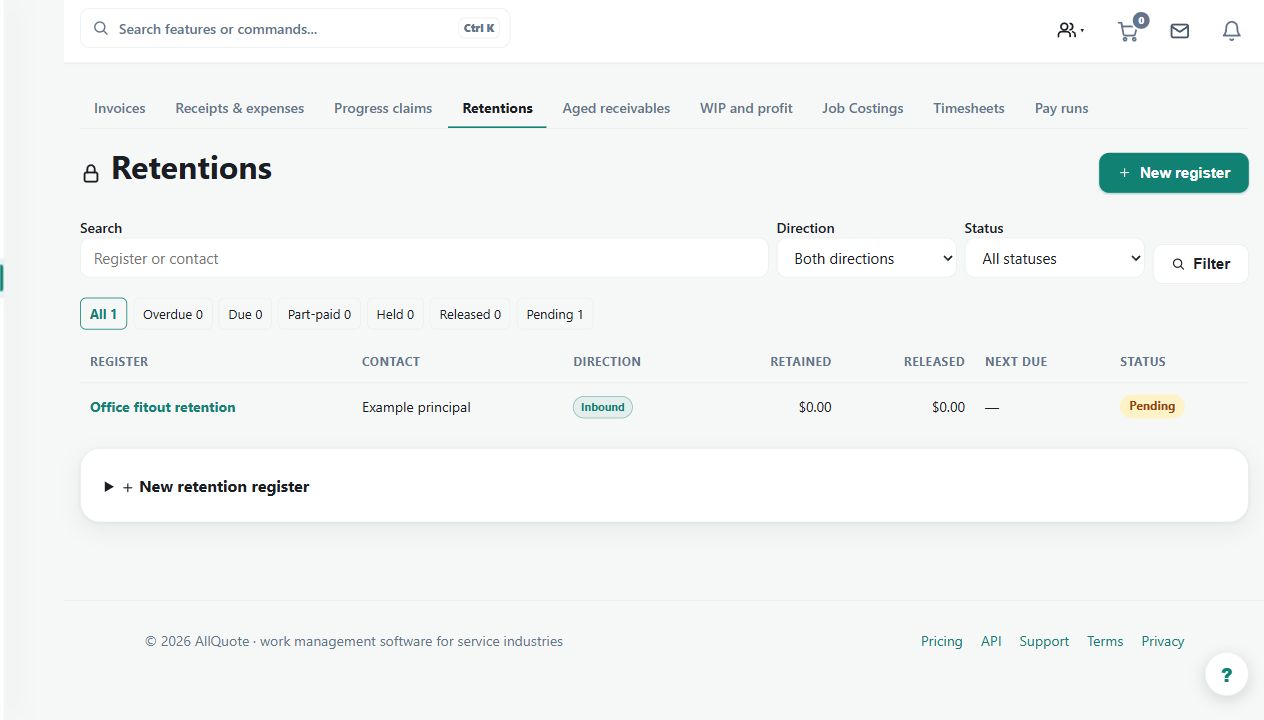
Step by step
- Open Retentions or start a new register from the job's Money tab.
- Choose the job, counterparty and inbound or outbound direction, then enter the retained value and release rules.
- Record each amount withheld, adjusted or released so the remaining balance and due status stay current.
- Use the job Money tab to review linked registers, progress-claim links, releases and the event history.
Worked example
An illustrative $5,000 hold has $2,500 released after an agreed milestone. Record the hold and release events, then review the remaining $2,500 and its due conditions.
This is an illustrative scenario. Use your own approved scope, quantities, rates and business rules.
Check the result
Reconcile held, adjusted and released events to the balance and linked claim or invoice evidence. Check dates and direction before reporting money due.
Limits and troubleshooting
Recording a release is not a guarantee that funds have settled. Release rules reflect the agreement entered by the business; verify the contractual basis and accounting treatment separately.
Check current plans and feature availability · Browse every guide