Amend or refund an invoice
Uses one decision flow for unpaid corrections, cancellations and paid refunds while keeping an immutable money history.
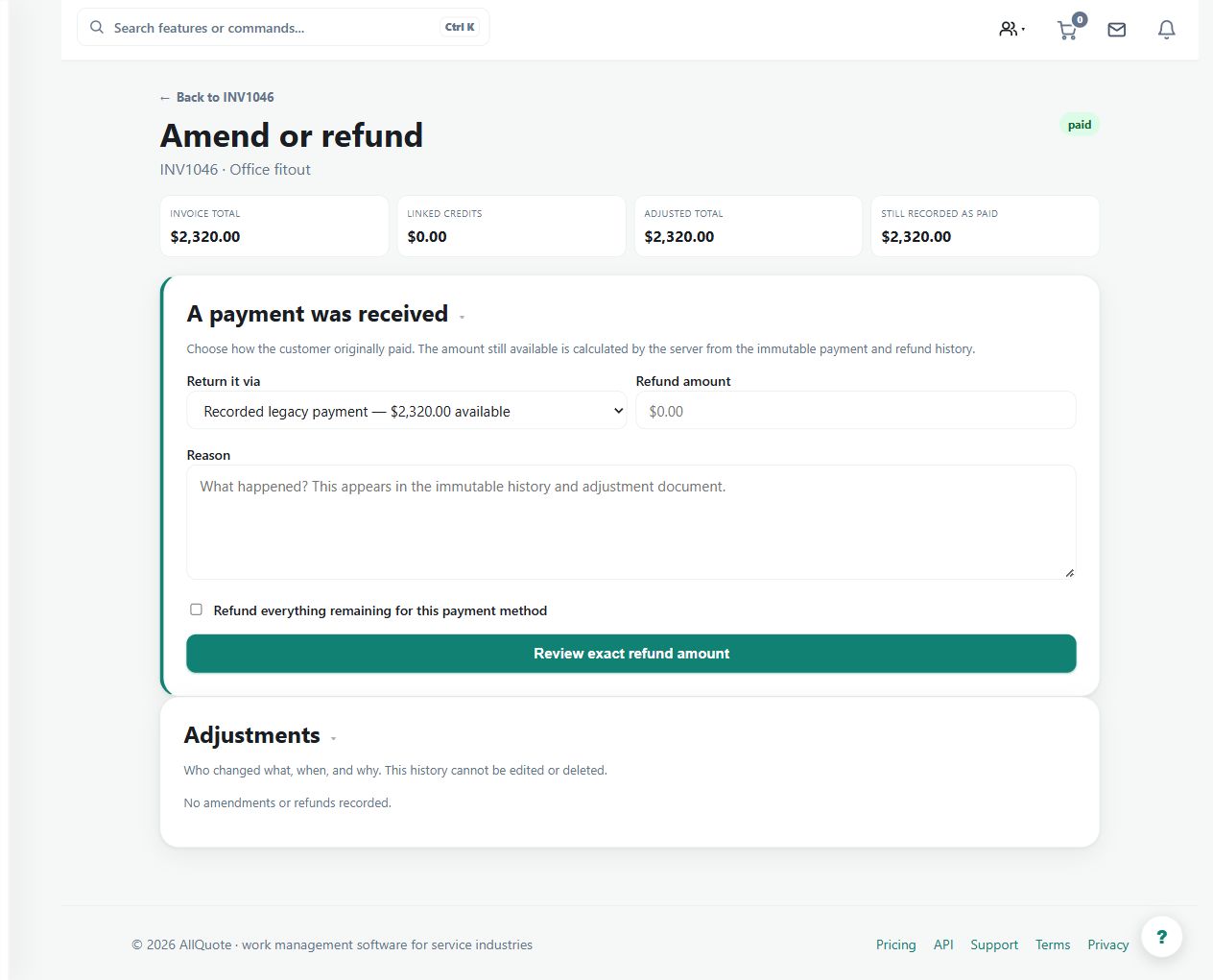
Use the guided correction flow to choose the appropriate treatment for an unpaid error, cancellation or refund after payment.
Before you start
Availability: Plan and role requirements vary. Enabled business features, role permissions, connected providers and supported devices may add requirements.
Documented roles: Owner, Office. A role name alone does not override the permissions set by your business.
Where to find it: Money > Invoices > Amend or refund.
Review the invoice type, amount received, prior refunds and the reason for correction. Check any provider or accounting result before retrying.
Using this guide in United States
- Set your business country in Business settings before entering customer addresses or preparing documents. The country selected on the public website does not change an existing business.
- Check the business currency (USD), time zone and document tax settings. Only enable tax collection if your business is registered and the settings match your requirements. Your customer invoice tax settings are separate from tax on your AllQuote subscription.
- Screenshots use demonstration records. Their sample currency, addresses and tax amounts do not override your business settings.
Step by step
- Open the invoice from Invoices or the job's Money tab, then choose Amend or refund.
- Follow the questions about invoice type and money received; progress invoices return to their stage or claim history instead of being rewritten.
- Enter the reason and amount. A refund cannot exceed money received and still available after earlier refunds.
- Review the outcome, complete the final confirmation, then check the uneditable adjustment history and accounting-sync result before retrying or making a provider-side correction.
Worked example
For an invoice with a verified receipt and an agreed partial refund, enter the reason and amount in Amend or refund, inspect the proposed outcome and complete the explicit confirmation.
This is an illustrative scenario. Use your own approved scope, quantities, rates and business rules.
Check the result
Check the immutable adjustment history, remaining refundable amount and accounting-sync result. Reconcile any actual provider-side movement with the recorded correction.
Limits and troubleshooting
A refund cannot exceed money still available after previous refunds. Progress invoices return to their stage or claim history; a correction should not erase the financial audit trail.
Check current plans and feature availability · Browse every guide