Use the calendar and schedule a job on mobile
Find the right day, book an existing unscheduled job or move a visit, then distinguish a confirmed schedule from a saved offline change.
Before you start
Check the active business, job and work-site date before scheduling. You need current calendar and job-edit permissions; an allocated Field job does not grant Office scheduling rights. On a compatible app with current server capabilities, Takeoff supports basic scheduling of existing jobs, not advanced dispatch or recurring-job changes. Older app builds may not expose that entry point.
Plan eligibility, business features, permissions and device support still apply. Reading a guide does not grant access.
Step by step
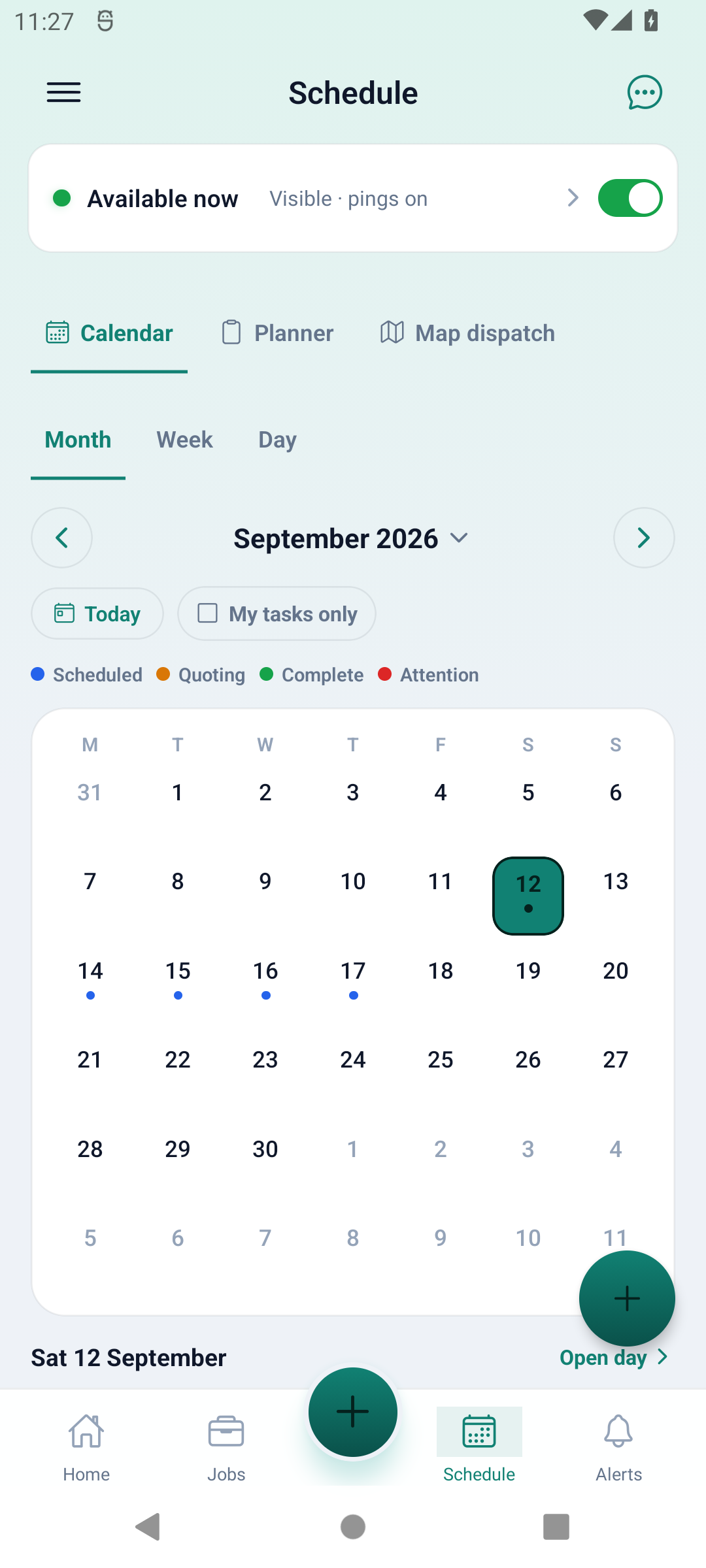
- Open Schedule and select Calendar. Choose Month, Week or Day. Use the arrows to change the displayed period, tap its heading to choose another month or year, or use Today to return to the device’s current date.
- Select the intended date in Month view and read its agenda. Status dots summarise the displayed visits, not confirmations that someone has accepted the work. Clear My tasks only when an authorised visit seems missing; this filter does not grant access to other work.
- Use Open day or the calendar’s plus button to open the selected day’s agenda. The plus button opens that day; it does not create a new job by itself. Check the date again before changing any visit.
- To book existing work, find the correct job in UNSCHEDULED, choose Schedule, select the start time and confirm Schedule at. Match the job title and site before confirming. If the job does not exist yet, create it through New job first; do not duplicate an existing job just to make it appear in the tray.
- To change an existing visit’s time, hold that visit in the day agenda, review the time picker and confirm the move. Check the resulting start and end times. Open the visit to confirm its job and selected date rather than relying on a shared title.
- Where your job screen offers scheduling, review the date and optional time and use Save schedule. Repeat settings require separate recurring-job access; they are not included with Free or Takeoff basic scheduling. Existing recurring schedules may be read-only and must not be recreated to bypass that restriction.
- Read the result. Job scheduled or Visit rescheduled is different from Saved offline — will sync. If the date saved but the calendar visit could not be created, follow that message and inspect the original job before retrying. Refresh online and reopen the same visit to confirm the final schedule.
Worked example
An authorised office user finds an existing repair job in UNSCHEDULED, selects the agreed Tuesday and a 9:00 AM start, then confirms Schedule at. They reopen the original visit after refreshing and check the date, site and time. They do not create a second job or assume the calendar booking sent a message to the customer.
This is an illustrative scenario, not a customer testimonial.
Check the result
Confirm the original job and visit, work-site date, start and end times and any permitted allocation after an online refresh. A coloured dot, temporary row or device-calendar entry is not proof of a server-confirmed booking, customer notification or crew acceptance.
Limits and troubleshooting
- Showing saved copy means cached schedule data. Reconnect and refresh before relying on another person’s latest changes. A queued move can be rejected later; check Sync centre and the original visit instead of repeatedly creating a new booking.
- The native calendar uses a Monday-first grid and English month labels; visit times can display in 12-hour form. Today comes from the phone’s local date. Where a date field asks for YYYY-MM-DD, use that format even in the US or Canada. Check the work-site date and intended time when travelling, near midnight or across a daylight-saving change; do not assume an automatic time-zone conversion.
- Planner, Map dispatch, equipment allocation and recurring work have separate plan, feature and role requirements. The historical screenshot does not grant those capabilities. Takeoff’s five-new-jobs monthly limit applies to creating jobs; scheduling an existing permitted job does not require creating another one.
- Add to phone calendar is separate from AllQuote’s shared diary. The r115/r116 binary does not include the optional native calendar integration, so that action can report unavailable; it does not establish a phone event or two-way calendar sync. Check the shared diary itself.
Related web guides and screenshot examples
These examples show the web interface. They are not screenshots of the native app.
Business settings in United States
- Set your business country in Business settings before entering customer addresses or preparing documents. The country selected on the public website does not change an existing business.
- Check the business currency (USD), time zone and document tax settings. Only enable tax collection if your business is registered and the settings match your requirements. Your customer invoice tax settings are separate from tax on your AllQuote subscription.
- Screenshots use demonstration records. Their sample currency, addresses and tax amounts do not override your business settings.
Check current plans and availability · Browse web guides and screenshots