US and Canada: review quote and invoice taxes
Follow business tax settings, line classification, a reviewed invoice, source-linked credits and retention choices with real web screenshots.
Before you start
Use an authorised business administrator to configure taxes and an authorised quote or invoice user to review documents. Have the confirmed registrations, applicable supplies, rates, jurisdiction and effective date available. This walkthrough supports explicit independent tax components; it does not automatically calculate location-based tax, determine nexus or support every construction tax arrangement.
1. Save the business tax settings
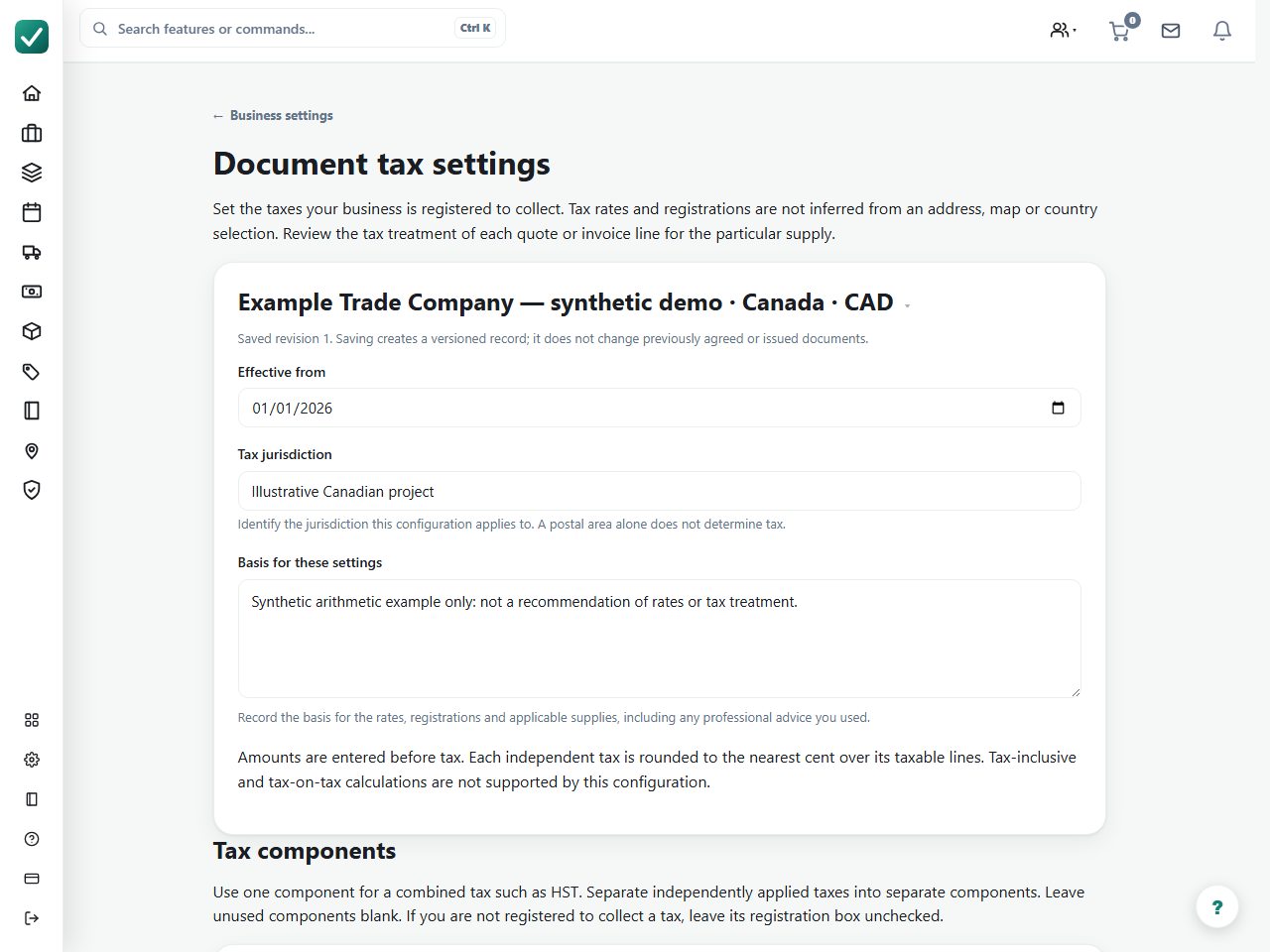
In Business settings, open Document tax settings. Confirm the business country and currency first. Enter the effective date, jurisdiction and basis for the settings. Add each independent tax component and its registration status, then review and save.
Saving creates a policy revision. Select the revision appropriate to the document and supply; a newer revision does not reprice an accepted quote or issued invoice. Use the registrations, rates and treatment confirmed for your business and contract. AllQuote does not determine nexus, registration obligations or rates from an address.
2. Keep an unclassified quote as a draft
Create and save the quote lines with amounts before tax. Open Review document taxes. A new US or Canadian document without a reviewed policy and complete line treatments remains a draft with tax review required.
A zero provisional tax amount does not mean the work is exempt. Resolve all missing treatments before sending, accepting or invoicing the quote. If you add or change a priced line later, save it and repeat the review. Do not substitute an arbitrary rate to clear the warning.
3. Classify each line, then check the total
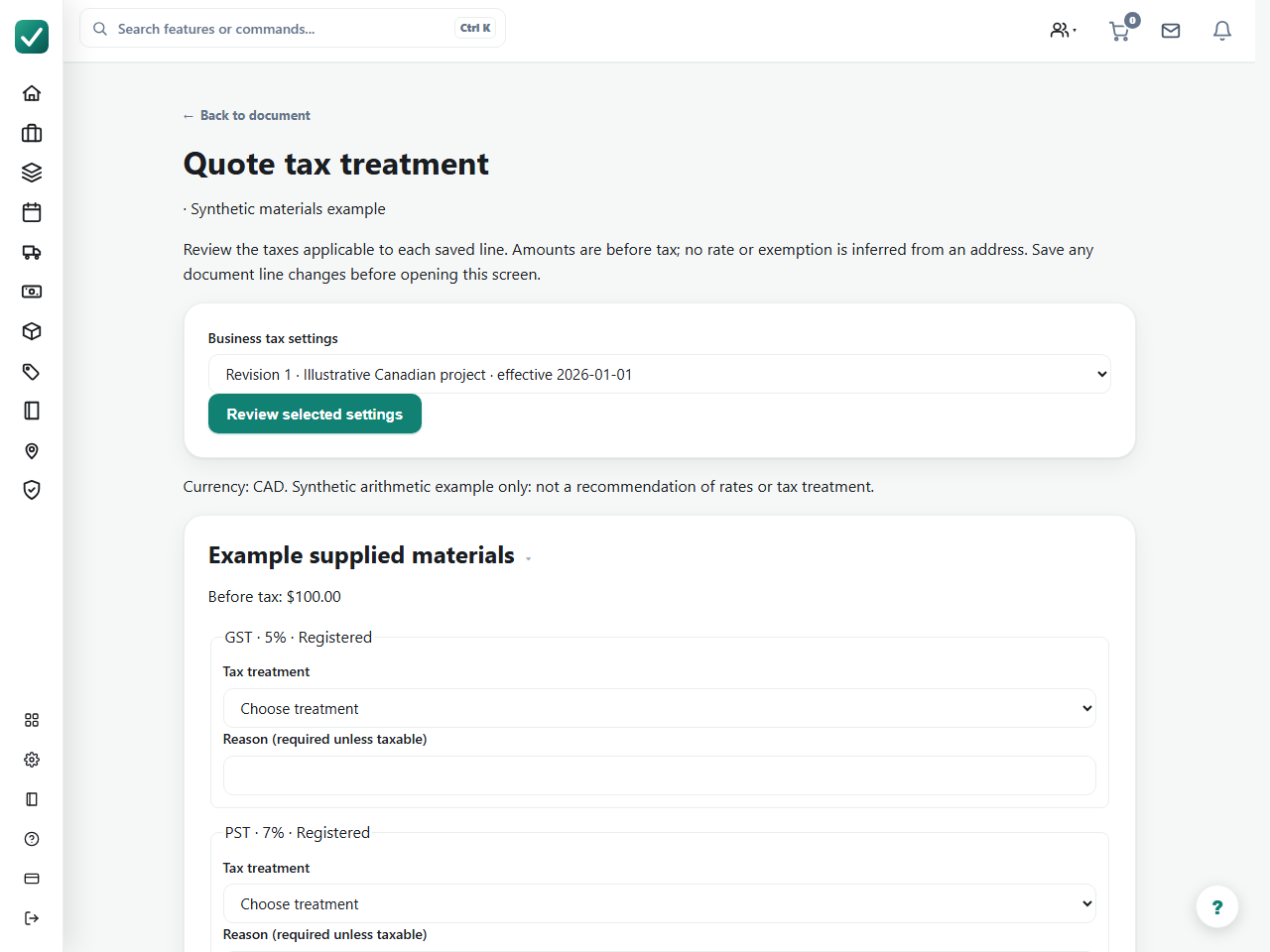
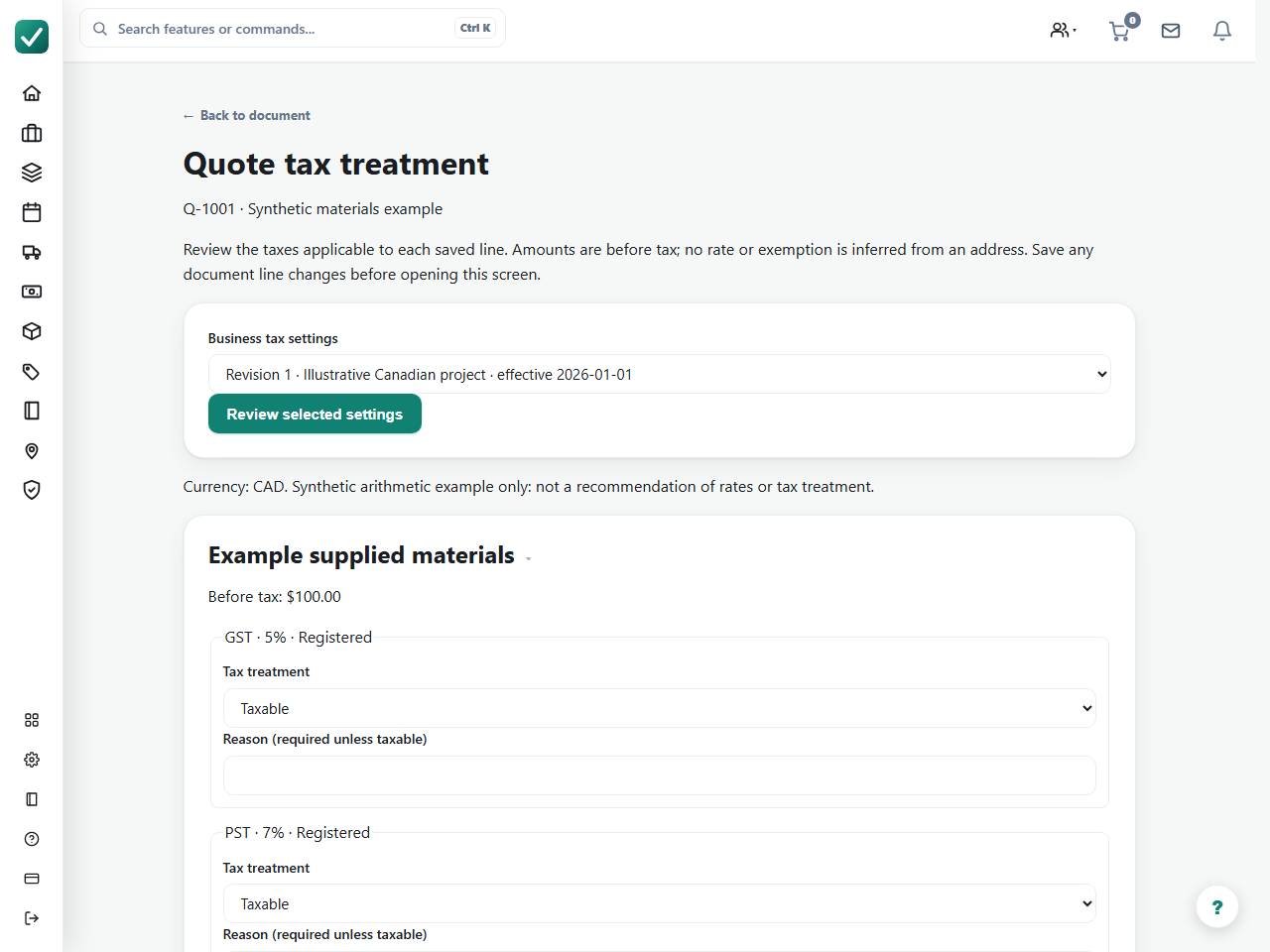
Select the saved tax revision and choose Review selected settings. For every priced line, choose the treatment of each component. Record the required reason for a treatment other than taxable. If the policy has no tax components, each line still needs a reason for collecting no tax. Confirm the review and choose Save and recalculate taxes.
Check all lines, not just the final total. Independent components are rounded to cents over their taxable lines. This configuration uses before-tax amounts; tax-inclusive and tax-on-tax calculations are not supported. A supplier cost or business address does not classify the sale for you.
4. Review the invoice and finalize deliberately
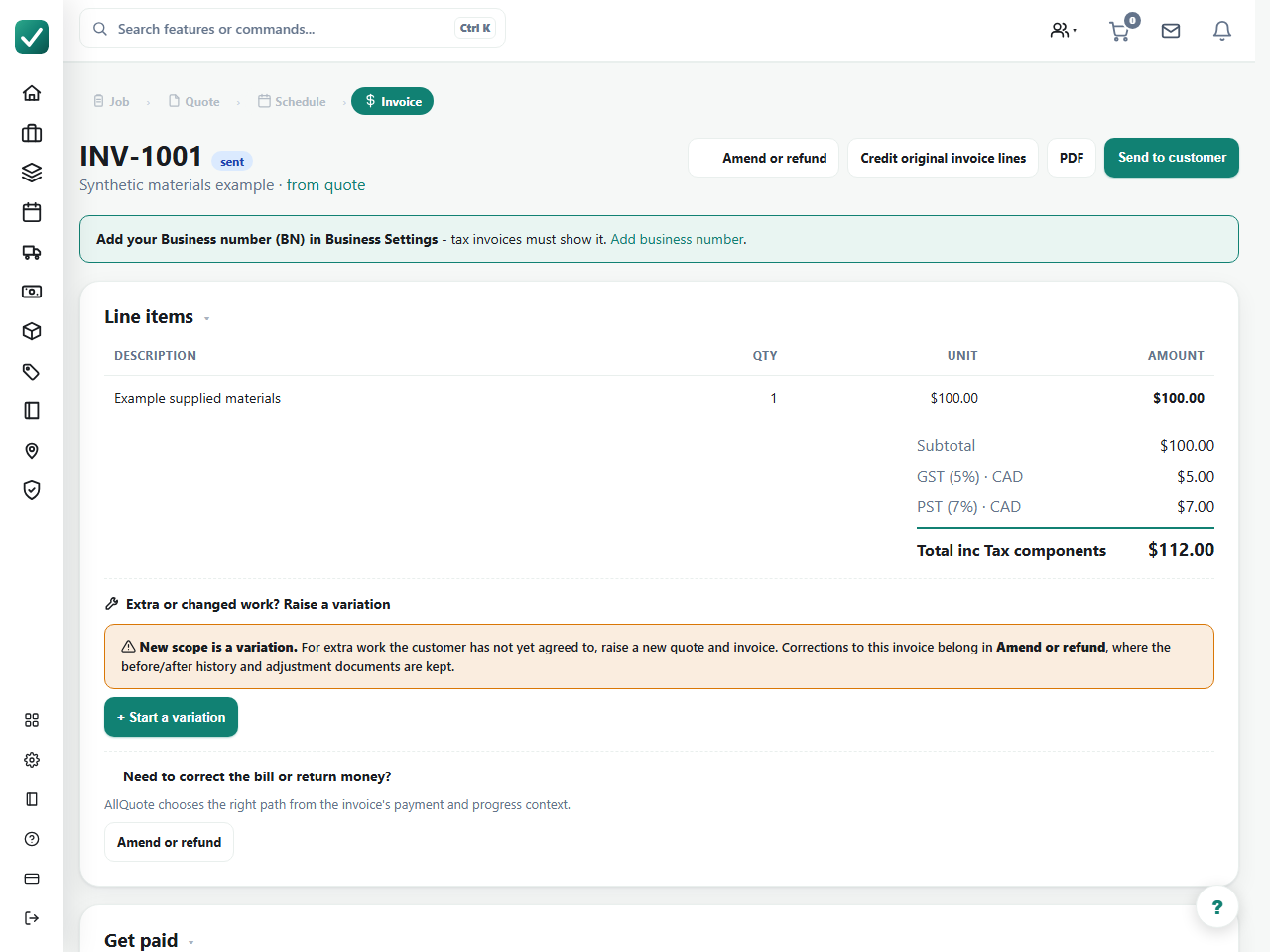
Once the quote is correct, use the normal acceptance workflow and create its linked invoice. Review the invoice currency, source quote, lines and component amounts. Where Finalize reviewed invoice is offered, use it only after those checks. Finalizing is separate from emailing the invoice or receiving payment.
Accepted source amounts and finalized invoice tax amounts are preserved. Later business-setting changes do not rewrite this history. A standalone draft invoice has its own Review invoice taxes action. Draft calculation is not final issue; an incomplete document cannot be used to collect payment.
5. Credit the original lines without rewriting the invoice
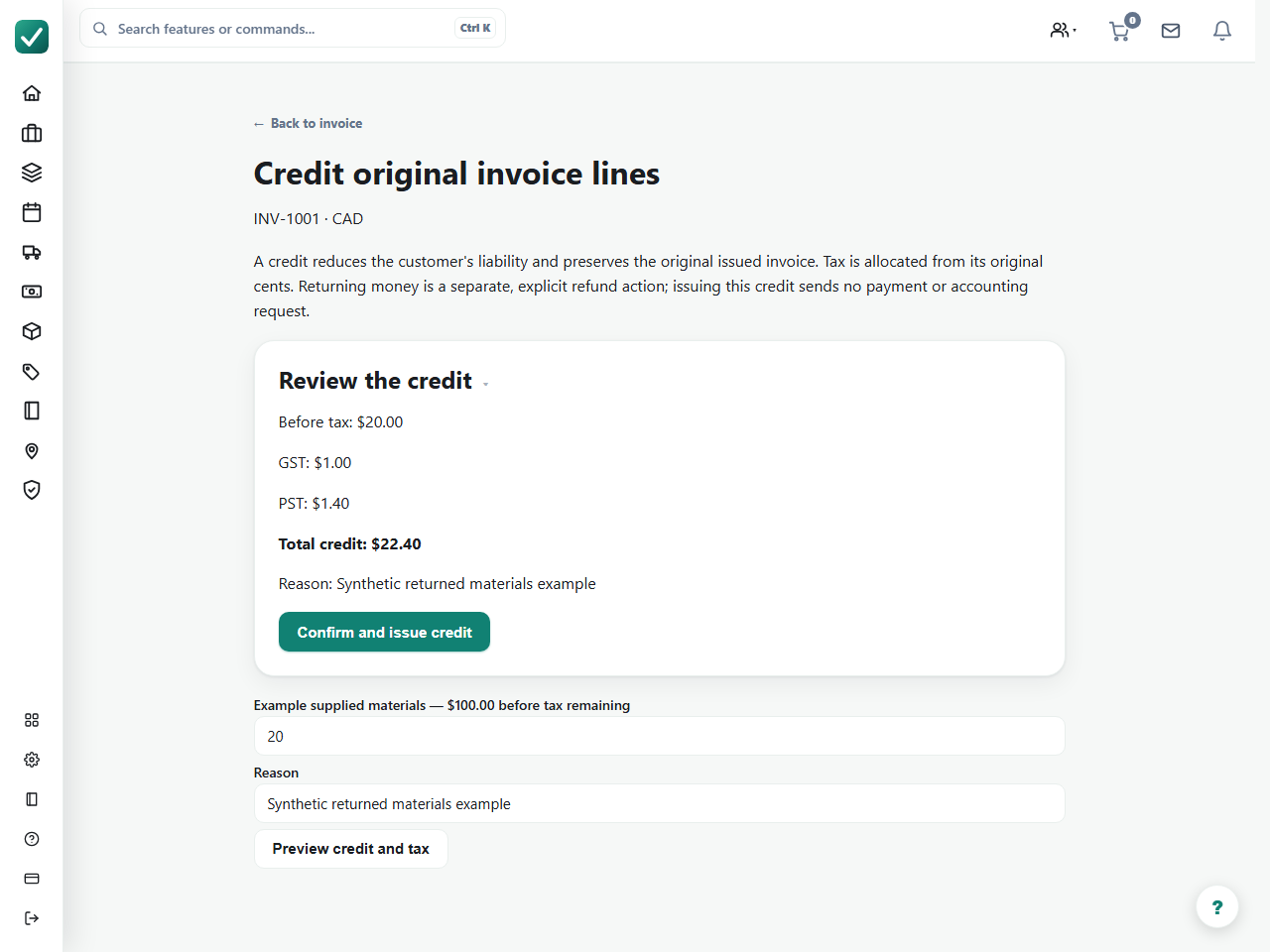
On an eligible finalized invoice, choose Credit original invoice lines. Enter the before-tax reduction against the original line and a reason. Choose Preview credit and tax, inspect the component amounts, and only then confirm the credit if it is correct.
The credit allocates the original source cents rather than using today’s rate. It reduces customer liability while retaining the issued invoice and adjustment history. It does not send money back: an actual refund is a separate reviewed action. After a stale-review error, reload the invoice and preview again.
6. Use a retention schedule as an alternative billing path
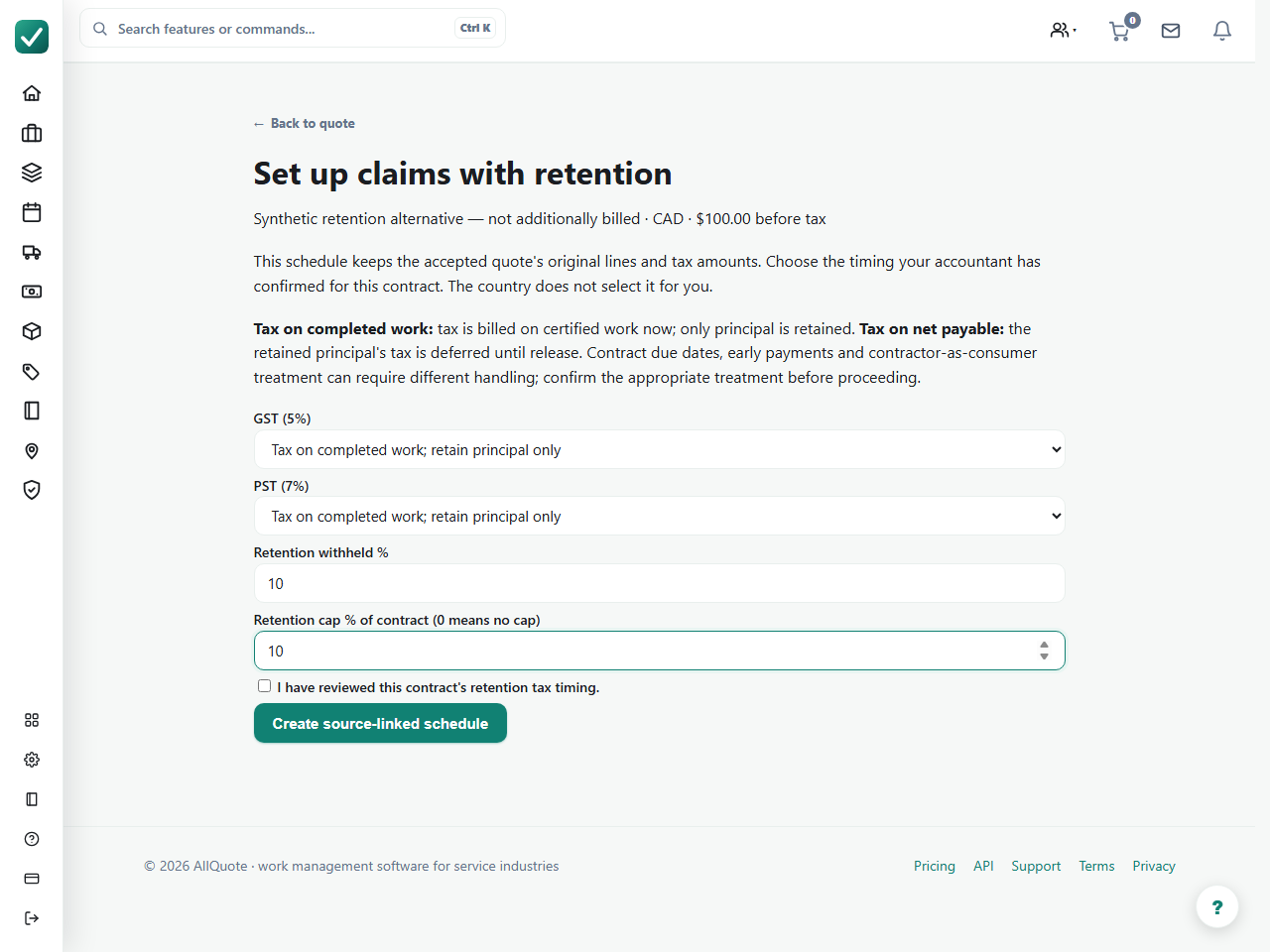
For a separate accepted source quote that will be billed through claims, choose Set up claims with retention before raising those claims. Enter the agreed withholding and cap. Select the confirmed timing separately for every tax component, then review and create the source-linked schedule.
Tax on completed work bills the tax on certified work now and retains principal only. Tax on net payable defers the retained principal’s tax until release. Neither choice is selected by country. Confirm the contract’s timing with your adviser, including early payments and contractor-as-consumer rules. Do not issue a full invoice and additional claims for the same work.
Review from the mobile app and return
Some native contract invoice, period and prepaid-pack actions require a web tax review. If the installed app offers Open tax review, leave the draft in place and open that action. Sign into the correct authorised business in the browser. Confirm the contract or document identity, review and save the classification there, then return to the app and choose Refresh agreement after review to reload the result. Opening a link is not proof that a document was issued or a payment received.
If your app does not offer the review action, open the same record through the signed-in web workspace and update the app when a compatible release is available. Do not create a replacement contract or invoice to bypass a pending review. The screenshots on this page are web captures, not native app screenshots.
Check the complete result
- The business, customer, source document, currency and policy revision are correct.
- Every line has its reviewed tax treatment; no incomplete draft is sent.
- Issued amounts, credits and retention releases reconcile to the source cents without duplicate billing.
- Manual payment records describe money actually received. Customer card services and accounting exports have separate country and provider gates; a calculated document does not enable them.