How to choose the best field service management software in the United States
Searching for the best field service management system or software usually means one thing: finding a single place where the office can quote work, schedule the crew, keep what happened on site and invoice the customer. This guide shows contractors and service businesses in the United States how to shortlist products by workflow, test them with a real job and ask the questions that expose limits early.
Published by AllQuote, which makes one of the products you may be comparing. This is a buying method, not an independent ranking, review or award. No single product suits every business.
Field service management system or software: is there a difference?
In practice the two phrases describe the same kind of product. Field service management software is the application your team signs in to. A field service management system is the wider working arrangement around it: who has which role, the phones your crew carries, your price book, your sales tax settings, your accounting connection and the steps everyone follows from first contact to payment.
That difference matters when you evaluate. Two products with similar feature lists can feel very different once your own roles, units, documents and handovers are set up. Judge the software by how well it supports the system you want to run, not by the length of its feature page.
AllQuote is one product, used through a web workspace and an iOS and Android app that share the same business data. Calling it a system or software does not change what it includes; your plan, roles and saved business settings do.
Shortlist by the work you need to finish
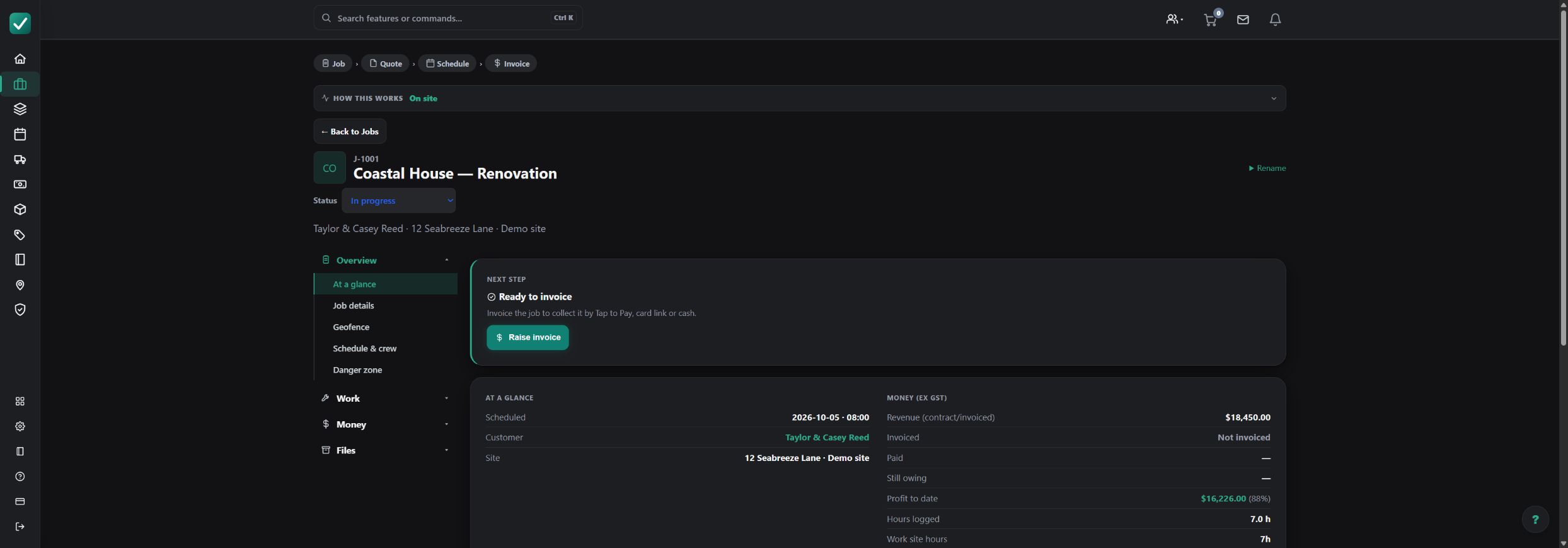
Write down how a typical job moves through your business today, then check each product against the same four stages. A gap at any stage usually means re-typing, spreadsheets or messages outside the system.
| Stage | What to check | Question to ask |
|---|---|---|
| Quote or estimate | Lines priced from your own labor and material rates, a price book, reusable assemblies and, if you work from drawings, measured quantities. Options and exclusions the customer can understand. | Can we price a typical job from our own rates without entering it again as a job? |
| Job and crew schedule | Accepted work becomes a job with its site, scope and files. The office books visits, allocates people and sees the plan on a shared calendar. | When a visit moves, what does the crew see and who still has to be told? |
| Field records, time and cost | Field users record time, notes, photos and task updates against the right job. Materials and expenses land on the same job so the office can review its cost. | What can a field user see and record, and what stays office-only? |
| Invoice and payment | Create the invoice from the job, check sales tax and totals, record payment and keep job completion as a separate decision. Accounting export depends on the provider and country. | How does an invoice reach our accounting package in the United States, and what must we review first? |
Match the shortlist to the kind of work you do
Service and maintenance visits
Look closely at scheduling, recurring work, customer and site history, and how quickly a visit becomes an invoice. Recurring work and service agreements have their own plan requirements, so confirm them before you commit.
Project and commercial work
Focus on estimating from drawings, staged scheduling, variations, progress claims (staged progress billing) and retentions (retainage), and job costing that shows the position before the final invoice. These tools depend on the plan.
Small crews and owner-operators
Look for quick quoting, a simple calendar, mobile time and photos, and invoicing from the job. Check the user and job allowances of the plan you would actually start on.
Selection criteria worth scoring
Matches how you price work
If you quote from measurements, check takeoff, assemblies and waste allowances. If you price repeat services, check price book items and how options and exclusions appear to the customer.
Separates office and field access
Check what each role can see and do. A field user should be able to record the visit without seeing margins or billing they do not need.
Handles documents for the United States
Quotes and invoices should show USD and the sales tax treatment saved for your business. The checks for United States below cover the details.
Works on site
Try the mobile app on the phones your team uses. Check scheduling, time, photos and notes, and what happens when the signal drops.
Connects where you need it
Accounting and supplier connections depend on country, current configuration and your own linked accounts. Customer card payments and SMS have separate country and provider requirements.
Costs what you expect
Price the plan you would actually need, including users, job allowances and features, on the current pricing page rather than comparing entry prices.
Lets you leave
Ask how customers, jobs and invoices can be exported, and what an import from your current tool would and would not carry across.
What to check in the United States
These checks use the settings saved for your business and its documents. Browsing the United States website does not change a customer's currency, a business's tax settings or anyone's units.
USD and sales tax components
Check that documents show USD. New US documents use a reviewed business tax policy with the sales tax components you are registered to collect, and explicit line tax treatments. There is no single US rate: have your accountant confirm rates and treatment for each state or jurisdiction you work in. Tax-inclusive and tax-on-tax calculations are not supported for these components.
Site addresses
Enter the street, city, state and ZIP code. Entering an address does not determine which taxes you owe, and a typed address is not a confirmed map pin. Use manual entry when suggestions do not find the site.
Units
Calculators for a US business start in feet. Select metric explicitly where a specification uses metric sizes, and check a drawing's own saved units and calibration before pricing from it.
Accounting connections
Exporting component-tax invoices to an accounting package needs separate verification for each provider and country. A saved tax policy, subscription or connection does not enable it. Check the integrations page for current status.
Run one small job from quote to invoice
A demo shows what a product can do; a test job shows how it fits your work. Use the same small job in every product on your shortlist, with your own rates and a real site address. For example: a residential water heater replacement with one follow-up inspection visit.
- Use a test business with United States as its business country. Check its saved currency (USD) and reviewed sales tax policy before preparing any document.
- Add a customer and type the site address manually: street, city, state and ZIP code. Check the saved address instead of relying on a suggestion.
- Build a quote of three or four lines from your own labor and material rates. Include one measured line, such as 40 ft of pipe, and confirm the unit is the one your team actually uses.
- Preview the customer copy. Check the currency code, the sales tax lines and the total. How customers review and accept a quote depends on your quote settings; the create-a-quote tutorial shows the current steps.
- Turn the accepted work into a job, schedule a visit and allocate it to a test team member with a field role.
- Sign in as that field user on a phone. Record time, a note and a photo, and confirm that prices and margins the role should not see stay hidden.
- Back in the office, reopen the job. Review the recorded time and costs, add an agreed change and check that the quote and the job still agree.
- Create the invoice, check the sales tax and total, and record a test payment manually. Confirm that recording a payment does not complete the job by itself.
- The next day, reopen the quote, job, time entries and invoice. Note anything that was hard to find, entered twice or unclear to the field user.
Record where each product needed extra steps, re-entry or workarounds. That record is more useful than a feature checklist when you make the decision.
Where AllQuote fits, and where it may not
Where it fits
- You price work from your own rates, price book and reusable assemblies, and want the accepted quote to become the job record.
- You measure from drawings: plan takeoff can supply reviewed quantities to a quote where your plan includes it.
- Office and field users need different views: allocated field users get a field-safe job view, while margins, billing and office reporting are permission-controlled.
- Project work needs variations, progress claims (staged progress billing) and retentions (retainage) alongside service visits and job costing, on plans that include them.
- Your team works across the web workspace and the iOS and Android app.
Limits and trade-offs
- Features and limits differ by plan. Takeoff, accounting connections, dispatch and recurring work each have their own plan, feature and role requirements.
- AI quote generation is not part of the public plans. You build quotes from your own rates and review them before sending.
- Connections depend on the country, the current configuration and your own linked provider accounts. Some are not offered in the United States.
- Not every mobile screen or file is available without signal, and a queued change is not confirmed until it syncs. Test this on your own devices.
- Forms, safety records and templates do not certify compliance with local law, and preparing timesheets is not payroll filing.
- AllQuote does not promise an exact migration of another product's data or templates.
Questions to ask every vendor
- Which features on our shortlist are in the plan we would buy, and which need a higher plan or an add-on?
- What exactly can a field user see? Can we hide prices, margins and billing from them?
- What works on a phone without signal, and how are changes confirmed once it reconnects?
- Which accounting packages connect for businesses in the United States, which records sync and in which direction?
- How are sales tax amounts set up on quotes and invoices, and what does the product leave for us or our accountant to confirm?
- Can we export our customers, jobs and invoices if we leave? What would an import from our current tool leave behind?
- Are customer card payments and text messages available for our business in the United States, and what do they depend on?
- Can we test with our own job before paying, and what help is available while we set up?
Common questions
Is a field service management system the same as field service management software?
Usually, yes. Buyers use both phrases for a product that connects quoting, scheduling, field records and invoicing. System is sometimes used more broadly to include your process, devices, roles and connected accounting, so evaluate both the software and how your team will run it.
Is AllQuote the best choice for my business?
That depends on your work. AllQuote publishes this guide, so it is not an independent ranking or review. AllQuote is designed for businesses that want estimates and quotes connected to scheduling, field records, job costs and invoices. Test it with your own job alongside the other products on your shortlist.
Does choosing United States on the website set my currency and tax?
No. Documents use the currency and tax settings saved for your business. The website region only changes the public pages you are reading.
Can I look at AllQuote before signing up?
The public live demo shows a read-only example with sample data. Check the pricing page for current plans, limits and availability in the United States.
Check the details before you decide
Plans, comparisons and connections
- Plans and pricing for United States: current plans, limits and availability
- Compare AllQuote with other software: dated vendor sources and workflow questions
- Software integrations in the United States: accounting and supplier connection availability
Web guides
- The quote-to-paid workflow: how a job moves from quote to payment
- Create a quote: build, preview and send a quote
- The variation workflow: agree and bill a change to the scope
- Takeoff quickstart: measure from plans before estimating
- Document taxes and line treatments: reviewed tax policies and component taxes
Mobile guides
- Create a job on mobile: site address entry and save checks
- Schedule a job on mobile: book and move visits
- Log time on mobile: record and review field time
- Offline work and sync: what is cached, queued and confirmed
- Metric and imperial calculators: choose units explicitly
- Create and send an invoice on mobile: check the saved result before sending
For a first look without an account, open the read-only live demo with sample data.