Auto-count repeated symbols
Finds repeated plan symbols and holds the proposed count for review before it becomes takeoff work.
Use Auto-count to propose repeated plan-symbol counts for review, such as a consistent fixture symbol on a services drawing.
Before you start
Availability: Business plan and above. Enabled business features, role permissions, connected providers and supported devices may add requirements.
Documented roles: Owner, Office. A role name alone does not override the permissions set by your business.
Where to find it: Takeoffs > Auto-count.
Select the right drawing and a representative symbol. Check the legend so similar-looking symbols are not mistaken for the same item.
Using this guide in United Kingdom
- Set your business country in Business settings before entering customer addresses or preparing documents. The country selected on the public website does not change an existing business.
- Check the business currency (GBP), time zone and document tax settings. Only enable tax collection if your business is registered and the settings match your requirements. Your customer invoice tax settings are separate from tax on your AllQuote subscription.
- Screenshots use demonstration records. Their sample currency, addresses and tax amounts do not override your business settings.
- Check the drawing units, calibrate against a known dimension and confirm the ledger unit before applying a material rate. An address or website country does not convert a drawing, assembly quantity or supplier rate. For volume, use consistent area and depth units before checking the cubic quantity.
Step by step
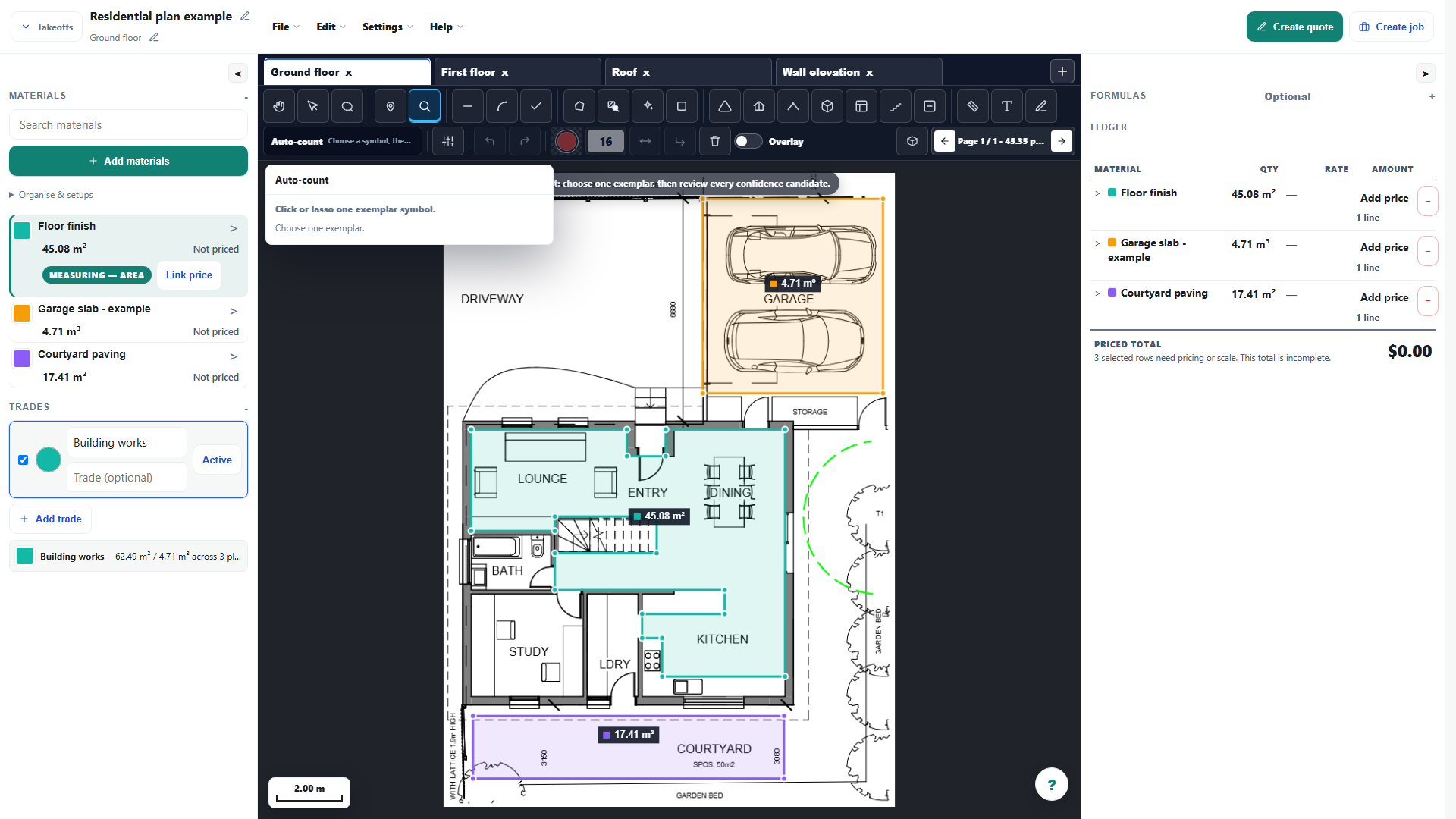
- Choose Auto-count and mark the plan symbol you want counted.
- Let AllQuote scan the plan for repeated copies of that symbol.
- Review the proposed marks and remove false matches before accepting the result.
- Choose Add approved, then name or map the count row in the ledger.
Worked example
Sample one symbol, run the count and inspect every proposed mark. Remove false matches in legends or notes, then use Add approved and give the ledger row a meaningful item name.
This is an illustrative scenario. Use your own approved scope, quantities, rates and business rules.
Check the result
Compare the approved marks with the drawing and check for missed, overlapping or differently oriented symbols. Confirm that the count row maps to the correct priced item.
Limits and troubleshooting
The setup screen does not demonstrate detector accuracy. A confirmed count is only as reliable as its review; use manual counts where symbols or drawing quality make the proposal unsuitable.
Open the complete takeoff walkthrough with volume, formula, assembly and overlay examples
Check current plans and feature availability · Browse every guide