Reece invoice sync
Pulls Reece invoice documents into AllQuote for review and caching; Business can also turn those invoices into supplier-bill and accounting workflows.
Use supplier invoice sync to retrieve and review Reece invoice documents, with additional bill and accounting workflows where entitled and configured.
Before you start
Availability: Team plan and above. Enabled business features, role permissions, connected providers and supported devices may add requirements.
Documented roles: Owner. A role name alone does not override the permissions set by your business.
Where to find it: Apps > Integrations > Reece > Invoice sync.
Connect the correct account and decide whether to run a sync manually or enable the supported daily sync.
Using this guide in United States
- Set your business country in Business settings before entering customer addresses or preparing documents. The country selected on the public website does not change an existing business.
- Check the business currency (USD), time zone and document tax settings. Only enable tax collection if your business is registered and the settings match your requirements. Your customer invoice tax settings are separate from tax on your AllQuote subscription.
- Screenshots use demonstration records. Their sample currency, addresses and tax amounts do not override your business settings.
- Supplier connections depend on the supplier, account entitlement and supported market. A Reece workflow shown in this guide is not a promise of access through every international Reece business. Use your own supplier price files and review imported units, costs and currency before quoting.
Step by step
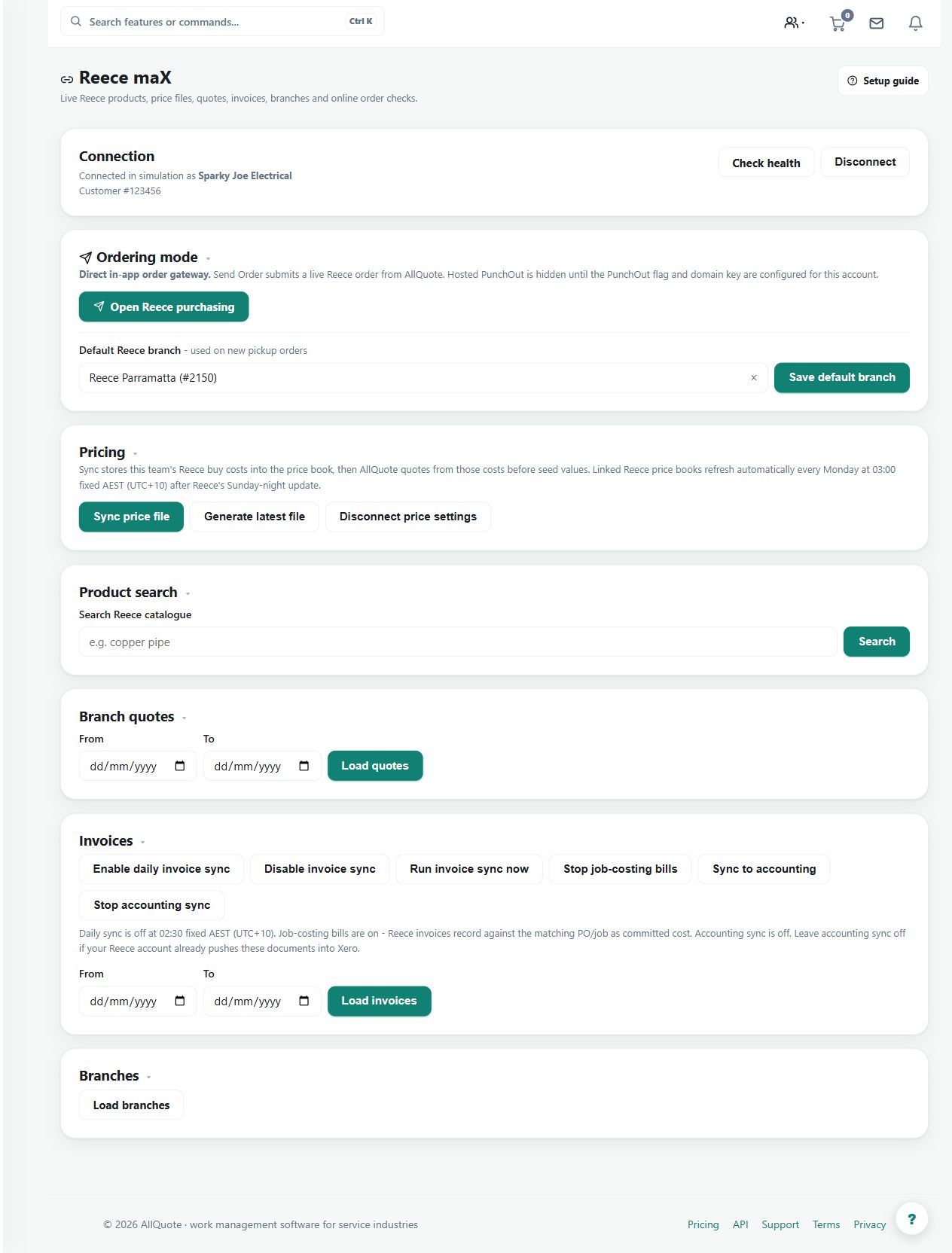
- Open Reece at /integrations/reece.
- Use the invoice sync controls after the Reece account is connected.
- Run the sync or leave the daily sync enabled.
- Review the cached invoice batch and any recorded supplier-bill results.
Worked example
Sync a recent invoice batch, open representative cached documents and review any supplier-bill results rather than assuming every retrieved document became an accounting bill.
This is an illustrative scenario. Use your own approved scope, quantities, rates and business rules.
Check the result
Check invoice identity, supplier amounts and the recorded processing result. Trace downstream costs to the appropriate purchase order or job where linked.
Limits and troubleshooting
Document retrieval and accounting posting are different outcomes. Business functionality and separate settings govern the bill workflow; a cached PDF alone does not prove a posted cost.
Check current plans and feature availability · Browse every guide