Emergency dispatch and pings
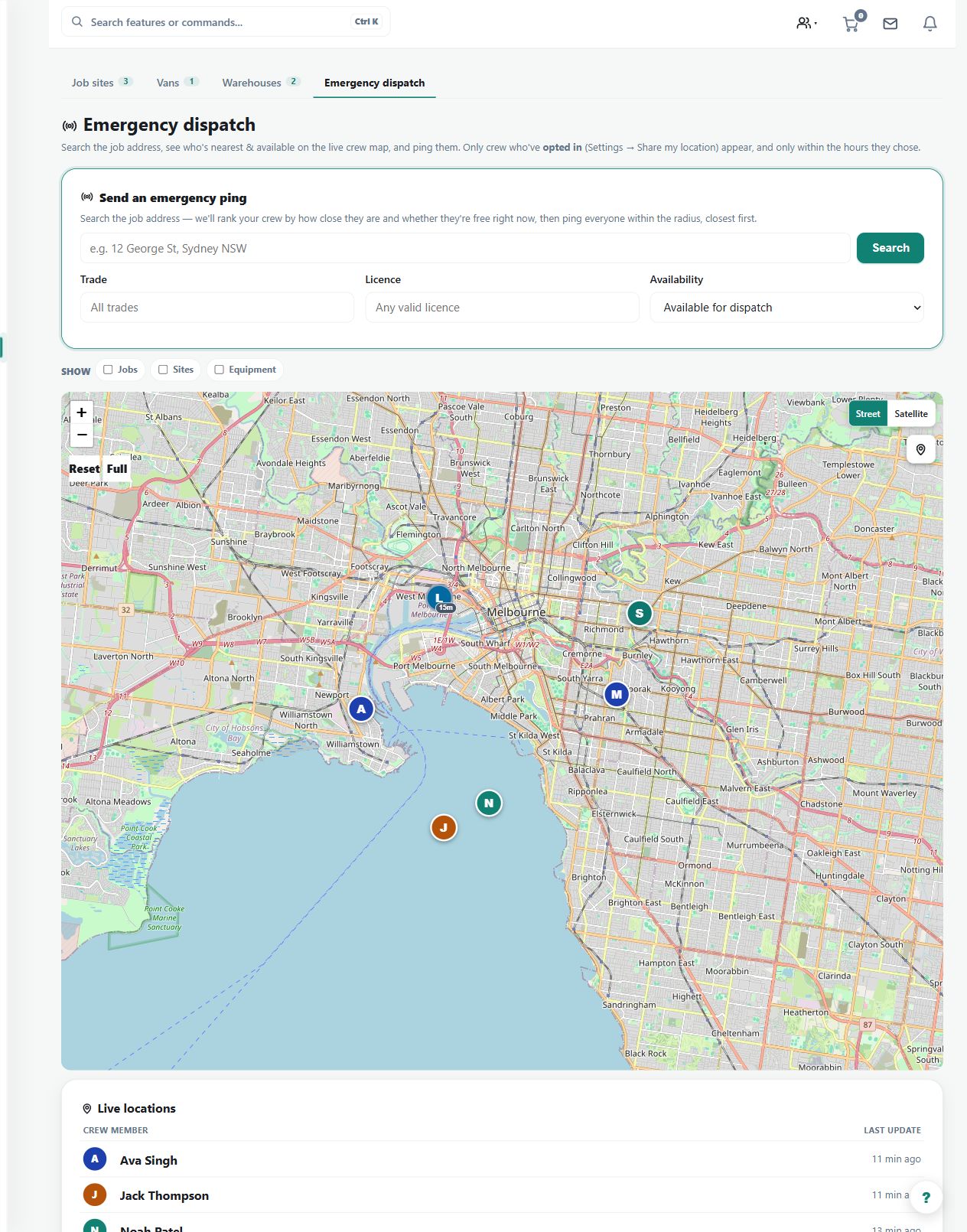
Shows live opted-in crew pins, active job sites, nearest-worker search, and radius pings for urgent work.
Use the crew map to assess nearby available workers and send a deliberate urgent-work ping.
Before you start
Availability: Team plan and above. Enabled business features, role permissions, connected providers and supported devices may add requirements.
Documented roles: Owner, Office. A role name alone does not override the permissions set by your business.
Where to find it: team > Crew map > Dispatch pings.
Confirm the job address and look at the location timestamp, accuracy and worker availability. Location visibility depends on the worker's sharing conditions.
Using this guide in United States
- Set your business country in Business settings before entering customer addresses or preparing documents. The country selected on the public website does not change an existing business.
- Check the business currency (USD), time zone and document tax settings. Only enable tax collection if your business is registered and the settings match your requirements. Your customer invoice tax settings are separate from tax on your AllQuote subscription.
- Screenshots use demonstration records. Their sample currency, addresses and tax amounts do not override your business settings.
- Enter the complete street, locality, state or province where applicable, and postal code. If suggestions are unavailable, use manual entry and check the saved address. A saved address without verified coordinates should not be treated as a confirmed map pin or routing destination.
Step by step
- Open Crew locations at /team/locations.
- Use the map to review opted-in crew pins, stale markers, active job sites, distance, accuracy, and time at the current spot.
- Search near a job or address to find the closest available worker.
- Use the ping controls for selected or nearby available crew when urgent work needs a response.
Worked example
For an urgent call-out, search near the site, inspect suitable available crew and use the selected-worker or radius ping controls to request a response.
This is an illustrative scenario. Use your own approved scope, quantities, rates and business rules.
Check the result
Review who responded and the resulting assignment. Check fresh location and job context rather than dispatching solely on the nearest pin.
Limits and troubleshooting
A stale or imprecise pin is not a reliable arrival promise. Proximity does not establish trade qualifications, capacity or customer access; check those separately.
Follow the screenshot tutorial: Schedule and dispatch a job
Check current plans and feature availability · Browse every guide