Feature toggles
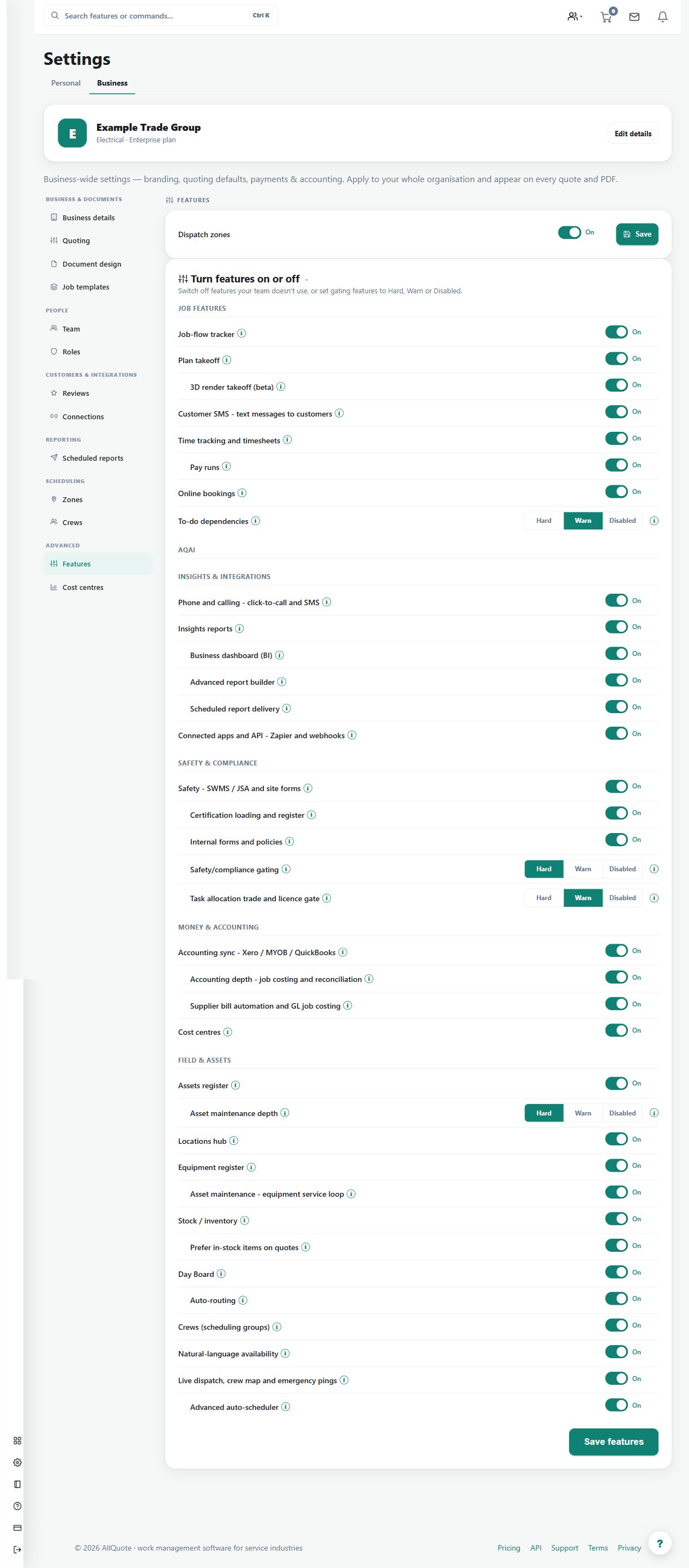
Lets a business hide or disable optional feature areas that are available on its plan.
Use feature settings to keep optional areas aligned with the business's subscribed capabilities and operating process.
Before you start
Availability: Starter plan and above. Enabled business features, role permissions, connected providers and supported devices may add requirements.
Documented roles: Owner, Office. A role name alone does not override the permissions set by your business.
Where to find it: Settings > Business Settings > Features.
Review the current plan and the purpose of each available option before changing it.
Using this guide in United States
- Set your business country in Business settings before entering customer addresses or preparing documents. The country selected on the public website does not change an existing business.
- Check the business currency (USD), time zone and document tax settings. Only enable tax collection if your business is registered and the settings match your requirements. Your customer invoice tax settings are separate from tax on your AllQuote subscription.
- Screenshots use demonstration records. Their sample currency, addresses and tax amounts do not override your business settings.
Step by step
- Open Business settings > Features at /group-settings?tab=features.
- Review the optional feature areas available on the business plan.
- Switch optional areas on or off.
- Reload the app navigation; matching menu entries and routes follow the feature setting.
Worked example
Enable an entitled operational area the business is ready to use, reload navigation and confirm its entry and route behavior. Disable an optional area when it is intentionally out of use.
This is an illustrative scenario. Use your own approved scope, quantities, rates and business rules.
Check the result
Check both navigation and access to the relevant screen after the change, using the intended worker or office role.
Limits and troubleshooting
A toggle does not purchase a higher plan or override role permissions. Hiding an area should not be treated as deleting its existing business records.
Check current plans and feature availability · Browse every guide