Contacts
Stores customers, contact details, addresses, history, portal links, imports, and accounting sync actions.
Use one contact record to keep customer identity, addresses and related work together across quoting, jobs and billing.
Before you start
Availability: Free plan and above. Enabled business features, role permissions, connected providers and supported devices may add requirements.
Documented roles: Owner, Office. A role name alone does not override the permissions set by your business.
Where to find it: Customers > Contacts.
Search existing contacts before creating a new customer. Confirm the correct business or person and their service and billing details.
Using this guide in United States
- Set your business country in Business settings before entering customer addresses or preparing documents. The country selected on the public website does not change an existing business.
- Check the business currency (USD), time zone and document tax settings. Only enable tax collection if your business is registered and the settings match your requirements. Your customer invoice tax settings are separate from tax on your AllQuote subscription.
- Screenshots use demonstration records. Their sample currency, addresses and tax amounts do not override your business settings.
- Enter the complete street, locality, state or province where applicable, and postal code. If suggestions are unavailable, use manual entry and check the saved address. A saved address without verified coordinates should not be treated as a confirmed map pin or routing destination.
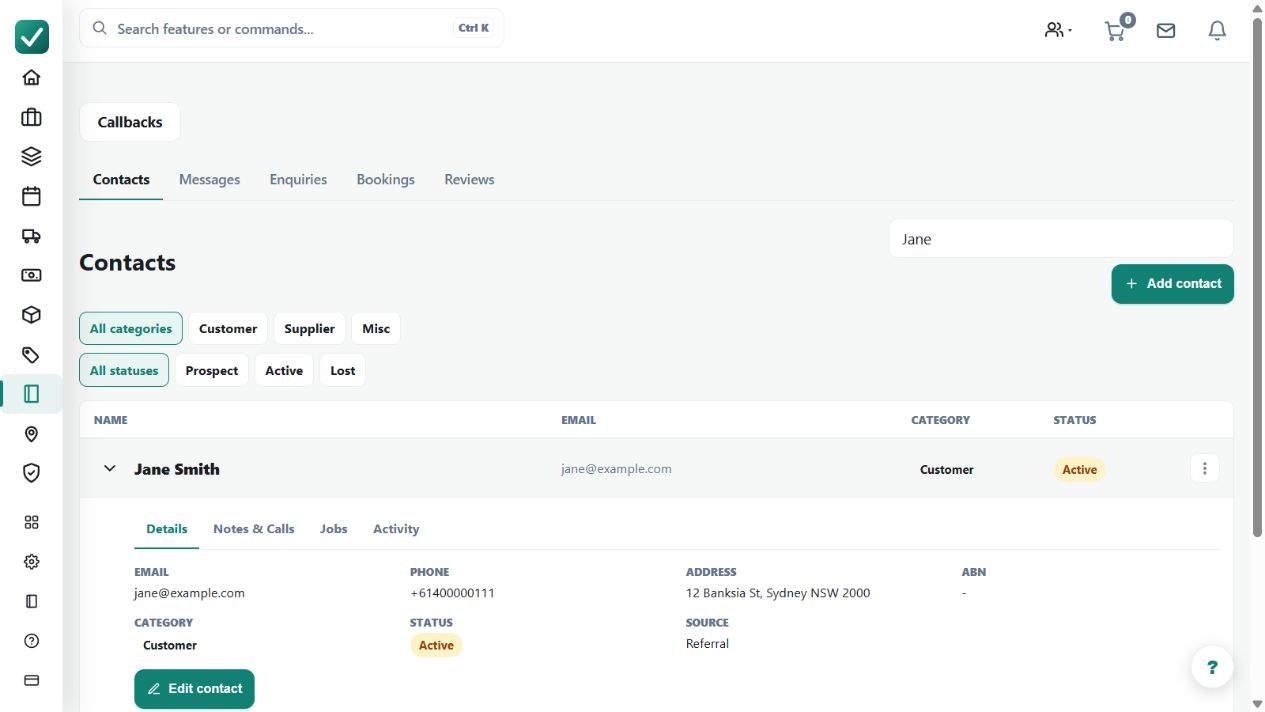
Step by step
- Open Contacts from the sidebar or go to /contacts.
- Search for the customer before creating a duplicate.
- Open the contact to edit contact details, addresses, notes, portal links, and related work.
- Use import or accounting sync actions from the contact screen when the business connection is configured.
Worked example
Before preparing a repeat customer's quote, open the existing contact, review addresses and prior work, and correct contact details where needed.
This is an illustrative scenario. Use your own approved scope, quantities, rates and business rules.
Check the result
Check that new quotes and jobs use the intended customer record rather than a near-duplicate name.
Limits and troubleshooting
Accounting sync depends on the configured connection and matching records. Creating another contact to bypass a mismatch can split history and make later reconciliation harder.
Check current plans and feature availability · Browse every guide