Online bookings
Publishes a booking form, accepts requests, manages services, and turns accepted bookings into jobs.
Use the public booking form to collect service requests and review them before accepting them as operational work.
Before you start
Availability: Starter plan and above. Enabled business features, role permissions, connected providers and supported devices may add requirements.
Documented roles: Owner, Office. A role name alone does not override the permissions set by your business.
Where to find it: Customers > Bookings.
Configure the offered services and public link, and confirm who reviews incoming requests.
Using this guide in United States
- Set your business country in Business settings before entering customer addresses or preparing documents. The country selected on the public website does not change an existing business.
- Check the business currency (USD), time zone and document tax settings. Only enable tax collection if your business is registered and the settings match your requirements. Your customer invoice tax settings are separate from tax on your AllQuote subscription.
- Screenshots use demonstration records. Their sample currency, addresses and tax amounts do not override your business settings.
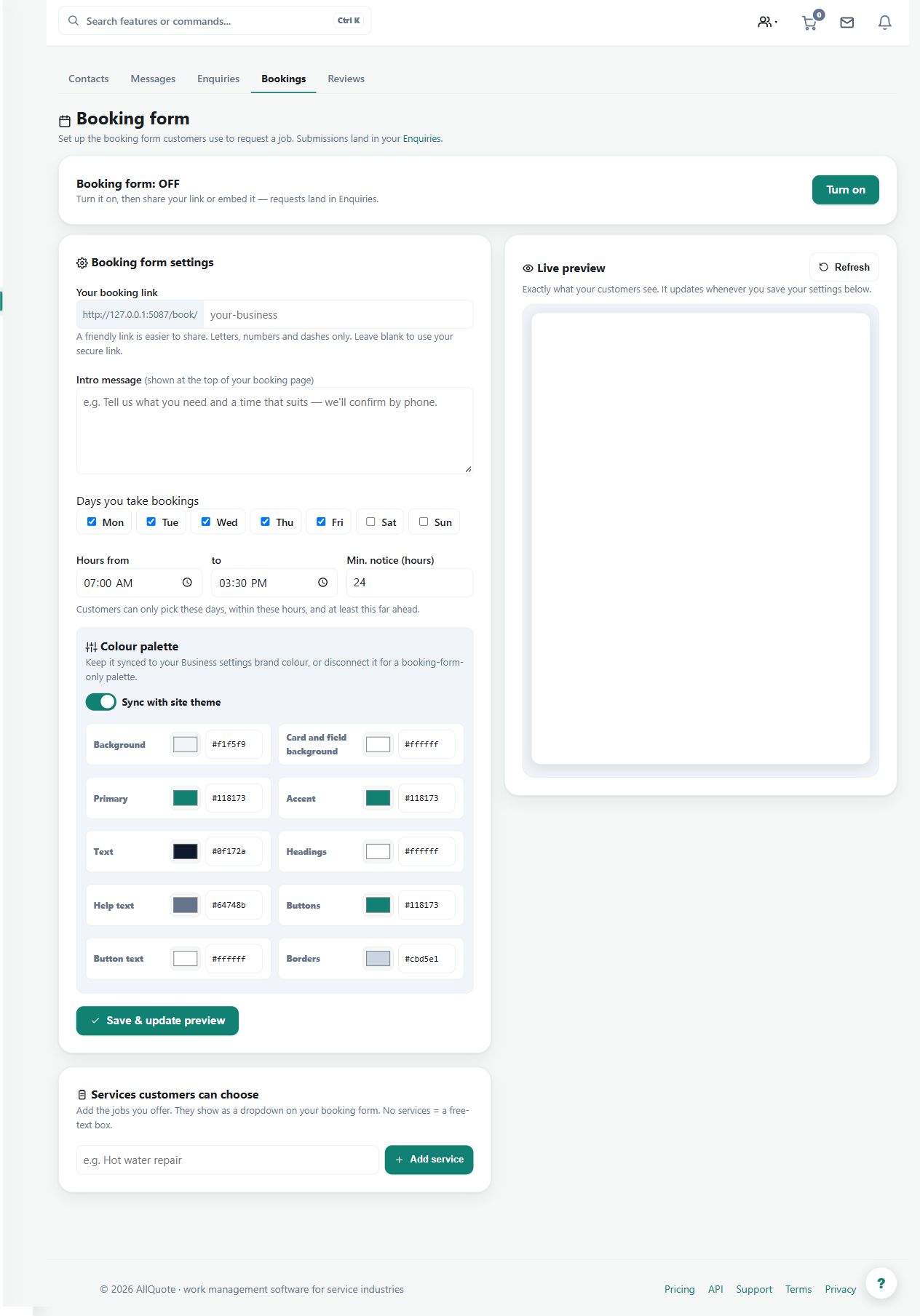
Step by step
- Open Bookings at /bookings.
- Configure the service list and public booking link the customer will use.
- Review incoming booking requests in the bookings list.
- Accept a booking to turn it into work, or dismiss it when it is not going ahead.
Worked example
A customer requests a service visit through the published form. Review the customer, site and service, then accept the request to create work or dismiss it if it is not proceeding.
This is an illustrative scenario. Use your own approved scope, quantities, rates and business rules.
Check the result
Inspect the resulting job and its scheduling needs. Check that the request has not already been handled through another channel.
Limits and troubleshooting
A submitted booking request is not proof that crew, equipment or a particular time slot are confirmed. Review the operational details before committing to the customer.
Check current plans and feature availability · Browse every guide