Crews (scheduling groups)
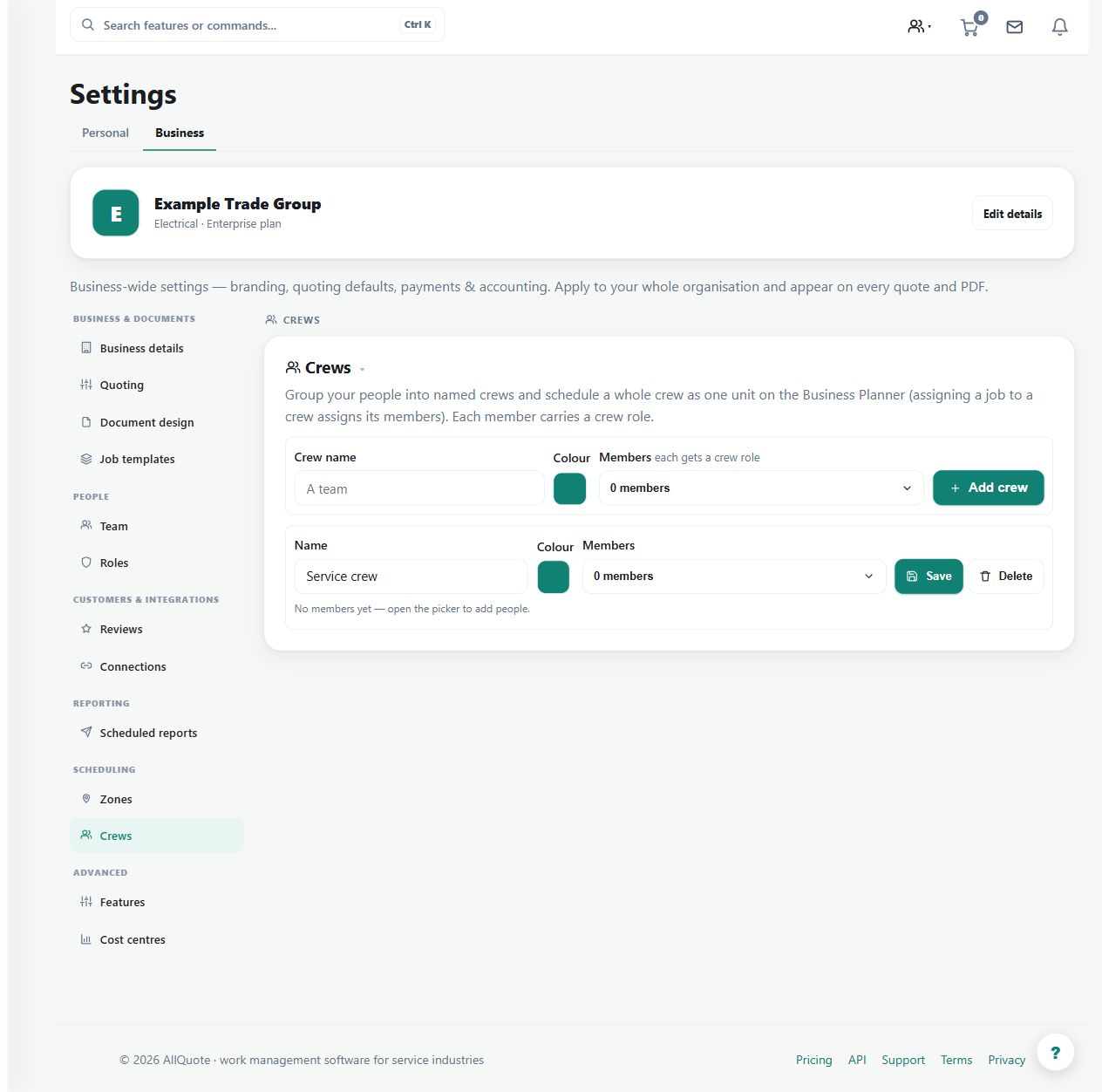
Groups team members into named crews, each member with a role, so a crew can be scheduled as one unit on the Business Planner.
Use named crews when a group of team members is planned as an operational unit.
Before you start
Availability: Team plan and above. Enabled business features, role permissions, connected providers and supported devices may add requirements.
Where to find it: Settings > Business Settings > Crews.
Create the crew with its current members and their roles, and maintain individual availability and qualifications.
Using this guide in New Zealand
- Set your business country in Business settings before entering customer addresses or preparing documents. The country selected on the public website does not change an existing business.
- Check the business currency (NZD), time zone and document tax settings. Only enable tax collection if your business is registered and the settings match your requirements. Your customer invoice tax settings are separate from tax on your AllQuote subscription.
- Screenshots use demonstration records. Their sample currency, addresses and tax amounts do not override your business settings.
Step by step
- Open Business settings > Crews at /group-settings?tab=crews.
- Create the crew and add its members with their roles.
- Schedule the crew as one unit on the Business Planner.
- Edit membership as teams change; scheduling follows the current crew.
Worked example
Set up an installation crew and schedule it through Business Planner, then inspect the resulting assignment for the selected day.
This is an illustrative scenario. Use your own approved scope, quantities, rates and business rules.
Check the result
Check crew membership and individual assignments after changes so the expected people are scheduled.
Limits and troubleshooting
A crew name does not prove each member has the necessary trade, licence or availability. Review those conditions when the work requires them.
Check current plans and feature availability · Browse every guide