Crew status
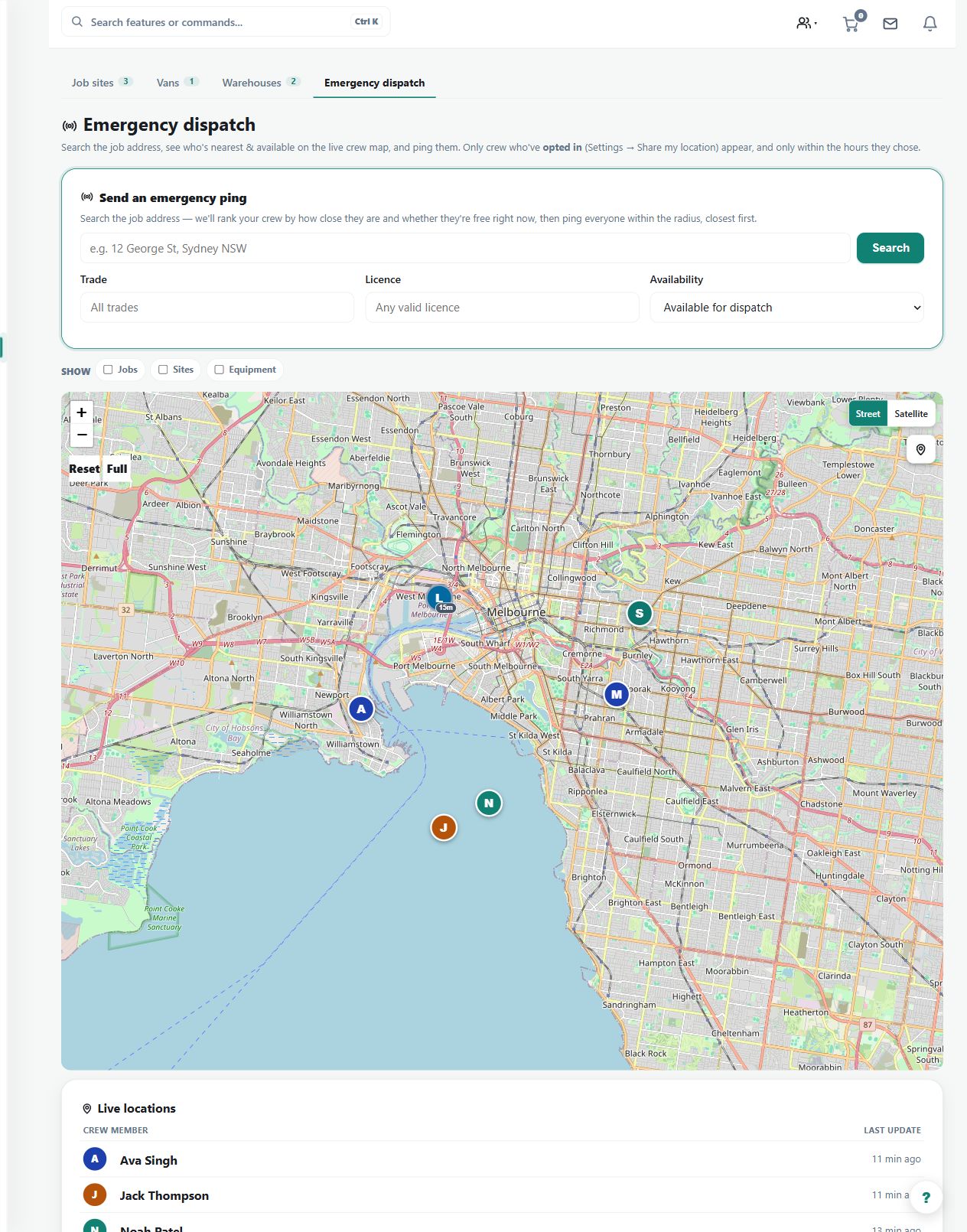
Shows who is live, last seen, at a current spot, assigned, available, stale, or near a job site.
Use crew status alongside the map to distinguish current information from stale or unavailable location context.
Before you start
Availability: Team plan and above. Enabled business features, role permissions, connected providers and supported devices may add requirements.
Documented roles: Owner, Office. A role name alone does not override the permissions set by your business.
Where to find it: team > Crew map > Crew status.
Confirm the worker's assignment and sharing eligibility, then inspect the timestamp and accuracy of the latest position.
Using this guide in New Zealand
- Set your business country in Business settings before entering customer addresses or preparing documents. The country selected on the public website does not change an existing business.
- Check the business currency (NZD), time zone and document tax settings. Only enable tax collection if your business is registered and the settings match your requirements. Your customer invoice tax settings are separate from tax on your AllQuote subscription.
- Screenshots use demonstration records. Their sample currency, addresses and tax amounts do not override your business settings.
Step by step
- Open Crew locations at /team/locations.
- Review the map pins and status details for live, stale, available, and assigned workers.
- Open a crew pin to see last seen time, accuracy, distance, and current spot details.
- Use nearest-worker search when deciding who should take a new job or urgent visit.
Worked example
Before offering an urgent visit, open the worker's pin and compare last-seen time, availability and existing assignment with the proposed job.
This is an illustrative scenario. Use your own approved scope, quantities, rates and business rules.
Check the result
Use the status details to support a dispatch decision and confirm the worker's response where necessary.
Limits and troubleshooting
A location pin does not prove task completion, attendance or willingness to accept more work. Missing or stale data should prompt a check, not an assumption.
Follow the screenshot tutorial: Schedule and dispatch a job
Check current plans and feature availability · Browse every guide