Printable barcode labels
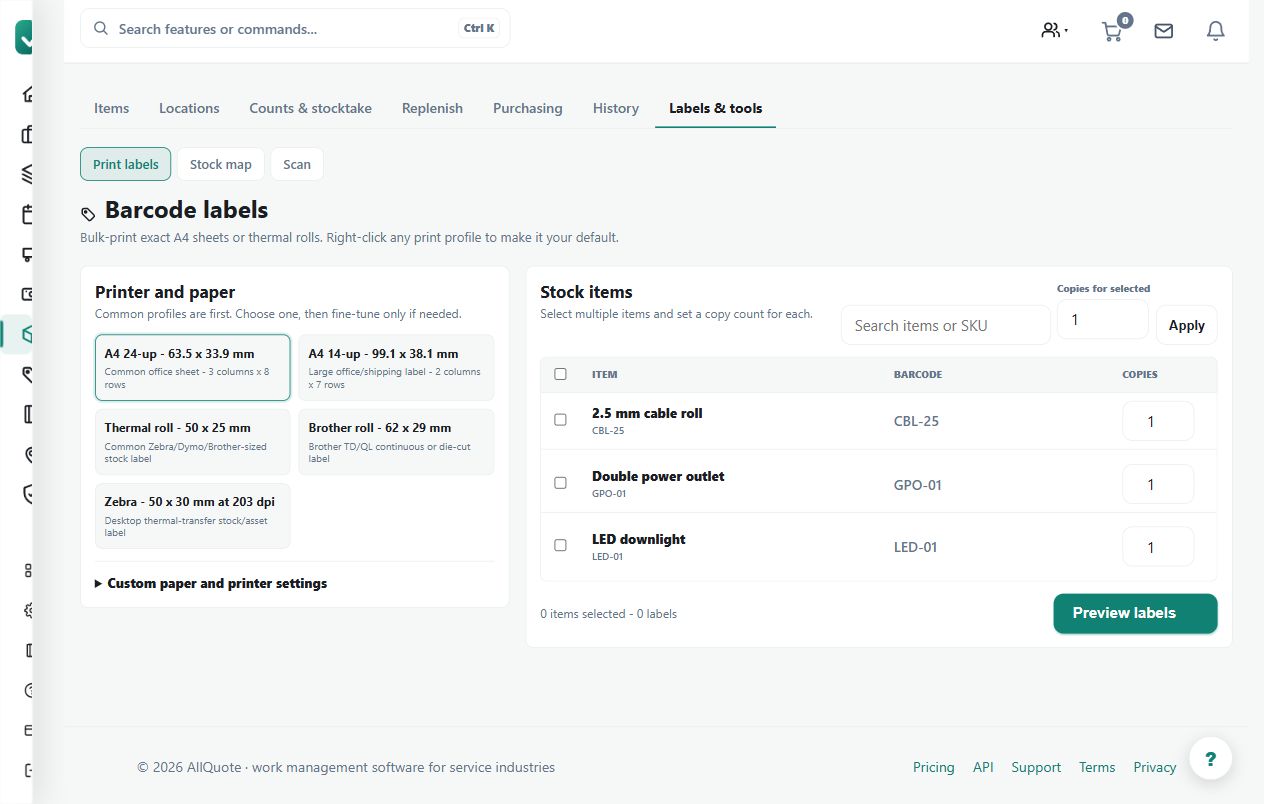
Prints Code128 barcode labels and assigns internal AQ codes to items that do not already have a barcode.
Use printed barcode labels where shelves, bins or items need a consistent scannable identifier.
Before you start
Availability: Enterprise plan and above. Enabled business features, role permissions, connected providers and supported devices may add requirements.
Documented roles: Owner, Office, Team. A role name alone does not override the permissions set by your business.
Where to find it: Stock > Labels > Printable barcodes.
Select the actual stock rows to label and check whether each already has a supplier barcode. Confirm the intended printer and physical label layout.
Using this guide in Canada
- Set your business country in Business settings before entering customer addresses or preparing documents. The country selected on the public website does not change an existing business.
- Check the business currency (CAD), time zone and document tax settings. Only enable tax collection if your business is registered and the settings match your requirements. Your customer invoice tax settings are separate from tax on your AllQuote subscription.
- Screenshots use demonstration records. Their sample currency, addresses and tax amounts do not override your business settings.
Step by step
- Open Stock > Labels or go to /stock/labels.
- Tick the stock items that need labels, or use Select all.
- Press Generate label sheet -> to build the printable sheet.
- Use Print on the generated sheet and apply the labels to bins, shelves, vans, or gear.
- Use saved label batches to reprint or delete your own labels when they are no longer needed.
Worked example
Generate a sheet for warehouse bins, print a sample and scan it back into AllQuote before applying the full batch. Internal AQ codes can identify items without existing barcodes.
This is an illustrative scenario. Use your own approved scope, quantities, rates and business rules.
Check the result
Check readability, item resolution and label placement. Retain the saved batch when the same labels need reprinting.
Limits and troubleshooting
A label identifies a record, not a quantity or product condition. Avoid placing an old item's label on a replacement product with different specifications or pack units.
Check current plans and feature availability · Browse every guide