Tax inclusive or exclusive pricing
Sets whether new quotes and invoices treat typed prices as tax-inclusive or tax-exclusive when tax is enabled.
Use this setting to make price entry and customer display consistent with the business's tax configuration.
Before you start
Availability: Free plan and above. Enabled business features, role permissions, connected providers and supported devices may add requirements.
Documented roles: Owner, Office. A role name alone does not override the permissions set by your business.
Where to find it: Settings > Business Settings > Documents > Tax display.
Confirm the business tax setting and the intended inclusive or exclusive treatment before entering prices. Use the rate applicable to the actual transaction.
Using this guide in Canada
- Set your business country in Business settings before entering customer addresses or preparing documents. The country selected on the public website does not change an existing business.
- Check the business currency (CAD), time zone and document tax settings. Only enable tax collection if your business is registered and the settings match your requirements. Your customer invoice tax settings are separate from tax on your AllQuote subscription.
- Screenshots use demonstration records. Their sample currency, addresses and tax amounts do not override your business settings.
- Review a draft document with a known subtotal and expected tax before sending it. The configured tax label, rate and inclusive/exclusive setting control the document calculation; address entry is not an automatic determination of which taxes you owe.
- For work across states, provinces or tax jurisdictions, have your accountant confirm the required rates and treatment. Do not assume one business default covers every job or that selecting a state or province calculates its tax obligations.
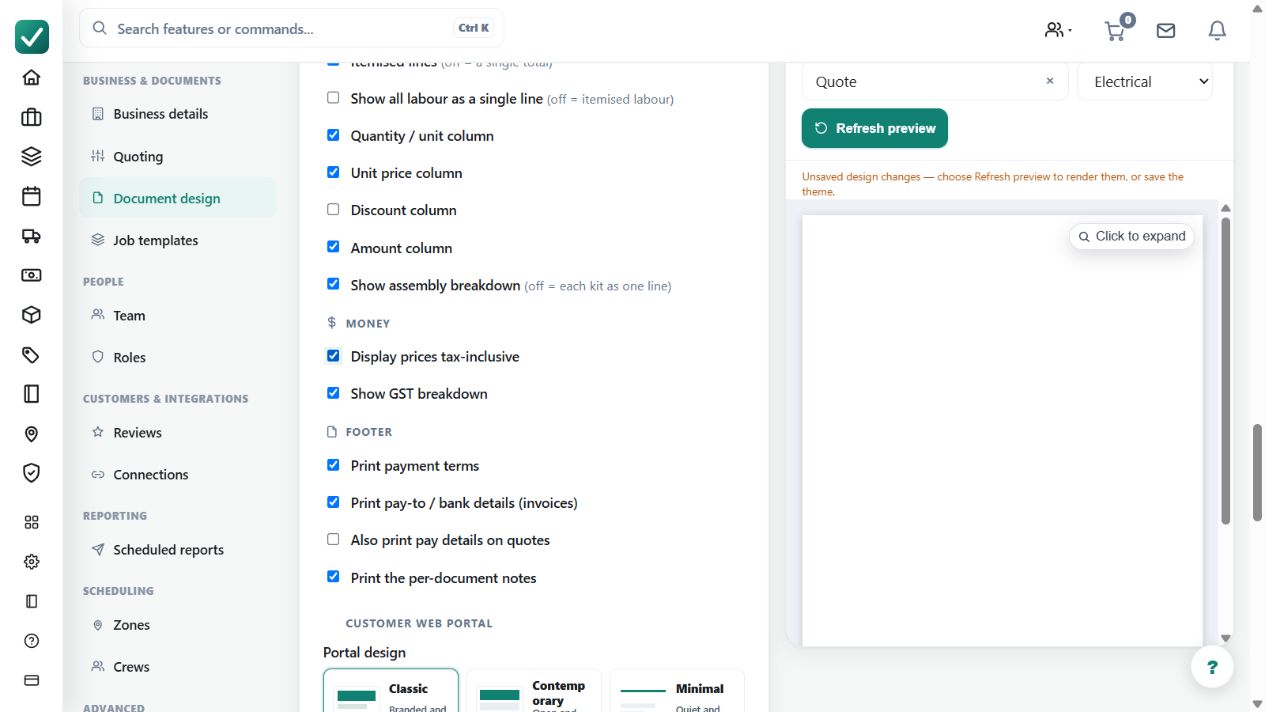
Step by step
- Open Business settings > Documents at /group-settings?tab=documents.
- Confirm the business tax setting is on in the business/accounting settings if the business is registered.
- Edit the active document theme and choose whether customer prices display tax-inclusive or tax-exclusive.
- Create a quote or invoice and check the totals area before sending so tax is shown the way the business expects.
Worked example
For an illustrative 10% tax example, a $100 exclusive amount produces $110 inclusive. Confirm how the selected theme interprets a typed price, then inspect the totals rather than adding tax a second time.
This is an illustrative scenario. Use your own approved scope, quantities, rates and business rules.
Check the result
Review line amounts, tax and the final total together on a new quote or invoice. Check a known calculation before applying the setup to customer documents.
Limits and troubleshooting
The example rate is illustrative, not tax advice. A display preference does not establish tax registration or determine the treatment of every item; the business must confirm those settings.
Check current plans and feature availability · Browse every guide