Show labour as one line
Collapses all labour on customer documents into a single labour line when the theme toggle is enabled.
Use a single labour line when a customer needs a concise labour total while the business retains its detailed estimating work.
Before you start
Availability: Free plan and above. Enabled business features, role permissions, connected providers and supported devices may add requirements.
Documented roles: Owner, Office. A role name alone does not override the permissions set by your business.
Where to find it: Settings > Business Settings > Documents > Labour display.
Choose the document theme used by the quote or invoice. Review the labour rows and descriptions before changing how they appear to the customer.
Using this guide in Canada
- Set your business country in Business settings before entering customer addresses or preparing documents. The country selected on the public website does not change an existing business.
- Check the business currency (CAD), time zone and document tax settings. Only enable tax collection if your business is registered and the settings match your requirements. Your customer invoice tax settings are separate from tax on your AllQuote subscription.
- Screenshots use demonstration records. Their sample currency, addresses and tax amounts do not override your business settings.
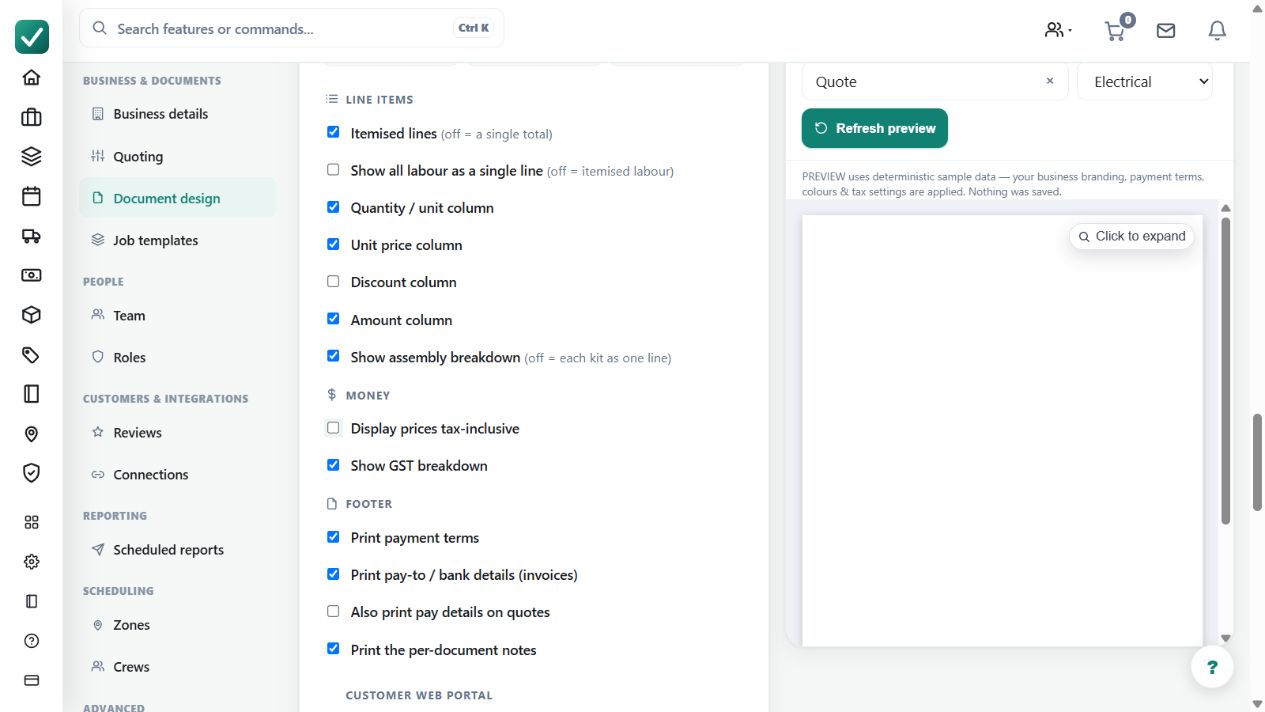
Step by step
- Open Business settings > Documents.
- Edit the customer document theme used for quotes and invoices.
- Turn on the labour single-line option when customers should see one labour total instead of every labour task.
- Save the theme and preview a quote/invoice PDF to confirm labour is collapsed for the customer copy.
Worked example
A quote contains preparation, installation and testing labour. Enable the single-line option, then preview the PDF to confirm those labour charges appear as one customer-facing labour total.
This is an illustrative scenario. Use your own approved scope, quantities, rates and business rules.
Check the result
Compare the combined displayed labour amount with the detailed editor rows. Check that scope wording still explains what the labour covers.
Limits and troubleshooting
Collapsing the presentation does not replace checking the underlying hours and rates. Preview the specific customer document, especially when it also contains assemblies or other grouped items.
Check current plans and feature availability · Browse every guide