Timesheet review and approval
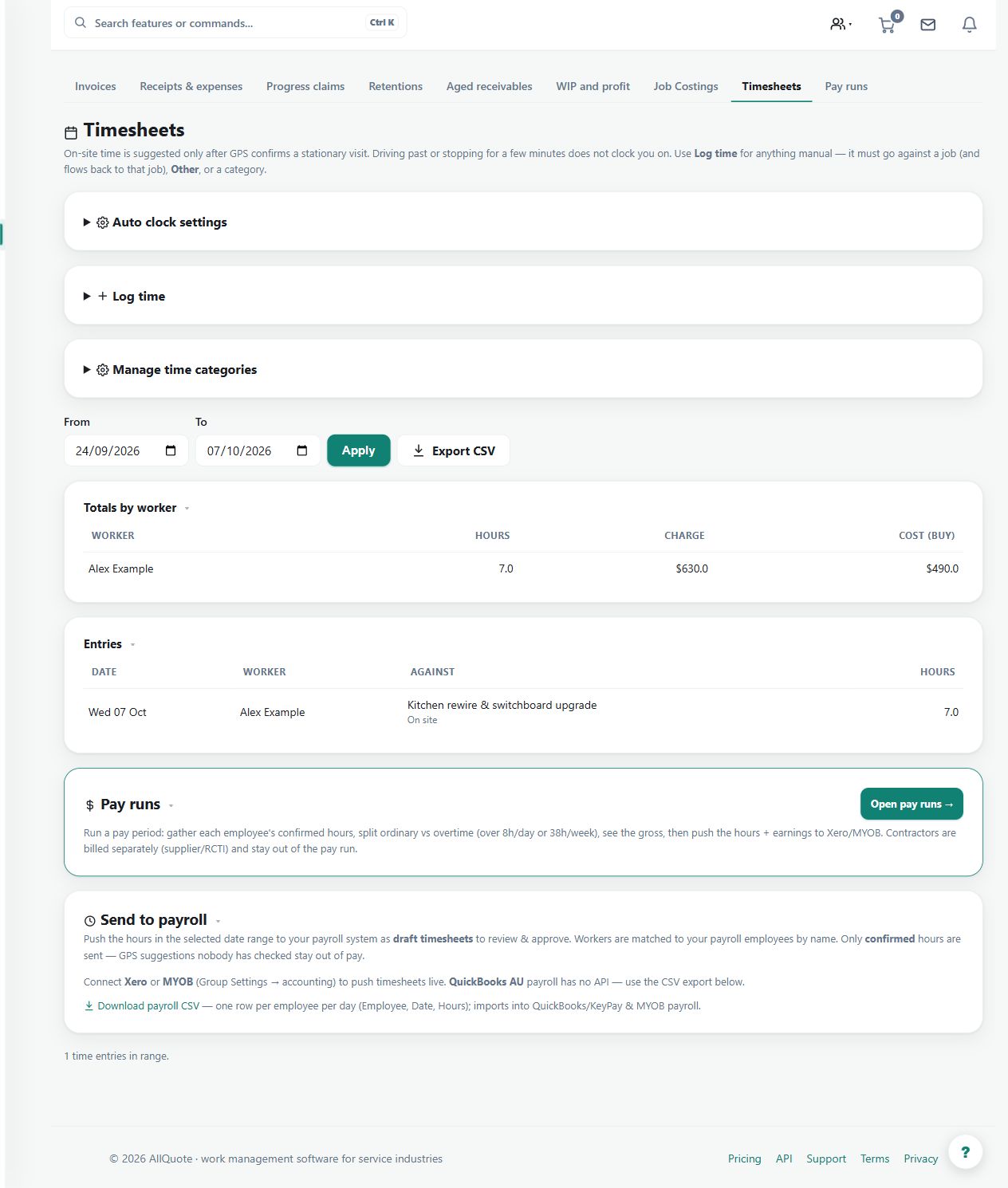
Lets authorised office users review submitted time, job allocation, breaks, discrepancies, and approval state before billing or payroll preparation.
Use office review to turn submitted time into checked job-cost and payroll inputs. It separates recorded hours from the business's approval of those hours.
Before you start
Availability: Crew plan and above. Enabled business features, role permissions, connected providers and supported devices may add requirements.
Documented roles: Owner, Office. A role name alone does not override the permissions set by your business.
Where to find it: Timesheets > Review and approve.
Choose the worker, period and job. Have attendance notes, breaks and the work record available, and resolve missing job allocations before approving time.
Using this guide in United States
- Set your business country in Business settings before entering customer addresses or preparing documents. The country selected on the public website does not change an existing business.
- Check the business currency (USD), time zone and document tax settings. Only enable tax collection if your business is registered and the settings match your requirements. Your customer invoice tax settings are separate from tax on your AllQuote subscription.
- Screenshots use demonstration records. Their sample currency, addresses and tax amounts do not override your business settings.
Step by step
- Open Timesheets and choose the day, week, worker, or job that needs review.
- Check clocked time, job allocation, breaks, submitted notes, and any suggestion or discrepancy details.
- Leave incomplete entries unapproved while obtaining clarification, or amend the reviewed hours before approval. Decline removes an entry; it does not return it to the worker.
- Use approved time for job costing, billing, or the separate pay-run workflow where available.
Worked example
A technician records a morning service visit and afternoon installation. Review each job allocation and break. Leave incomplete time unapproved while obtaining clarification, or amend the reviewed hours before approving the supported time for the separate billing or pay-run workflow.
This is an illustrative scenario. Use your own approved scope, quantities, rates and business rules.
Check the result
Compare approved totals with the underlying entries and job activity. Check discrepancies rather than treating a GPS suggestion as proof of productive work.
Limits and troubleshooting
Decline removes the recorded entry; it does not return it to the worker for correction. Approval is not a payroll payment or an invoice send. Those workflows have their own checks. Resolve disputed time before downstream use.
Check current plans and feature availability · Browse every guide