Add stock from pricebook
Creates stock items from existing pricebook rows while keeping the linked material, supplier, SKU, barcode, and cost source.
Use a pricebook-linked stock item when the inventory row should retain the supplier, SKU, barcode and cost context used in estimating and purchasing.
Before you start
Availability: Team plan and above. Enabled business features, role permissions, connected providers and supported devices may add requirements.
Documented roles: Owner, Office, Team. A role name alone does not override the permissions set by your business.
Where to find it: Stock > Add from pricebook.
Find or create the correct pricebook row first. Confirm the unit, supplier identity and barcode before entering an opening quantity.
Using this guide in United States
- Set your business country in Business settings before entering customer addresses or preparing documents. The country selected on the public website does not change an existing business.
- Check the business currency (USD), time zone and document tax settings. Only enable tax collection if your business is registered and the settings match your requirements. Your customer invoice tax settings are separate from tax on your AllQuote subscription.
- Screenshots use demonstration records. Their sample currency, addresses and tax amounts do not override your business settings.
Step by step
- Open Stock from the sidebar or go to /stock.
- If the item is not in the pricebook yet, open Pricebook from the sidebar, add the row, then return to Stock.
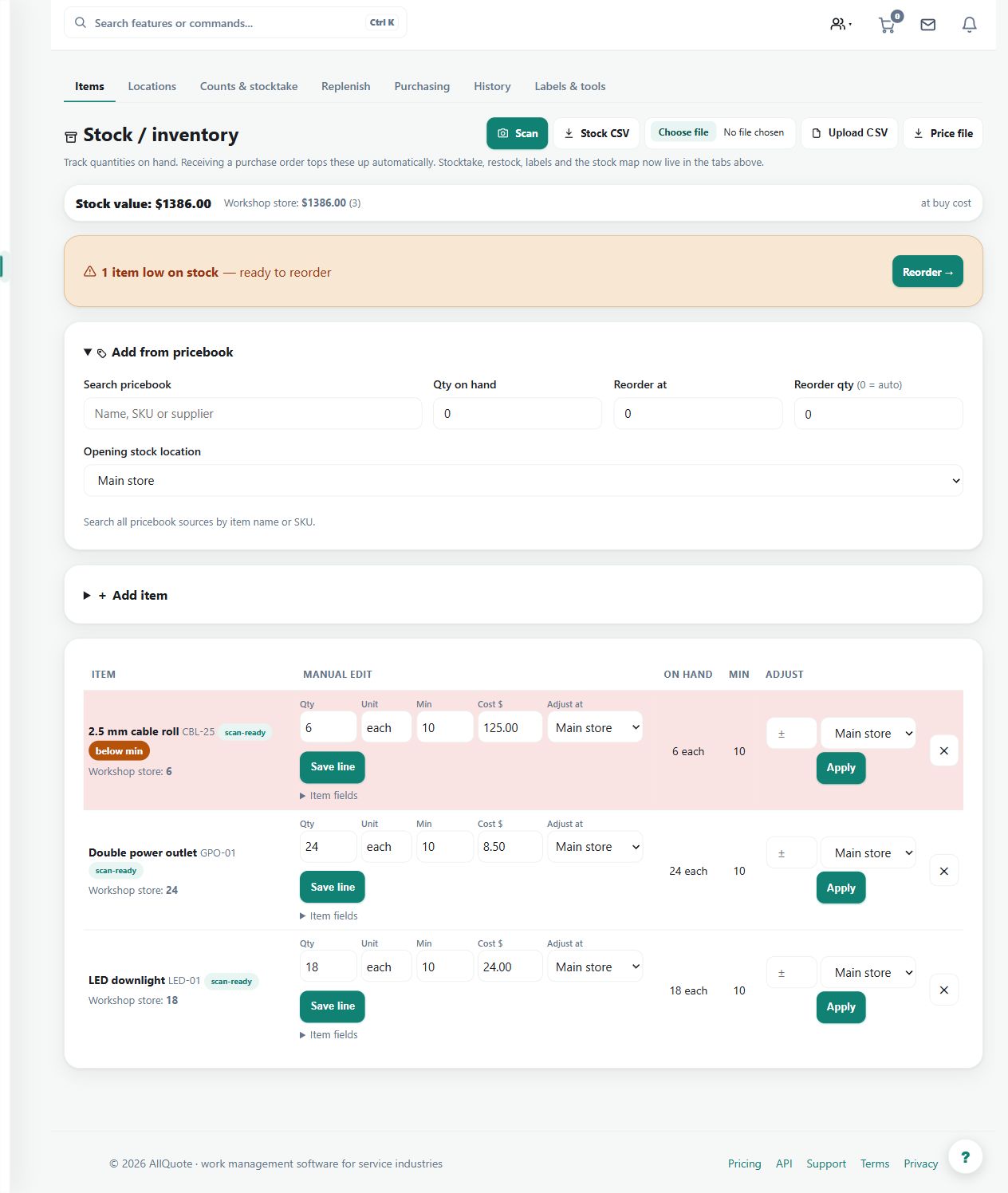
- On Stock, open Add from pricebook, search the row, enter Qty on hand, Reorder at, Reorder qty, and Opening stock location if locations are enabled.
- Press Add so the stock item links back to the pricebook SKU, barcode, supplier, and cost source.
Worked example
Add a commonly used fitting from the pricebook, enter the counted quantity and reorder settings, and choose the opening warehouse or van location where enabled.
This is an illustrative scenario. Use your own approved scope, quantities, rates and business rules.
Check the result
Open the resulting stock item and verify its source row, identifying codes, cost and location balance. Compare the opening quantity with a physical count.
Limits and troubleshooting
Similar names do not prove two products are interchangeable. Check SKU and pack units so a box quantity is not accidentally recorded as individual items.
Check current plans and feature availability · Browse every guide