Scheduled report delivery
Emails selected reports, saved builder reports, scorecards, or dashboards on a daily, weekly, or monthly cadence.
Use email schedules to deliver an already-reviewed report at a chosen daily, weekly or monthly cadence.
Before you start
Availability: Enterprise plan and above. Enabled business features, role permissions, connected providers and supported devices may add requirements.
Documented roles: Owner, Office. A role name alone does not override the permissions set by your business.
Where to find it: Reports > Email schedules.
Confirm the report, reporting range, output format, time and authorised recipients. Check a preview before scheduling distribution.
Using this guide in United Kingdom
- Set your business country in Business settings before entering customer addresses or preparing documents. The country selected on the public website does not change an existing business.
- Check the business currency (GBP), time zone and document tax settings. Only enable tax collection if your business is registered and the settings match your requirements. Your customer invoice tax settings are separate from tax on your AllQuote subscription.
- Screenshots use demonstration records. Their sample currency, addresses and tax amounts do not override your business settings.
Step by step
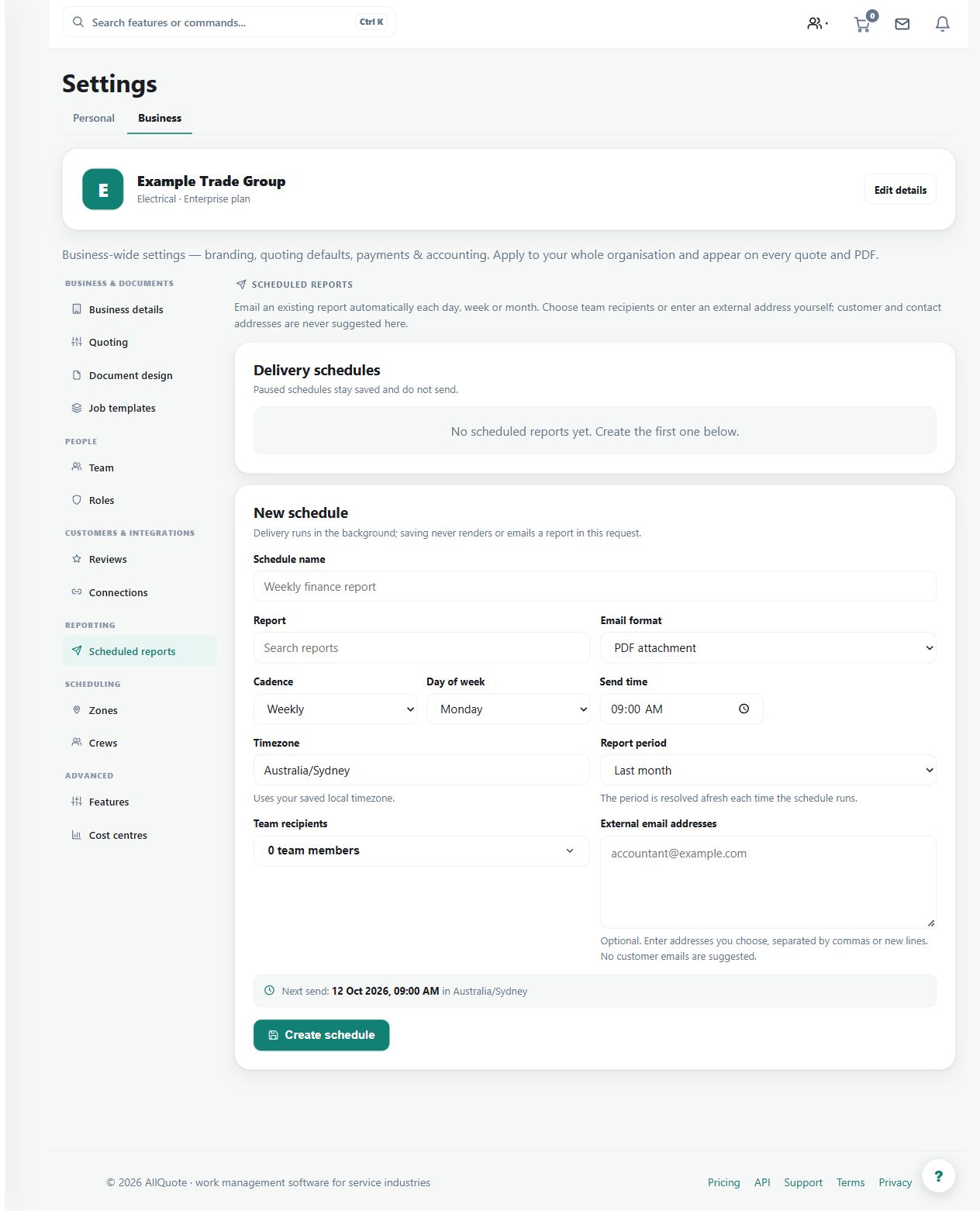
- Open Reports > Email schedules at /reports/schedules.
- Choose the report or dashboard to send.
- Set the cadence, delivery time, output format, recipients, and reporting range.
- Save the schedule, then use Send now when the delivery setup needs a test.
Worked example
Schedule a weekly management report for the intended recipients, then use Send now deliberately to verify the delivered file and selected reporting range.
This is an illustrative scenario. Use your own approved scope, quantities, rates and business rules.
Check the result
Check the received report, its period and the recipient list. Review the schedule when staff responsibilities or reporting needs change.
Limits and troubleshooting
Scheduling delivery does not validate the report's figures. Email recipients may receive sensitive business information, so keep the audience and report selection appropriate.
Check current plans and feature availability · Browse every guide