Customer SMS
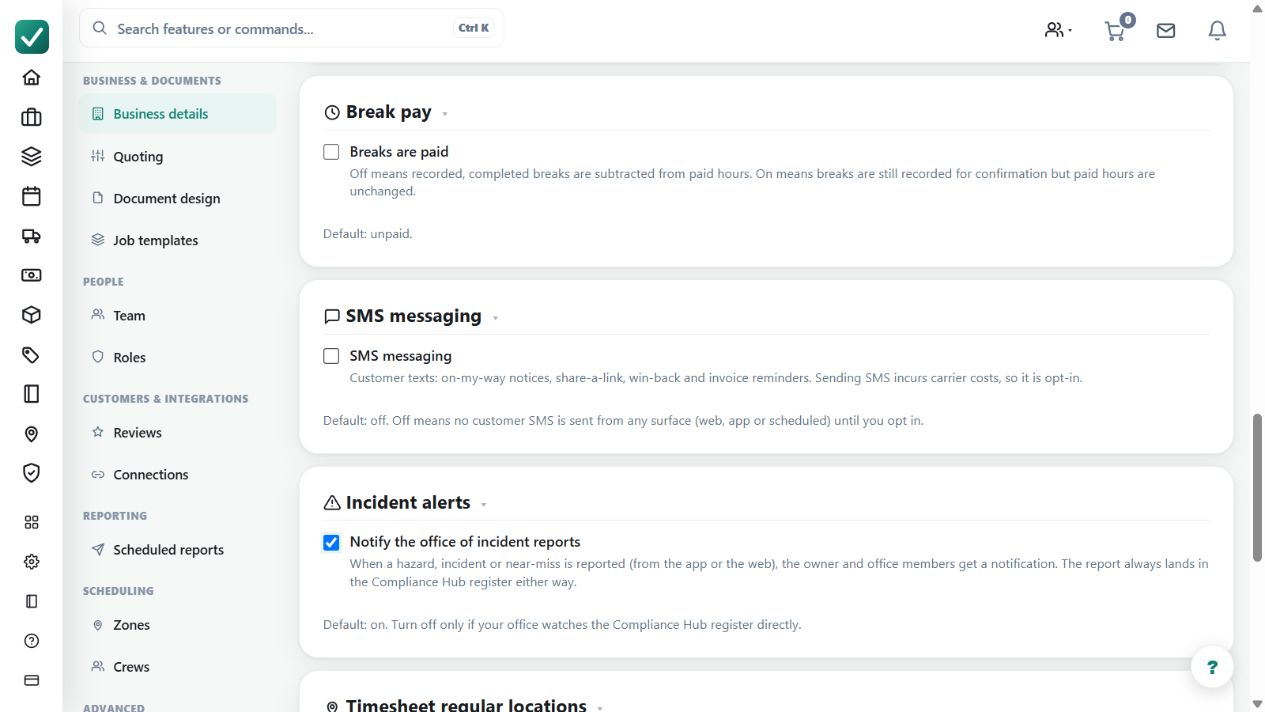
Sends customer text messages such as on-my-way notices, share-a-link, win-back and invoice reminders. Opt-in, because sending SMS incurs carrier costs; usage packs can add credits.
Use deliberate customer SMS actions for relevant job updates, tracking links or payment reminders.
Before you start
Availability: Free plan and above. Enabled business features, role permissions, connected providers and supported devices may add requirements.
Where to find it: Settings > Business Settings > Business details > SMS messaging.
Enable SMS for the business, verify the recipient and message, and review available usage credits and carrier-cost implications.
Using this guide in United Kingdom
- Set your business country in Business settings before entering customer addresses or preparing documents. The country selected on the public website does not change an existing business.
- Check the business currency (GBP), time zone and document tax settings. Only enable tax collection if your business is registered and the settings match your requirements. Your customer invoice tax settings are separate from tax on your AllQuote subscription.
- Screenshots use demonstration records. Their sample currency, addresses and tax amounts do not override your business settings.
- The included plan allowances remain available. Additional Office-user, storage-block and credit-pack purchases are not yet configured in local currency; Australian add-on examples are not an offer to charge your account in AUD.
- Check the destination country, international dialling code and connected provider coverage before sending. SMS remains a manual action; a reminder or workflow does not authorise an automatic text. Sender names and delivery availability depend on the provider and destination.
Step by step
- Open Business settings > Business details and turn on SMS messaging.
- Use the SMS action from a job or customer surface, such as the on-my-way notice.
- Watch SMS usage; included monthly SMS resets with the plan and usage packs can add more.
- Turn the toggle off at any time to stop all customer SMS from every surface.
Worked example
From the relevant customer or job, inspect the text and destination before taking the manual send action, then review the recorded result.
This is an illustrative scenario. Use your own approved scope, quantities, rates and business rules.
Check the result
Check the send result and usage rather than assuming the customer read the message. Turn the business toggle off when SMS should stop.
Limits and troubleshooting
SMS is manual-only. Enabling the feature or configuring an email workflow is not permission to send automated texts, and a top-up does not replace recipient and content review.
Check current plans and feature availability · Browse every guide