Step 1
Open New quote
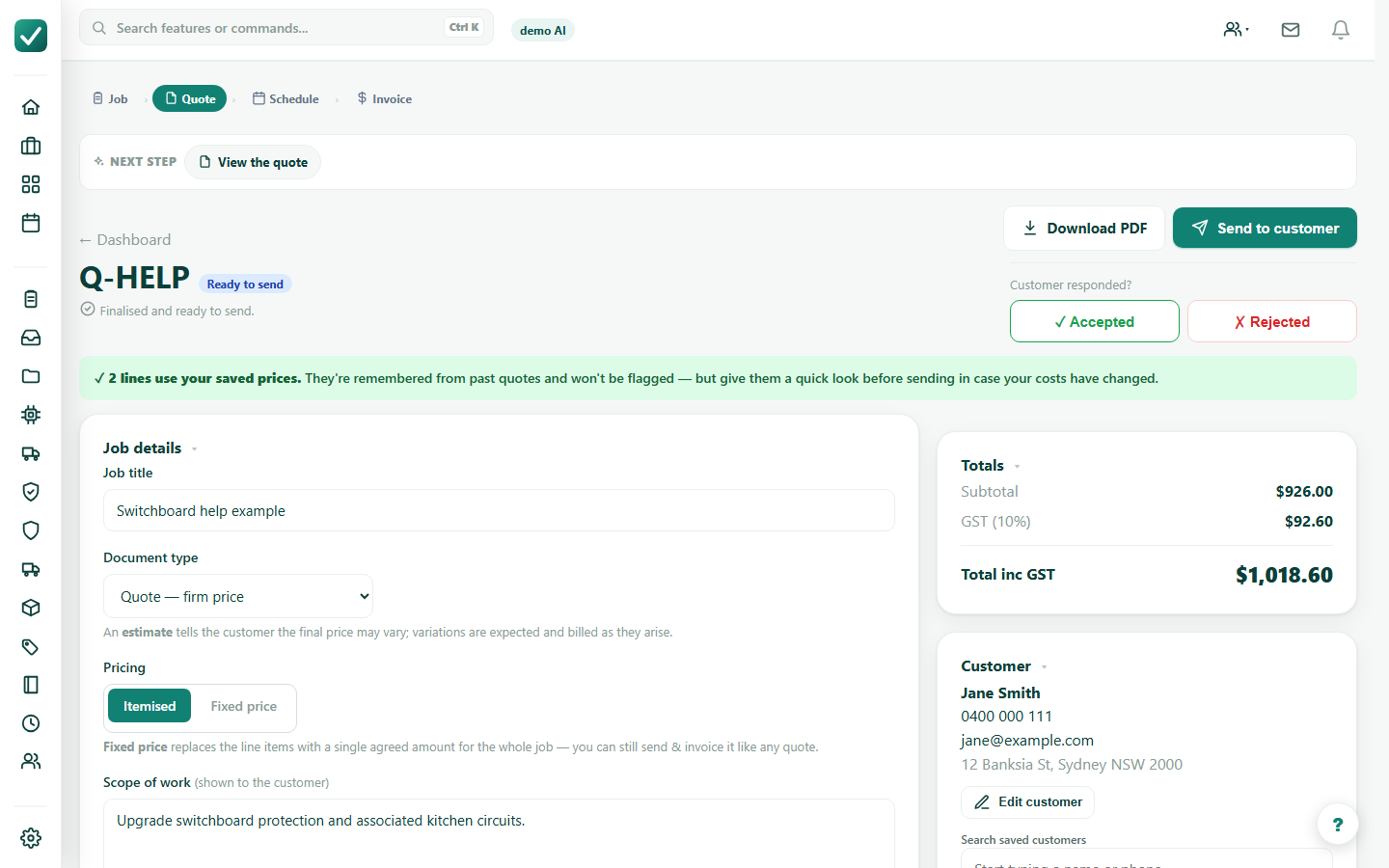
From the main navigation, open New quote. Give the job a short name that will make sense in the job and quote lists later.
Tutorial
Build a customer quote manually, review the pricing and scope, then send the customer copy.
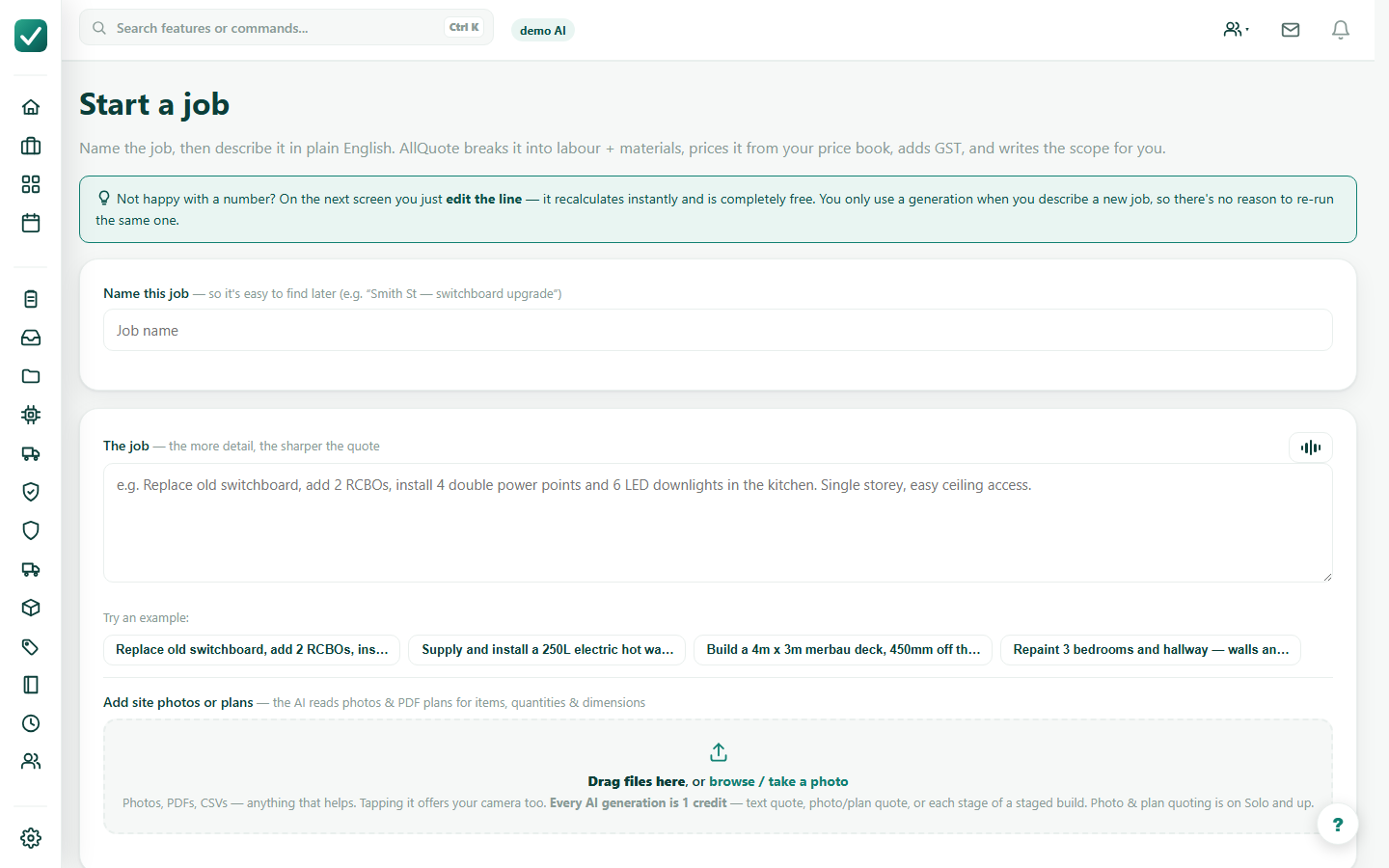
From the main navigation, open New quote. Give the job a short name that will make sense in the job and quote lists later.
Choose the manual path, describe the work, add or pick the customer, and confirm the site address before adding priced lines.
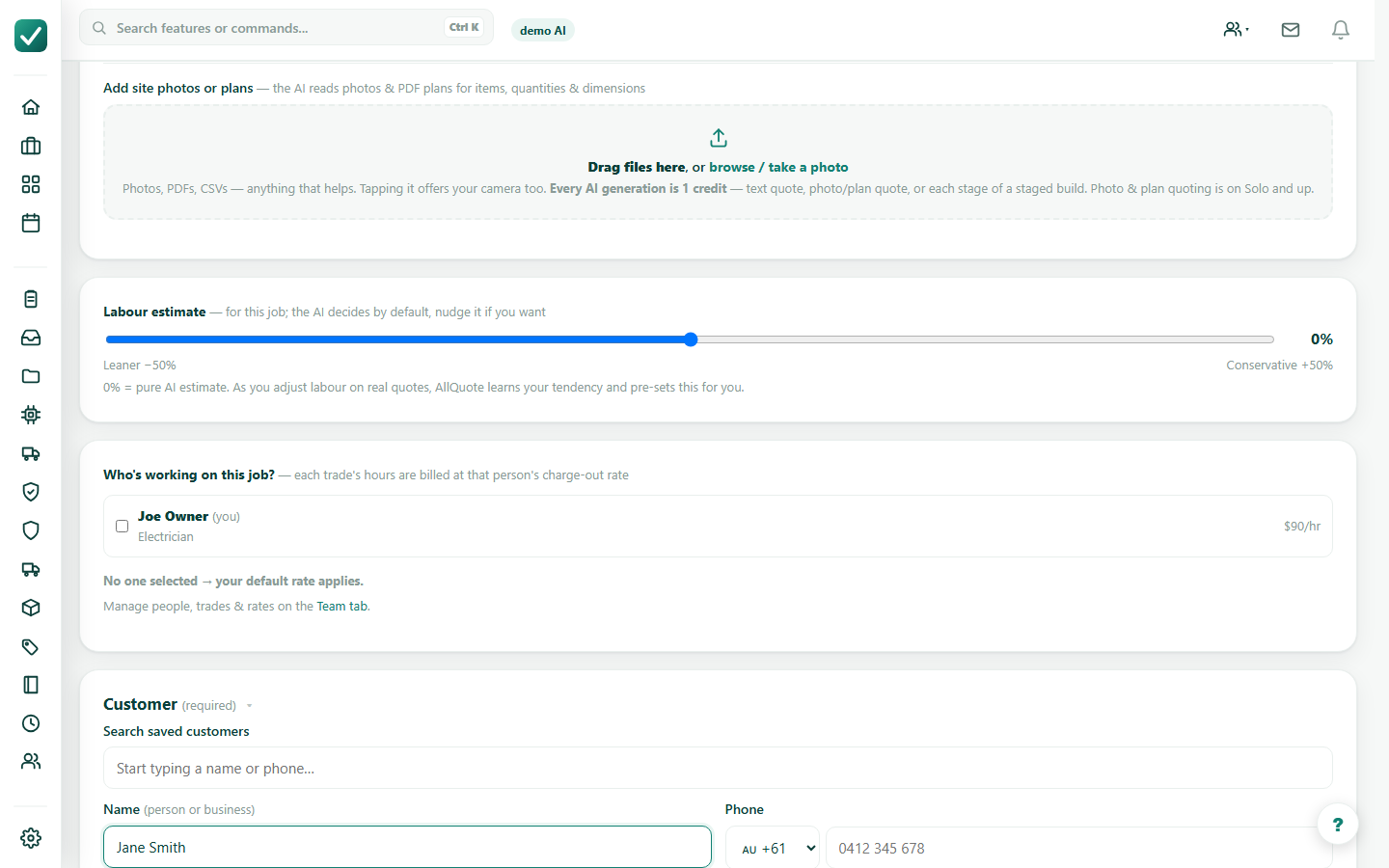
Add and check the scope, labour, materials, quantities, sell prices, margin, tax, deposit, terms, and customer options before finalising.
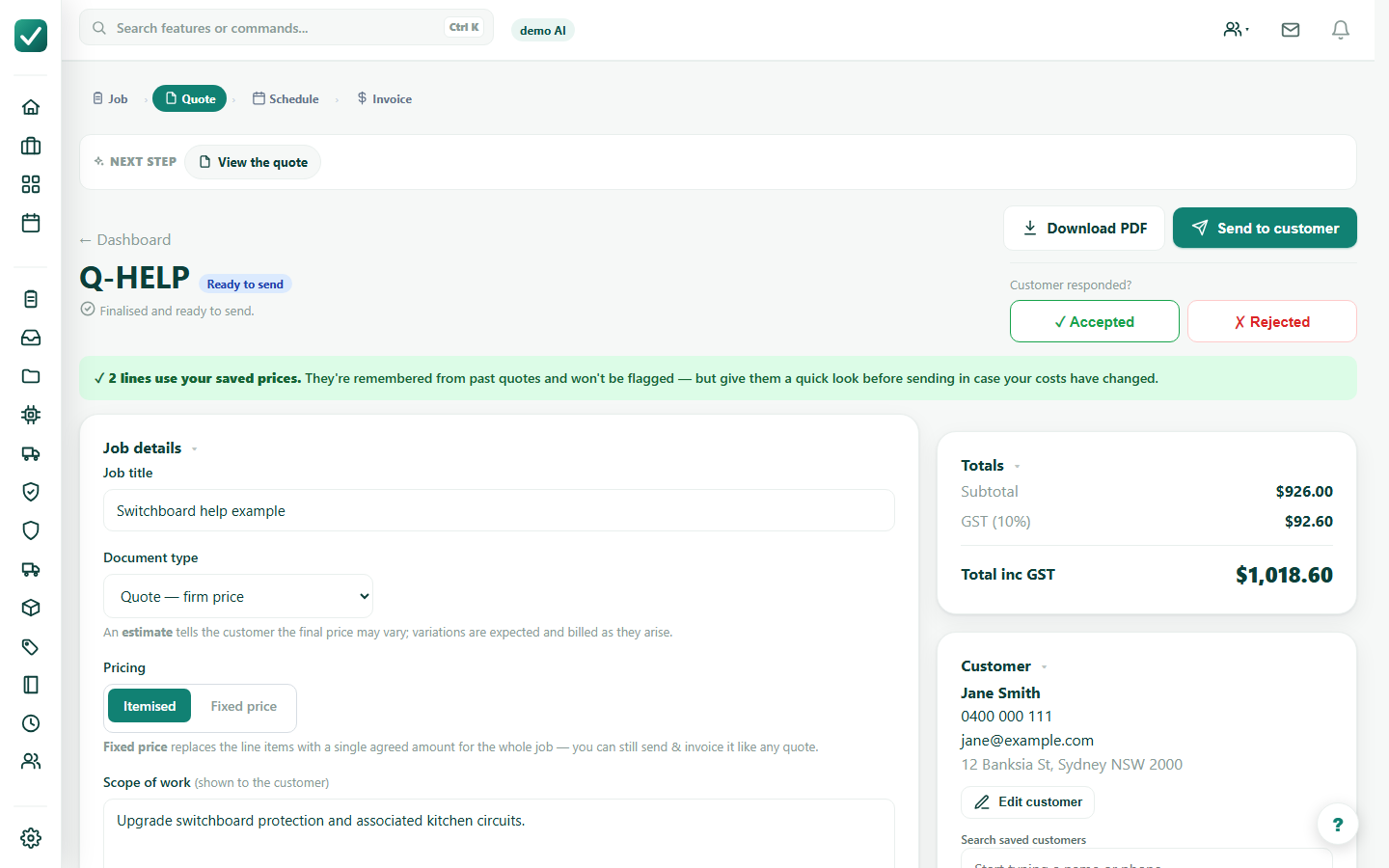
Finalise the quote when the customer copy is ready. Download the PDF, send the quote, or record the customer's response from the quote actions.