Find, create and send an invoice on mobile
Find the right invoice, create one from a quote or reviewed manual lines, and check the saved result before sending.
Before you start
Select the intended business and confirm permission to create or send invoices. Check the customer, work, agreed charges and business currency. Permission to collect a payment does not grant invoice creation or unrestricted financial access. Creating an invoice does not collect money or activate a payment provider.
Plan eligibility, business features, permissions and device support still apply. Reading a guide does not grant access.
Step by step
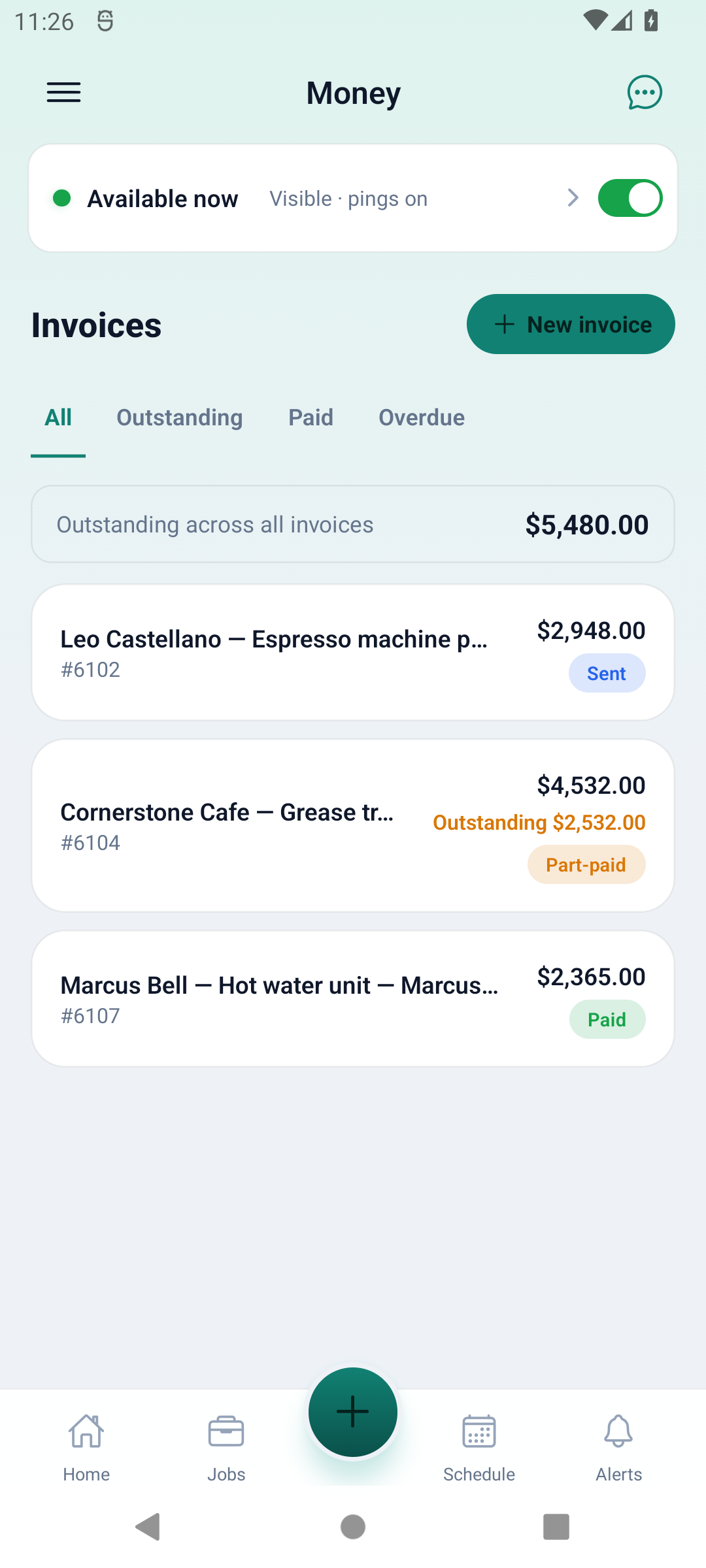
- Open Money and find the invoice under All, Outstanding, Paid or Overdue. Pull to refresh when connected, then open the matching record and check its customer and number. Saved data may not include the latest payment or invoice.
- If the work already has an invoice, open that original. For an accepted quote, choose Create invoice from the quote controls; use View invoice if it is already invoiced. To bill separate work without a quote, choose New invoice from the invoice list.
- For a quote-based invoice, review the source quote and choose Full invoice or the offered Deposit option as appropriate. Check the amount due now and any balance still locked for later; do not treat a deposit choice as a second charge for the same work.
- For a new manual invoice, select the existing client or deliberately enter the new client’s details, then add the line descriptions, quantities and prices. Review the displayed subtotal and tax information before choosing Create invoice. The server calculates the final total when it saves.
- Read the result before leaving. An offline invoice queued for sync is not yet a confirmed invoice. Reopen the original quote or refresh Money after sync to find the result; if the app says it was already invoiced, use that invoice rather than creating another.
- Open the saved invoice and review its lines, currency, tax, total, paid amount and outstanding balance. Use Download PDF where available and connected to inspect the customer document. Resolve a tax-review or permission refusal before trying to send.
- Choose Send / email invoice, or Resend / email invoice for a previously sent record. Check the recipient in the offered send or share controls and confirm only when ready. Emailing needs signal; verify the response and the original invoice rather than assuming the customer received it.
Worked example
An office user opens an accepted repair quote and checks whether an invoice already exists. They create the intended invoice once, reopen its final lines and tax, then explicitly email it. When a bank transfer later arrives, they follow the separate payment-recording guide instead of changing the invoice total.
This is an illustrative scenario, not a customer testimonial.
Check the result
Confirm the invoice number and saved amounts before sending, and check delivery separately. An issued or sent invoice is not a payment receipt. Work completion, customer acceptance, money received and provider settlement are separate events.
Limits and troubleshooting
- If a save or send response is uncertain, refresh the original invoice or source quote and inspect Sync centre before another attempt. Do not duplicate an invoice to recover a missed reply. Keep queued work on the original business and account until its result is known.
- The final document uses the business and source-document currency and reviewed taxes. Do not copy the Australian demo amounts or assume GST applies in another country. For US/Canada tax review, use the authorised web workflow when required; the linked contract-tax companion applies to agreements that offer that handoff.
- A PDF or receipt link is available only when the invoice provides it; fetching the PDF needs signal. Sending or sharing a link does not prove payment. Card collection and payment links depend on the business, country, provider connection and device; manual invoicing does not enable them.
- If you need to correct an issued invoice, use the supported amendment or credit workflow. Recording, editing or removing a manual payment is not a refund. Do not recreate the invoice or change its total merely to make an outstanding balance disappear.
Related web guides and screenshot examples
These examples show the web interface. They are not screenshots of the native app.
Business settings in Canada
- Set your business country in Business settings before entering customer addresses or preparing documents. The country selected on the public website does not change an existing business.
- Check the business currency (CAD), time zone and document tax settings. Only enable tax collection if your business is registered and the settings match your requirements. Your customer invoice tax settings are separate from tax on your AllQuote subscription.
- Screenshots use demonstration records. Their sample currency, addresses and tax amounts do not override your business settings.
- Card payment links and Tap to Pay are not enabled for this market. You can record payments received manually. Paying for an AllQuote subscription does not enable customer card collection; Australian card fees are not local rates.
- Review a draft document with a known subtotal and expected tax before sending it. New US and Canadian documents require a reviewed business tax policy and explicit line treatments. This component calculation uses before-tax amounts; tax-inclusive and tax-on-tax calculations are not supported. A document display preference does not replace tax classification; address entry is not an automatic determination of which taxes you owe.
- For work across states, provinces or tax jurisdictions, have your accountant confirm the required rates and treatment. Do not assume one business default covers every job or that selecting a state or province calculates its tax obligations.
Check current plans and availability · Browse web guides and screenshots