Allocate company equipment to a job on mobile
Find the right machine, check the intended operator and readiness, then verify the saved allocation and its prestarts.
Before you start
This is Equipment: the business’s own vans, trailers and machines, not customer-site Assets or stock. Use the correct business and a saved job. Allocation requires an eligible dispatch plan, the Equipment feature enabled, an Office seat and owner, manage-business or manage-equipment authority. Basic calendar access on Free or Takeoff does not grant equipment allocation. Field access to assigned-job prestarts or manuals is separate and does not grant register management.
Plan eligibility, business features, permissions and device support still apply. Reading a guide does not grant access.
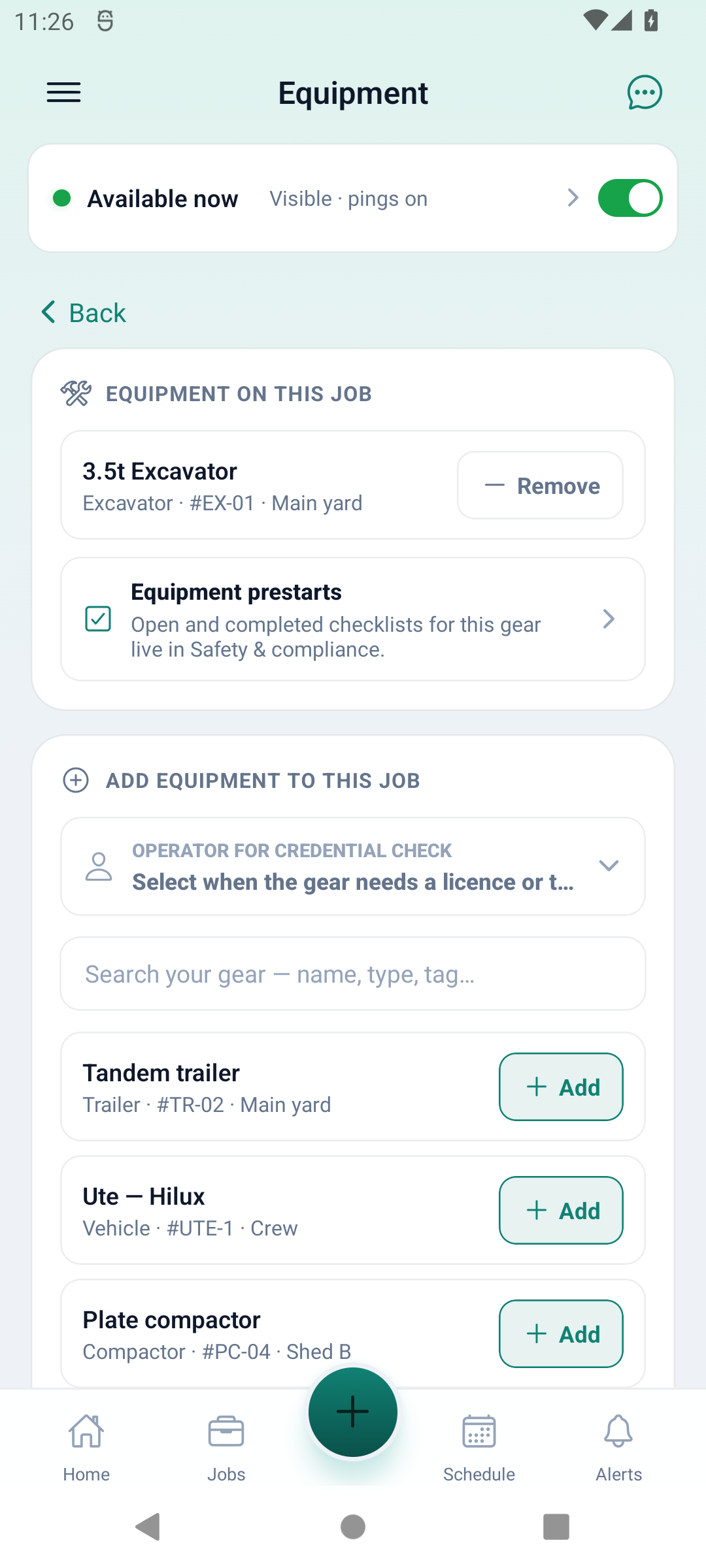
Step by step
- Open the saved job and choose Equipment on this job. Check the job and business before changing a machine’s allocation. Equipment on this job lists the current links; Add equipment to this job lists other registered gear.
- Search your gear by name, type, tag, serial or location. Check the identifying tag and location rather than choosing a similar name. If more matches are available, use Show more. Create missing register records and configure their checklist or credential requirements on the website.
- Where the machine needs an operator licence or ticket, use Operator for credential check to select the actual Field member. The selection is for that readiness check; it does not assign the person to the job or record a new qualification.
- Choose Add for the intended machine. When connected, the app checks readiness and can ask for the operator first. Read any blockers or warnings. Resolve the stated problem with the authorised person rather than choosing another operator to bypass a missing credential.
- Check the response and the Equipment on this job list. Added — will sync and Waiting to sync mean a pending change, not a confirmed allocation. Reconnect, check Sync centre and reload the original job before relying on that allocation.
- Open Equipment prestarts to reach Safety & compliance for this gear. Review the actual records and complete the required inspection using the prestart guide. An allocation, a readiness message and a completed prestart are different records; none is an automatic declaration that the machine is safe to use.
- When the equipment is no longer linked to this job, choose its Remove action and verify the refreshed list after sync. Remove unlinks the equipment from this job; it does not delete the machine from the business register or record a service.
- If the machine offers a meter control, check its displayed unit and enter an actual reading. Select Service completed now only for work that really occurred; it rolls the configured next-due reading. A lower reading needs the explicit meter-correction control. Save and verify this separate update; do not infer a service from merely allocating the machine.
Worked example
An Office coordinator finds the trailer by its tag, chooses the intended operator when credentials are required, and adds it to the saved job. They confirm the allocation after sync and open its prestart. If the inspection finds a defect, they follow the business’s isolation procedure rather than treating the earlier Add response as approval to use it.
This is an illustrative scenario, not a customer testimonial.
Check the result
Reload the correct job while connected and confirm the equipment link, any pending sync state and the actual prestart result. This mobile job link is separate from a dated dispatch-board booking; it does not reserve a time slot or prove that gear has arrived on site.
Limits and troubleshooting
- A cached list is not a fresh readiness check. Offline allocation may queue without the online operator check, and the server can reject it on replay. Do not treat an offline Add or an unchecked operator warning as evidence of valid credentials. Inspect the original queued action and job after reconnecting instead of creating another machine.
- If access is refused or the equipment disappears, confirm the current business, role, feature and original job with the owner. Prestart completion has its own safety and allocated-job checks. Do not switch businesses or use another person’s account to get around a refusal.
- The illustrated Australian names are fictional; the workflow also uses your business’s regional settings. Check the displayed distance or usage unit when recording a meter, including miles versus kilometres. Use locally appropriate licences, inspections and operating procedures; a checklist is not a legal-equivalence or safety certification.
- An uncertain meter or service response may already have saved or queued an event. Reopen the original equipment history and Sync centre before submitting again. Maintenance history and customer-asset servicing are separate from allocation; this guide does not demonstrate a completed maintenance entry.
Related web guides and screenshot examples
These examples show the web interface. They are not screenshots of the native app.
Business settings in Canada
- Set your business country in Business settings before entering customer addresses or preparing documents. The country selected on the public website does not change an existing business.
- Check the business currency (CAD), time zone and document tax settings. Only enable tax collection if your business is registered and the settings match your requirements. Your customer invoice tax settings are separate from tax on your AllQuote subscription.
- Screenshots use demonstration records. Their sample currency, addresses and tax amounts do not override your business settings.
Check current plans and availability · Browse web guides and screenshots