Reece ordering and purchase orders
Supports Reece-backed purchase order preview, checks, submit flow, and quote-to-order workflows.
Use Reece-backed purchase-order actions to review and submit supported supplier orders from the purchasing workflow.
Before you start
Availability: Team plan and above. Enabled business features, role permissions, connected providers and supported devices may add requirements.
Documented roles: Owner, Office. A role name alone does not override the permissions set by your business.
Where to find it: Apps > Purchase orders > Reece ordering.
Confirm the connected account, purchase order, delivery details, job and intended items. Review the supplier preview and checks before submission.
Using this guide in Canada
- Set your business country in Business settings before entering customer addresses or preparing documents. The country selected on the public website does not change an existing business.
- Check the business currency (CAD), time zone and document tax settings. Only enable tax collection if your business is registered and the settings match your requirements. Your customer invoice tax settings are separate from tax on your AllQuote subscription.
- Screenshots use demonstration records. Their sample currency, addresses and tax amounts do not override your business settings.
- Supplier connections depend on the supplier, account entitlement and supported market. A Reece workflow shown in this guide is not a promise of access through every international Reece business. Use your own supplier price files and review imported units, costs and currency before quoting.
Step by step
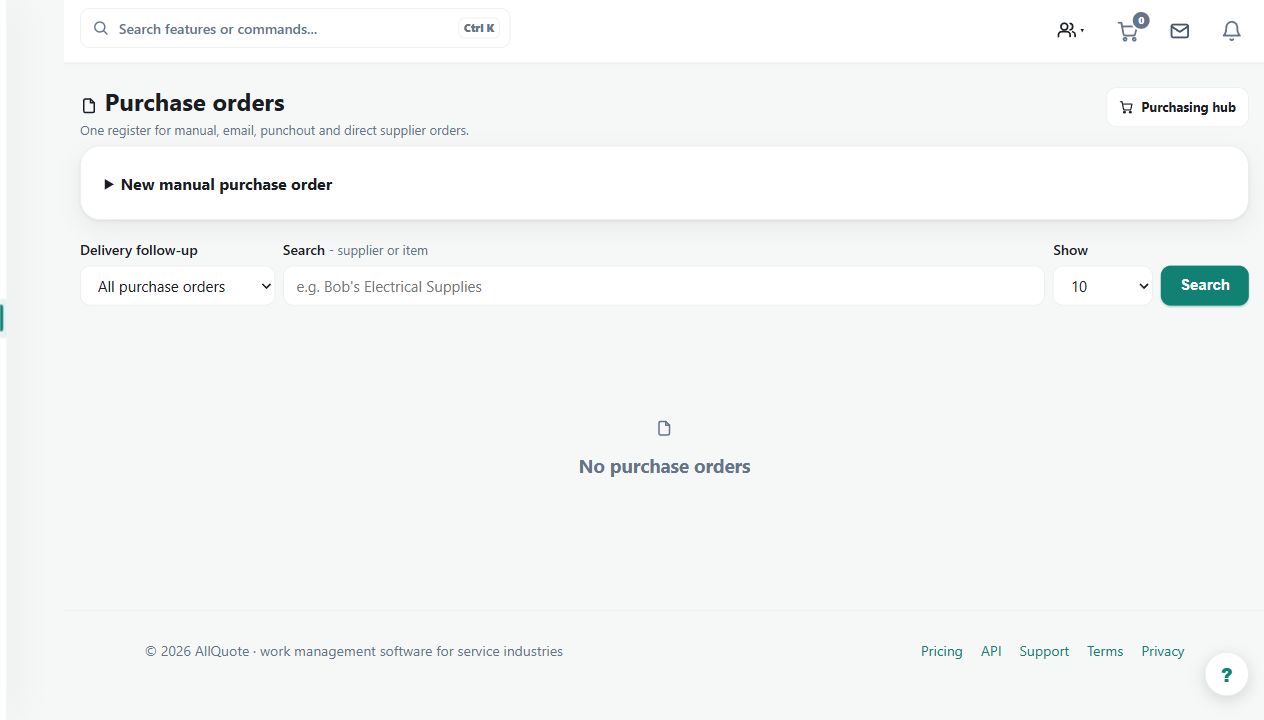
- Open Purchase orders at /purchase-orders.
- Create or open the purchase order for the job or stock order.
- Use the Reece actions on the purchase order when the integration is connected.
- After the order arrives, receive it back into stock so quantities and costs update.
Worked example
Prepare a job's fittings order, inspect the Reece preview and submit only after the business approves the details. Receive the delivered goods against the purchase order afterward.
This is an illustrative scenario. Use your own approved scope, quantities, rates and business rules.
Check the result
Check the supplier response and order identity, then reconcile quantities received and costs with the physical delivery.
Limits and troubleshooting
Submitting an order is a commercial action; a preview is not a submitted order and a submitted order is not a goods receipt. Inspect a recorded result before retrying.
Follow the screenshot tutorial: Order from a supplier
Check current plans and feature availability · Browse every guide