Accounting job costing
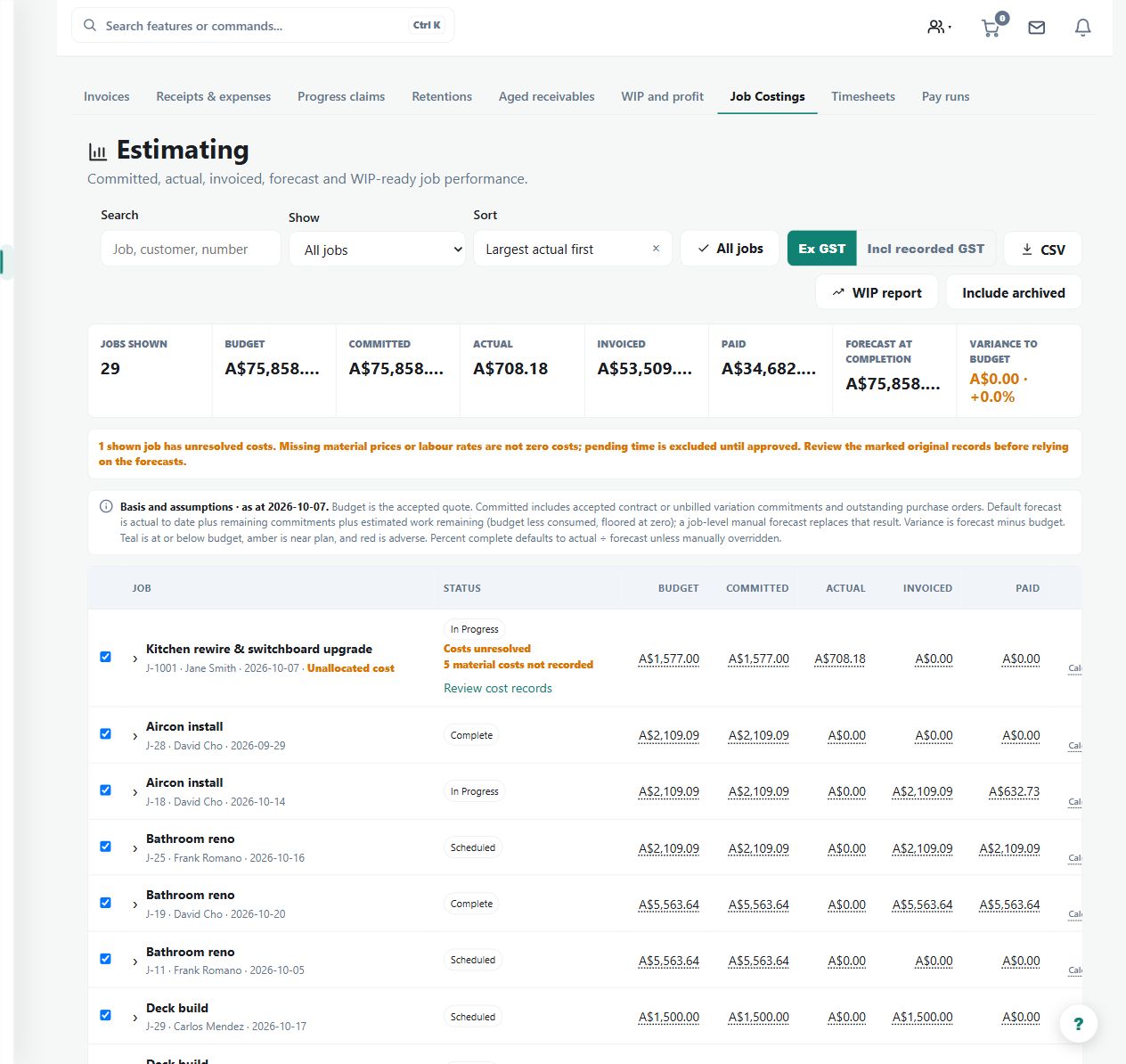
Compares budget, committed, actual and invoiced money, then shows forecast at completion and variance for Business-plan jobs.
Use the Business Job Costings workspace to compare budget, commitments, actual costs and billing at an as-at date.
Before you start
Availability: Business plan and above. Enabled business features, role permissions, connected providers and supported devices may add requirements.
Documented roles: Owner, Office. A role name alone does not override the permissions set by your business.
Where to find it: Money > Job Costings.
Allocate purchase orders, supplier bills, receipts, expenses, stock usage and approved time correctly. Select the intended jobs and date.
Using this guide in Canada
- Set your business country in Business settings before entering customer addresses or preparing documents. The country selected on the public website does not change an existing business.
- Check the business currency (CAD), time zone and document tax settings. Only enable tax collection if your business is registered and the settings match your requirements. Your customer invoice tax settings are separate from tax on your AllQuote subscription.
- Screenshots use demonstration records. Their sample currency, addresses and tax amounts do not override your business settings.
- Confirm that your connected accounting or payroll provider supports your organisation and country. Review account mappings, currency and tax codes using a draft or test export first. Preparing timesheets or a pay run does not establish local payroll filing or employment compliance.
Step by step
- Open Job Costings, choose the as-at date and the jobs you want to compare.
- Check committed purchase orders, actual approved labour and recorded costs, and the amount invoiced to the customer.
- Review forecast at completion and budget variance; use a manual forecast or percent-complete override only when the job record supports it.
- Open a job's detail to trace each figure back to its invoice, supplier bill, receipt, expense, stock use or approved time entry.
Worked example
Review a project whose committed purchasing cost exceeds its remaining budget. Trace the commitment and actual-cost figures, then inspect forecast at completion and variance before deciding on a supported override.
This is an illustrative scenario. Use your own approved scope, quantities, rates and business rules.
Check the result
Reconcile each material figure to its source record and document the basis for a manual forecast or percent-complete override.
Limits and troubleshooting
Forecasts depend on recorded costs and assumptions; they are not guaranteed final margins. Correct source records rather than treating the report as a place to conceal missing costs.
Check current plans and feature availability · Browse every guide