Asset maintenance schedules and lifecycle
Tracks scheduled maintenance, service reminders, completed-service history, and lifecycle records for registered assets.
Use maintenance schedules and completed-service history to follow an installed asset throughout its service life.
Before you start
Availability: Business plan and above. Enabled business features, role permissions, connected providers and supported devices may add requirements.
Documented roles: Owner, Office. A role name alone does not override the permissions set by your business.
Where to find it: Work > Assets > Maintenance.
Confirm the customer, property, asset name and serial number before recording an event. Choose the appropriate date-based or usage-based servicing method and check its interval, starting date or meter readings. Gather existing service and test evidence for that specific asset.
Using this guide in Canada
- Set your business country in Business settings before entering customer addresses or preparing documents. The country selected on the public website does not change an existing business.
- Check the business currency (CAD), time zone and document tax settings. Only enable tax collection if your business is registered and the settings match your requirements. Your customer invoice tax settings are separate from tax on your AllQuote subscription.
- Screenshots use demonstration records. Their sample currency, addresses and tax amounts do not override your business settings.
Step by step
- Open an asset from /assets.
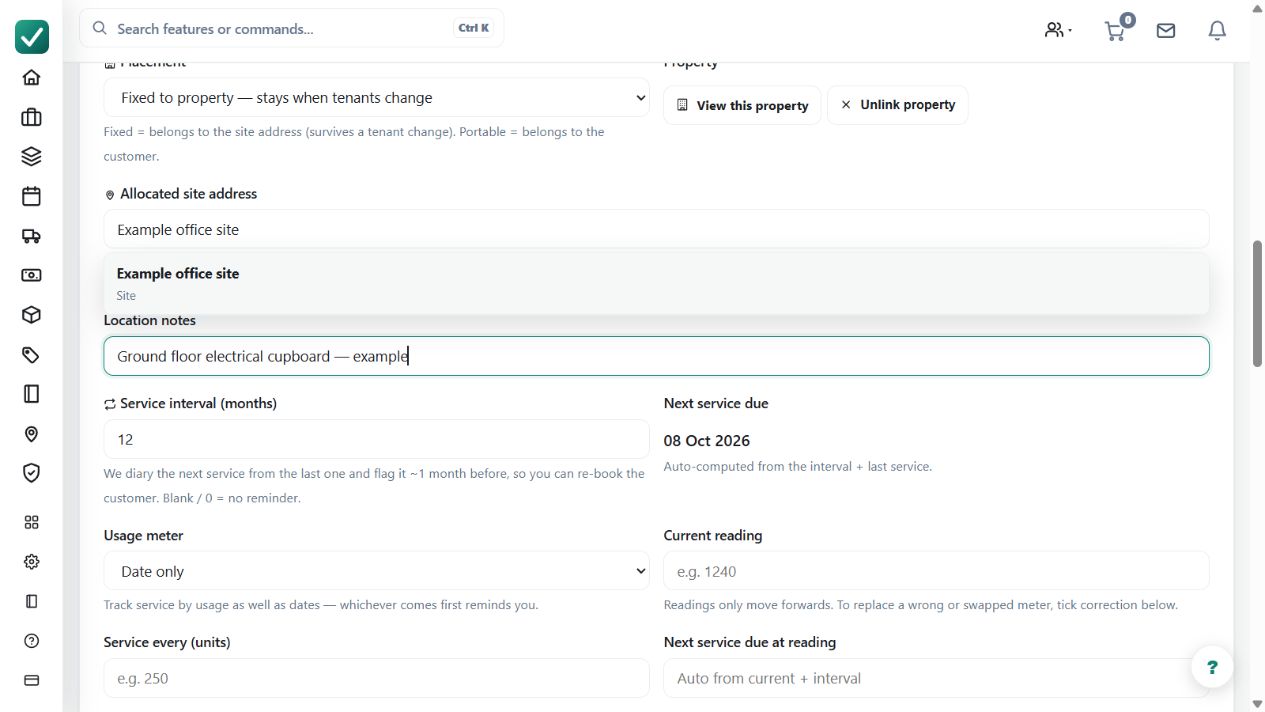
- Set the service interval and install date when the asset needs planned maintenance.
- Use Upcoming services to review overdue and due-soon work.
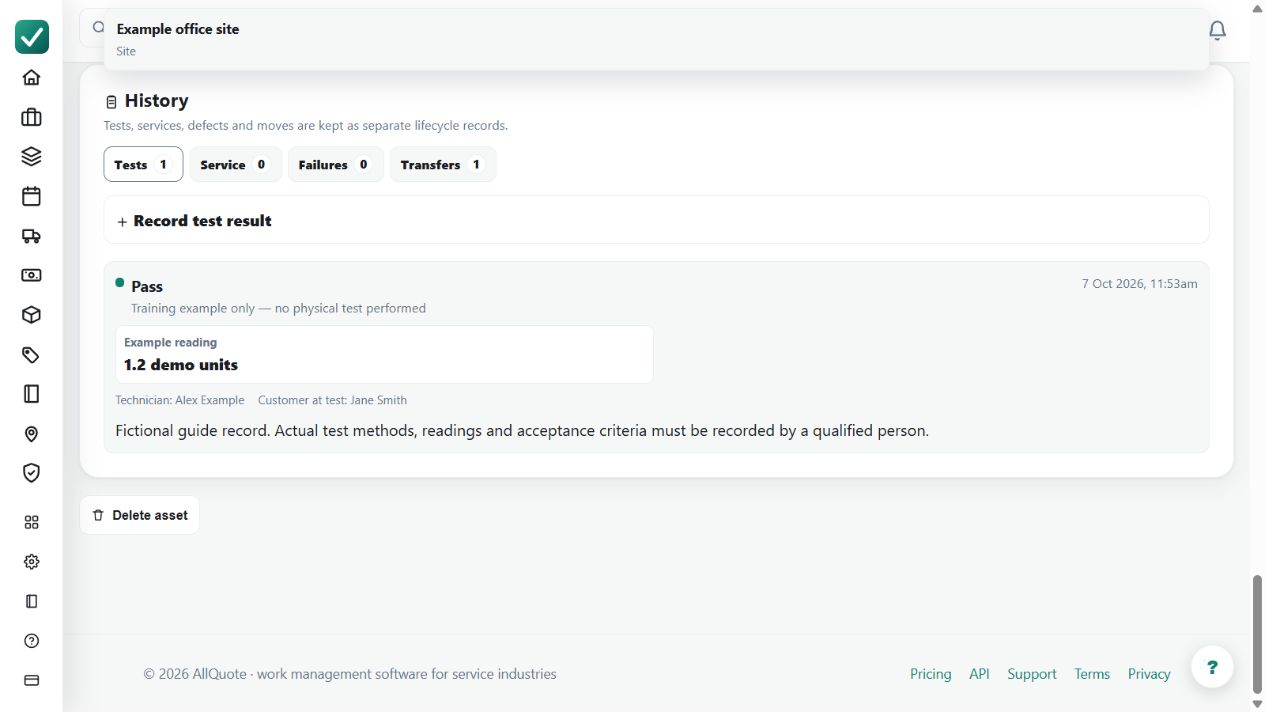
- Log completed services with notes and an optional linked job so the lifecycle history stays attached to the asset.
Worked example
For an office switchboard, record its serial number and agreed service interval, then review Upcoming services. After work is actually performed, record a service event against the same asset. Use the separate Tests history for the test method, result and readings, Failures for faults, and Transfers for ownership or location changes. Link the job when appropriate so a later reviewer can trace the work.
This is an illustrative scenario. Use your own approved scope, quantities, rates and business rules.
Check the result
Open the asset and check its serial number, schedule and due indicator. Review the separate Tests, Services, Failures and Transfers histories, including the dates, notes, readings and linked work. Confirm that a planned visit has not been mistaken for a completed service.
Limits and troubleshooting
An entered record does not establish that maintenance or testing occurred. Record real work and evidence before relying on the history or future due date. These guides demonstrate the available asset records; they do not establish multi-year performance, suitability for every compliance regime or superiority over another asset-management platform.
Check current plans and feature availability · Browse every guide