SWMS cadence by job, task or day
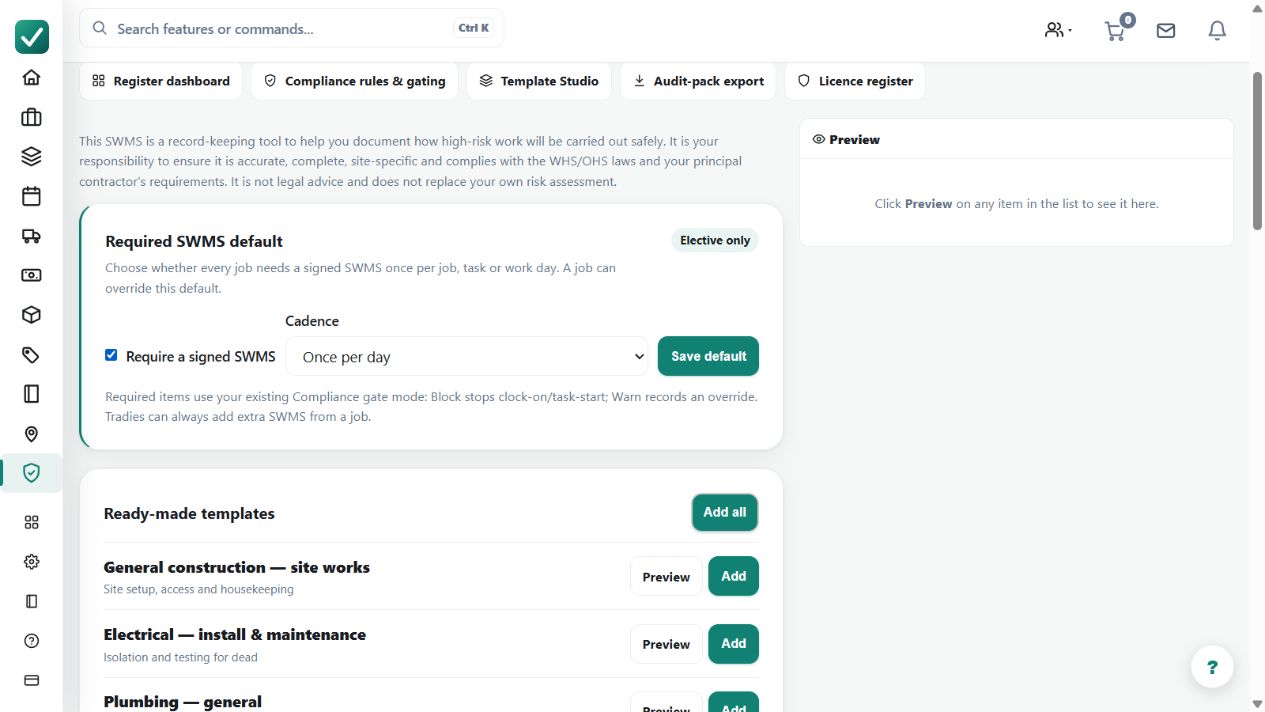
Uses a required checkbox plus a three-option cadence to make a SWMS due once per job, once per task or once per work day on Team plans; leaving the checkbox clear keeps it elective.
Use cadence to define when a signed SWMS becomes due for a job, task or work day.
Before you start
Availability: Team plan and above. Enabled business features, role permissions, connected providers and supported devices may add requirements.
Documented roles: Owner, Office, Team. A role name alone does not override the permissions set by your business.
Where to find it: Work > Compliance Hub > SWMS cadence.
Decide whether the SWMS is elective or required, and choose the cadence that matches the business's approved work process.
Using this guide in United Kingdom
- Set your business country in Business settings before entering customer addresses or preparing documents. The country selected on the public website does not change an existing business.
- Check the business currency (GBP), time zone and document tax settings. Only enable tax collection if your business is registered and the settings match your requirements. Your customer invoice tax settings are separate from tax on your AllQuote subscription.
- Screenshots use demonstration records. Their sample currency, addresses and tax amounts do not override your business settings.
- Use forms, licence types and sign-off requirements approved for your country and the specific contract. Australian demonstration forms and SWMS terminology are examples, not certification that a document meets local law. Check the completed document and approval record before relying on it for site access.
Step by step
- Open Compliance Hub > SWMS. Check Require a signed SWMS to make it required, then choose one of the three Cadence options: Once per job, Once per task or Once per day. Leave the checkbox clear for Elective only.
- Open a job's Compliance area when that job needs a different cadence and save its override.
- Create the due SWMS from the right template, link it to the job or task, complete the work details, then collect the required sign-off.
- Team shows what is due; Enterprise compliance gating can warn or block clock-on or task start until the required SWMS is complete.
Worked example
A recurring high-risk task needs a fresh daily record. Select Once per day with the required checkbox enabled, then review any job-specific override before work starts.
This is an illustrative scenario. Use your own approved scope, quantities, rates and business rules.
Check the result
Check the due state and the signed record against the correct job, task or day. Confirm the business's enforcement mode separately.
Limits and troubleshooting
Team shows what is due; Enterprise gating can warn or block relevant actions. Selecting a cadence alone does not mean every worker action is automatically blocked.
Check current plans and feature availability · Browse every guide