Barcode scanning
Scans or types barcodes to look up stock, receive items, move stock, link unknown barcodes, or create stock from a pricebook match.
Use scanning for controlled stock movements, job usage or item lookup without searching every item by name.
Before you start
Availability: Enterprise plan and above. Enabled business features, role permissions, connected providers and supported devices may add requirements.
Documented roles: Owner, Office, Team. A role name alone does not override the permissions set by your business.
Where to find it: Stock > Scan > Barcode scanning.
Choose the movement mode and the relevant source, destination or job before scanning. Confirm the item unit and quantity represented by its barcode.
Using this guide in United Kingdom
- Set your business country in Business settings before entering customer addresses or preparing documents. The country selected on the public website does not change an existing business.
- Check the business currency (GBP), time zone and document tax settings. Only enable tax collection if your business is registered and the settings match your requirements. Your customer invoice tax settings are separate from tax on your AllQuote subscription.
- Screenshots use demonstration records. Their sample currency, addresses and tax amounts do not override your business settings.
Step by step
- Open Stock > Scan or go to /scan.
- Choose the mode: Stock in, Stock out, Use on job, or Transfer.
- Pick Into location, From location, Job, or To location when the selected mode asks for it.
- Scan with the camera or type a barcode in Type a barcode.
- For a known item, choose the +/- quantity and press Confirm; for an unknown code, use Link to item or Create item, then press Link barcode or Create & continue.
Worked example
To use fittings on a job, select Use on job, choose the job and source location, scan the fitting and confirm the intended quantity. For an unknown barcode, review the item before linking it.
This is an illustrative scenario. Use your own approved scope, quantities, rates and business rules.
Check the result
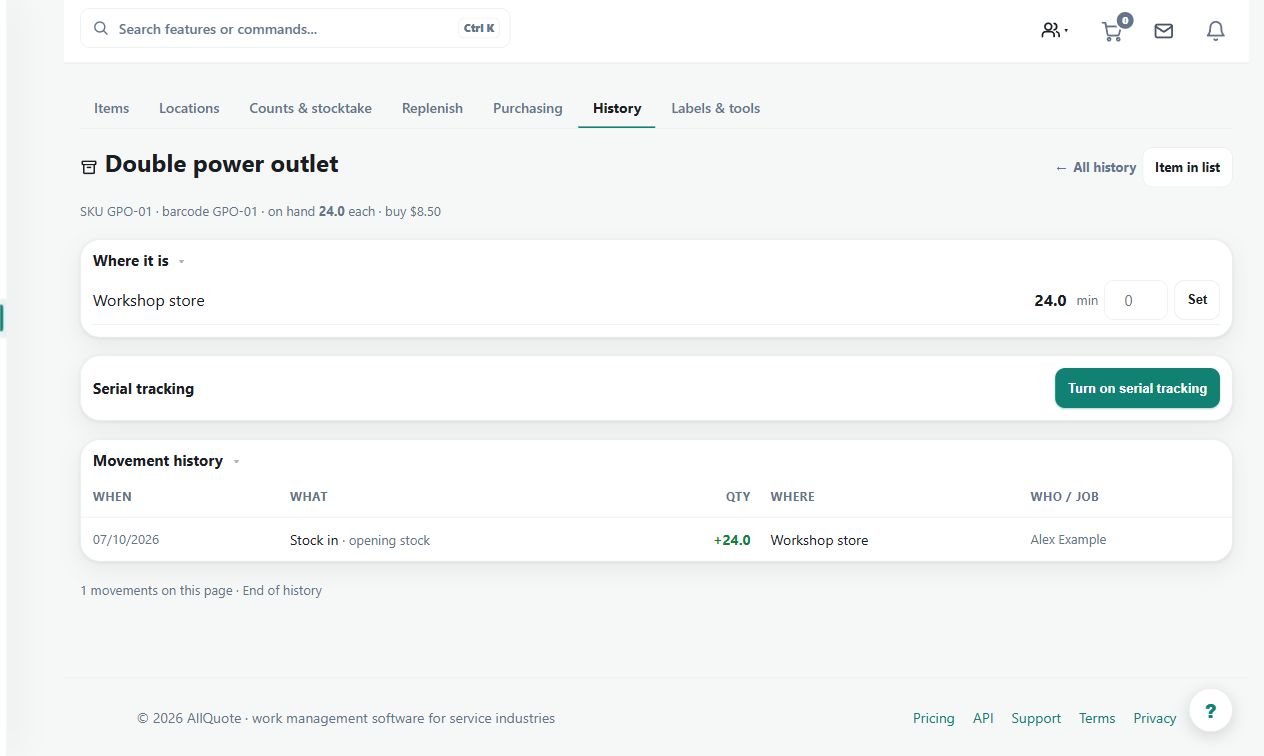
Check the resolved item and movement details before confirmation, then inspect the relevant job or location balance.
Limits and troubleshooting
Scanning alone does not verify pack size or suitability. Linking an unknown code to the wrong item makes future scans wrong too; inspect the description and identifiers carefully.
Check current plans and feature availability · Browse every guide