Accounting reconciliation
Surfaces sync exceptions and payment mismatches so invoice, payment, and accounting records can be accepted, resolved, or ignored.
Use the reconciliation workbench to investigate differences between AllQuote records, payment information and accounting state.
Before you start
Availability: Business plan and above. Enabled business features, role permissions, connected providers and supported devices may add requirements.
Documented roles: Owner, Office. A role name alone does not override the permissions set by your business.
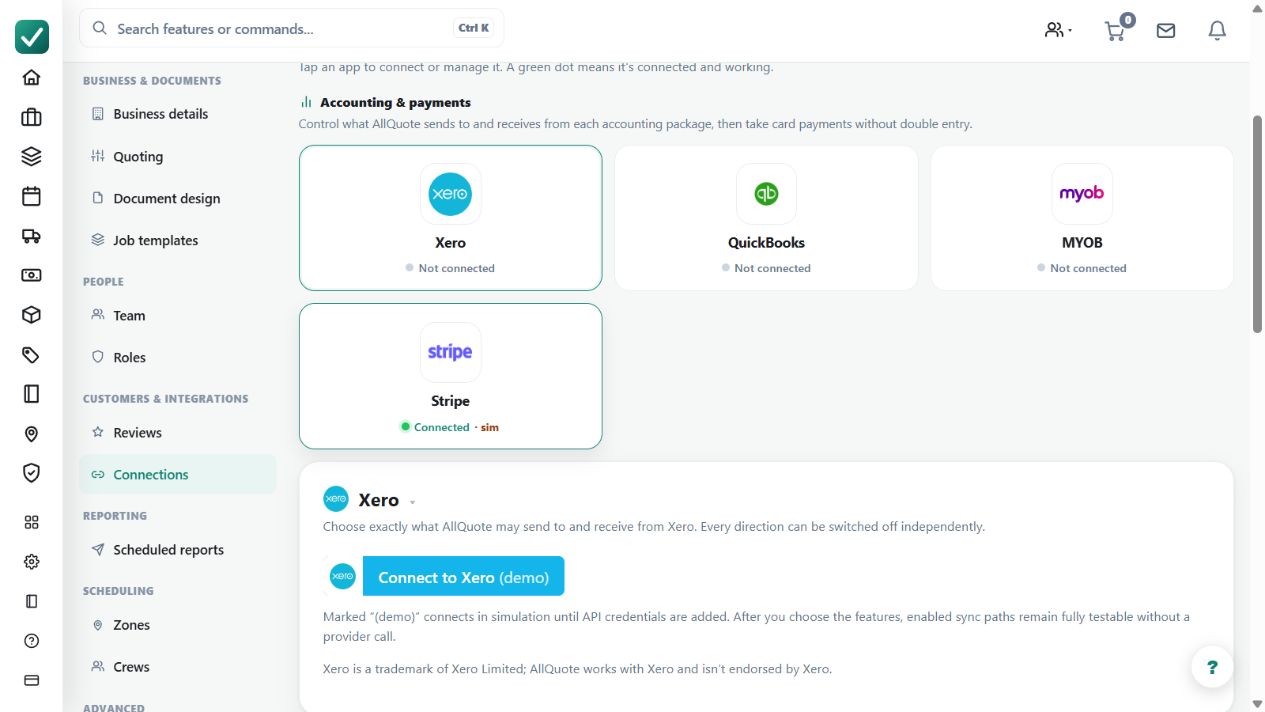
Where to find it: Settings > Business Settings > Connections > Accounting reconciliation.
Refresh the latest state and have the relevant invoice, receipt and provider record available.
Using this guide in United Kingdom
- Set your business country in Business settings before entering customer addresses or preparing documents. The country selected on the public website does not change an existing business.
- Check the business currency (GBP), time zone and document tax settings. Only enable tax collection if your business is registered and the settings match your requirements. Your customer invoice tax settings are separate from tax on your AllQuote subscription.
- Screenshots use demonstration records. Their sample currency, addresses and tax amounts do not override your business settings.
- Confirm that your connected accounting or payroll provider supports your organisation and country. Review account mappings, currency and tax codes using a draft or test export first. Preparing timesheets or a pay run does not establish local payroll filing or employment compliance.
Step by step
- Open Accounting reconciliation at /accounting/reconciliation.
- Refresh the workbench to pull the latest accounting and payment state.
- Review each exception, including amount differences, missing records, or duplicate matches.
- Accept, resolve, or ignore the exception so the local invoice/payment trail stays explainable.
Worked example
Open an amount mismatch, compare the source documents and determine whether the exception should be accepted, resolved or deliberately ignored.
This is an illustrative scenario. Use your own approved scope, quantities, rates and business rules.
Check the result
Check that the chosen action leaves an explainable local history and that any actual provider correction has the expected result.
Limits and troubleshooting
Ignoring an exception is not proof that the underlying amount is correct. Avoid retrying or creating replacement records until duplicate and missing-record possibilities have been checked.
Check current plans and feature availability · Browse every guide