Equipment prestarts
Keeps equipment prestart templates, job checklists and completed records together when the Team plan's Equipment and Safety areas are enabled.
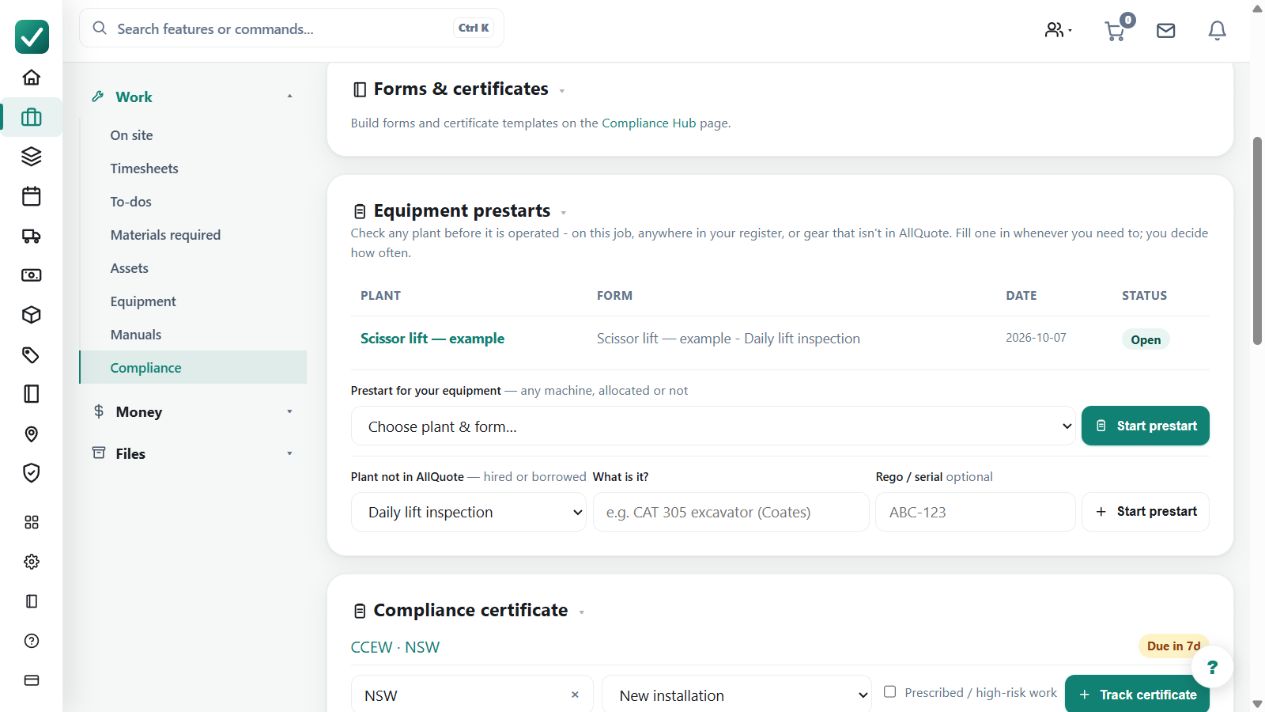
Use equipment-linked templates so each required prestart remains a distinct checklist for the allocated item and job.
Before you start
Availability: Team plan and above. Enabled business features, role permissions, connected providers and supported devices may add requirements.
Documented roles: Owner, Office, Team. A role name alone does not override the permissions set by your business.
Where to find it: Work > Equipment > Prestarts.
Enable the relevant Equipment and Safety areas, attach the appropriate templates and choose whether each requires a signature.
Using this guide in New Zealand
- Set your business country in Business settings before entering customer addresses or preparing documents. The country selected on the public website does not change an existing business.
- Check the business currency (NZD), time zone and document tax settings. Only enable tax collection if your business is registered and the settings match your requirements. Your customer invoice tax settings are separate from tax on your AllQuote subscription.
- Screenshots use demonstration records. Their sample currency, addresses and tax amounts do not override your business settings.
Step by step
- Open the equipment record > Prestarts and create or attach each checklist that applies to that item of equipment.
- When building a template, choose whether a signature is required; an unsigned completion is allowed when the creator leaves it optional.
- Allocate the equipment to the job. Each attached template stays as its own checklist, so one equipment item can have several prestarts on the same job.
- Open the equipment prestart in the field app, answer every item and complete it. AllQuote stamps the actual date, time and completer, and the same record appears in Compliance.
Worked example
A machine has an operating checklist and a separate safety checklist. Allocate it to the job and complete each attached prestart in the field workflow.
This is an illustrative scenario. Use your own approved scope, quantities, rates and business rules.
Check the result
Check that every required checklist has its own completion record with the actual completer and time, and that the same record is visible in Compliance.
Limits and troubleshooting
One completed checklist does not stand in for every attached template. A signature is optional only when the template creator left it optional; incomplete answers still need review.
Check current plans and feature availability · Browse every guide