Manual takeoff workspace
Measures lines, areas, pitched areas, volumes and counts on plans. The takeoff guide includes driveway depth, measured formulas, material and labour assemblies, and revision overlay examples.
Use the workspace to build an auditable quantity estimate from drawings: lengths, areas, pitched areas, volumes and counts can be reviewed before pricing.
Before you start
Availability: Business plan and above. Enabled business features, role permissions, connected providers and supported devices may add requirements.
Documented roles: Owner, Office. A role name alone does not override the permissions set by your business.
Where to find it: Takeoffs > Manual tools.
Select the correct drawing and revision, confirm the measurement units, and calibrate the page against a known dimension. Name measurements by trade, material or work package so the ledger stays understandable.
Using this guide in Canada
- Set your business country in Business settings before entering customer addresses or preparing documents. The country selected on the public website does not change an existing business.
- Check the business currency (CAD), time zone and document tax settings. Only enable tax collection if your business is registered and the settings match your requirements. Your customer invoice tax settings are separate from tax on your AllQuote subscription.
- Screenshots use demonstration records. Their sample currency, addresses and tax amounts do not override your business settings.
- Check the drawing units, calibrate against a known dimension and confirm the ledger unit before applying a material rate. An address or website country does not convert a drawing, assembly quantity or supplier rate. For volume, use consistent area and depth units before checking the cubic quantity.
Step by step
- Open Takeoffs, create or open a takeoff, then upload a PDF, JPG or PNG plan or use a plan already linked to the job.
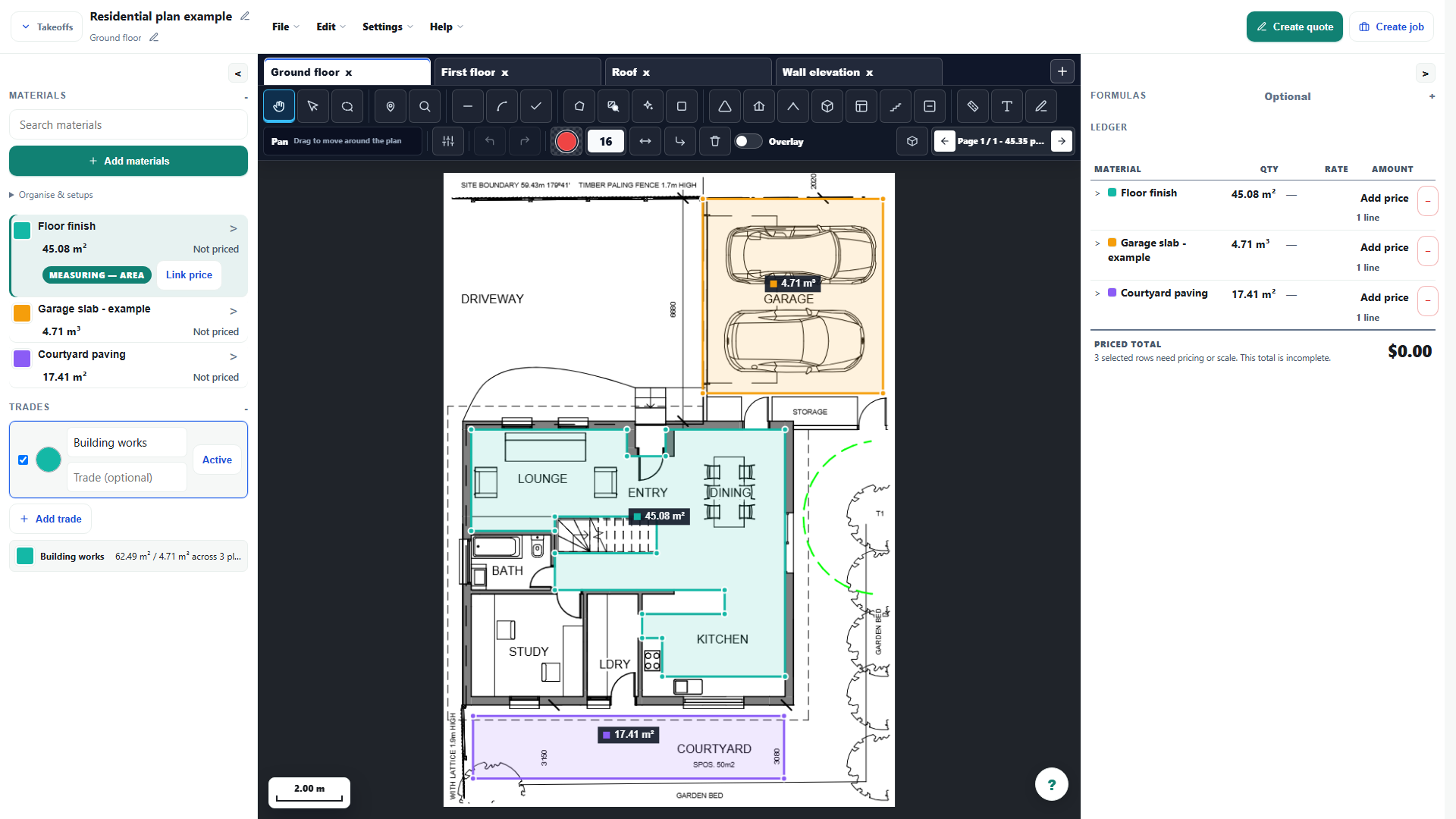
- Check the page scale, then choose Line, Area, Pitched area, Volume or Marker and mark the plan.
- Choose Text and click the plan where the note belongs, then type the note directly in place.
- Review each measurement and the live ledger, fix anything that is off, then save before inserting priced rows into a quote.
- Right-click a measurement for the actions available to its type: Edit points / properties, Duplicate, Add deduction or Apply as deduction, Convert to pitched area (which opens the Roof pitch prompt), or Delete. On touch, long-press instead.
Worked example
On the cropped example plan, measure the garage slab, courtyard paving and floor finish as separate items. Keep slab volume distinct from paving area so a depth-based material order is not confused with a surface finish.
This is an illustrative scenario. Use your own approved scope, quantities, rates and business rules.
Check the result
Check a second known dimension, then compare each ledger quantity with the visible mark-up. Review deductions, units and material mapping before inserting anything into a quote.
Limits and troubleshooting
Drawing quality and calibration affect the result. Cropping does not preserve a paper-size preset. Assisted selections still require review, and an unpriced measured item is not a complete estimate.
Follow the screenshot tutorial: Start-to-finish takeoff quickstart
Open the complete takeoff walkthrough with volume, formula, assembly and overlay examples
Check current plans and feature availability · Browse every guide