Task trade and licence gating
Checks each job task's required trades and licences before crew are assigned, with soft warnings or hard blocks depending on the feature mode.
Use task requirements to check trade and approved-licence suitability at assignment time.
Before you start
Availability: Enterprise plan and above. Enabled business features, role permissions, connected providers and supported devices may add requirements.
Documented roles: Owner, Office. A role name alone does not override the permissions set by your business.
Where to find it: Jobs > Job > Task trade & licence gating.
Set the task's actual required trades and licences, and decide whether the business uses Warn, Hard or Disabled enforcement.
Using this guide in New Zealand
- Set your business country in Business settings before entering customer addresses or preparing documents. The country selected on the public website does not change an existing business.
- Check the business currency (NZD), time zone and document tax settings. Only enable tax collection if your business is registered and the settings match your requirements. Your customer invoice tax settings are separate from tax on your AllQuote subscription.
- Screenshots use demonstration records. Their sample currency, addresses and tax amounts do not override your business settings.
- Use forms, licence types and sign-off requirements approved for your country and the specific contract. Australian demonstration forms and SWMS terminology are examples, not certification that a document meets local law. Check the completed document and approval record before relying on it for site access.
Step by step
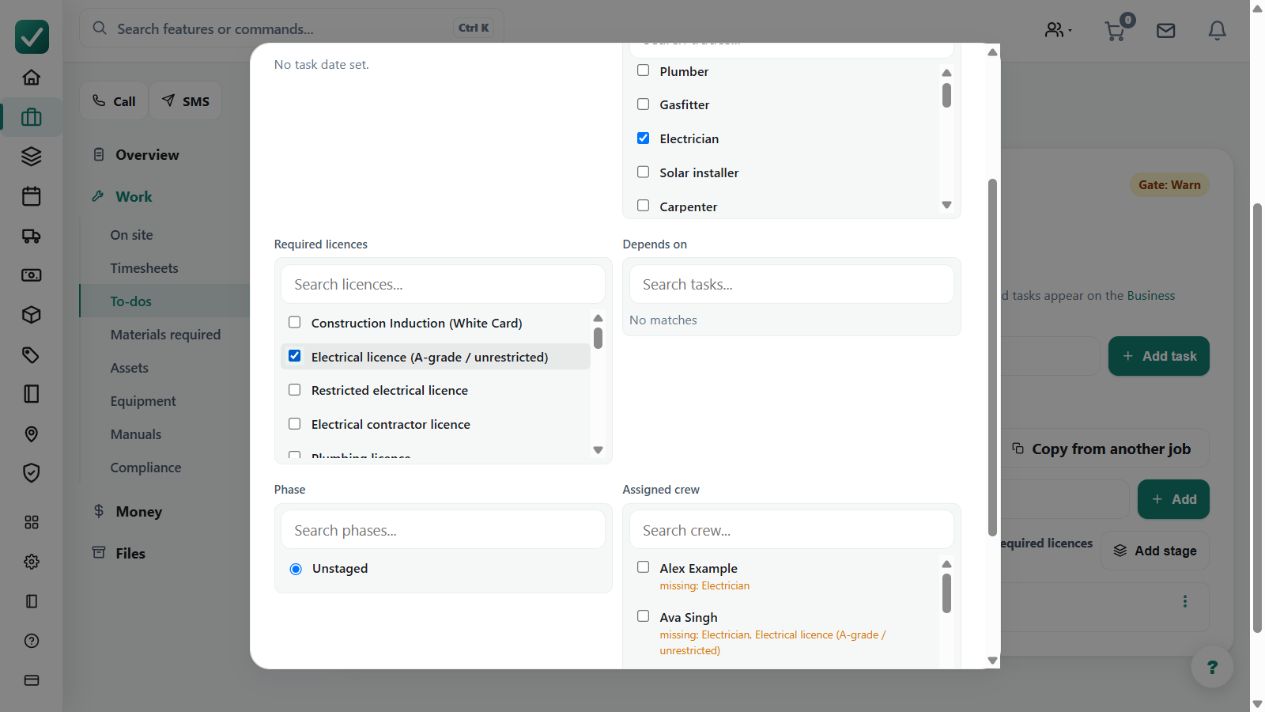
- Open a job, add tasks under Schedule & crew, and set each task's required trades and licences while creating or editing it.
- Assign crew to the task from the job screen or the Business Planner.
- When a selected worker is missing a required trade or approved licence, follow the soft warning or hard block shown.
- Review the job's notes trail when a soft-mode override is recorded.
Worked example
Assign a worker to a task with a required credential. Review the missing-requirement message; choose a suitable worker or follow the allowed warning override process with its recorded reason.
This is an illustrative scenario. Use your own approved scope, quantities, rates and business rules.
Check the result
Check the final assignment and the job's notes trail when an override occurs. Keep the worker's approved credentials current.
Limits and troubleshooting
A soft warning allows an override; it does not establish that the requirement was met. Route optimisation and task credential enforcement are distinct checks.
Check current plans and feature availability · Browse every guide