Quote editor autosave
Autosaves settled edits on reviewed draft and finalised quotes while keeping approval and customer actions explicit.
Use autosave to keep settled edits while building or revising an eligible quote, without confusing saving with approval or sending.
Before you start
Availability: Free plan and above. Enabled business features, role permissions, connected providers and supported devices may add requirements.
Documented roles: Owner, Office. A role name alone does not override the permissions set by your business.
Where to find it: Jobs > Open quote > Autosave.
Check the quote state first. Reviewed drafts and finalised quotes support autosave; sent, accepted and needs-review quotes use explicit Save. Give every priced row a description.
Using this guide in New Zealand
- Set your business country in Business settings before entering customer addresses or preparing documents. The country selected on the public website does not change an existing business.
- Check the business currency (NZD), time zone and document tax settings. Only enable tax collection if your business is registered and the settings match your requirements. Your customer invoice tax settings are separate from tax on your AllQuote subscription.
- Screenshots use demonstration records. Their sample currency, addresses and tax amounts do not override your business settings.
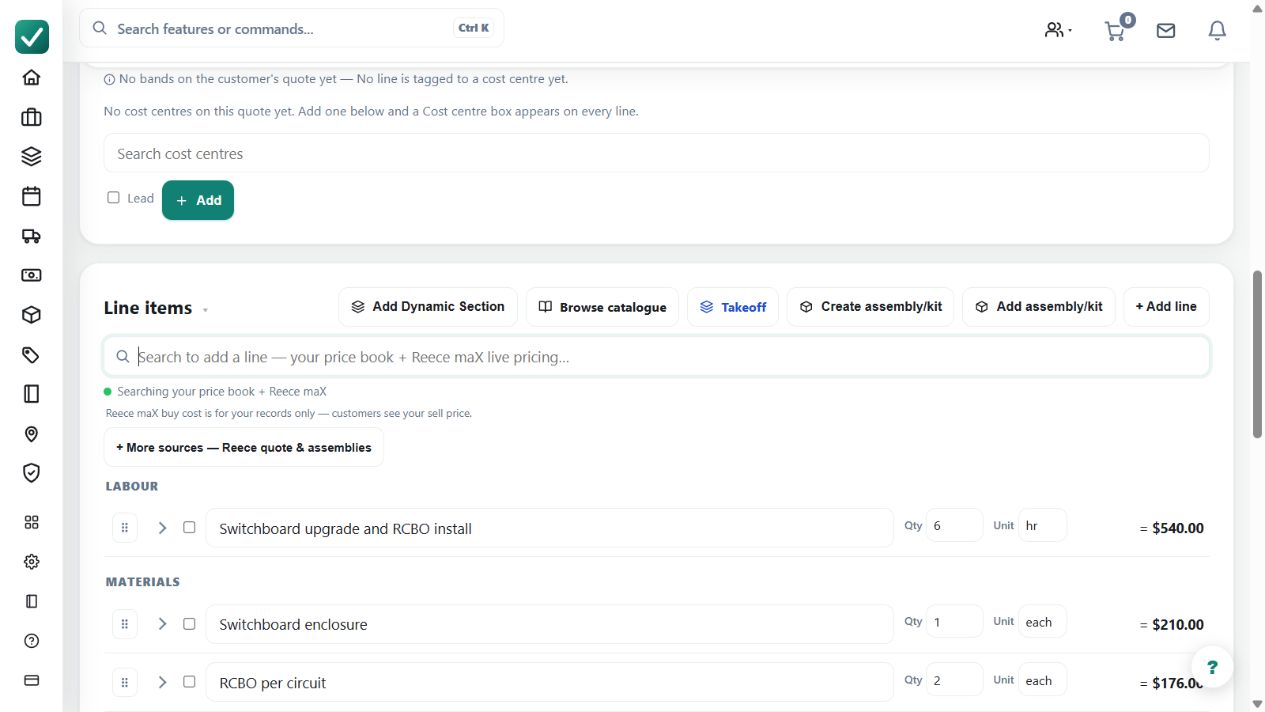
Step by step
- Open the quote from Jobs. Autosave runs on reviewed draft and finalised quotes; sent, accepted and needs-review quotes still use the explicit Save action.
- Edit the supported quote fields and give every priced row a description so the row can be saved safely.
- Pause after an edit and check the status beside the totals: Saving means it is still working; Saved means the change is stored.
- Autosave never finalises or sends a quote. Review the totals and customer document, then use the separate finalise or send action when ready.
Worked example
After changing a labour quantity, pause and watch the status beside the totals. Wait for Saved before navigating away, then reopen the quote to confirm the changed quantity and total.
This is an illustrative scenario. Use your own approved scope, quantities, rates and business rules.
Check the result
Check the save status and the reopened record, particularly after a network interruption. Review the customer-facing document separately before any finalise or send action.
Limits and troubleshooting
Saving means a request is still running. An error is not confirmation that the edit is stored. Autosave never accepts, finalises or sends the quote on the user's behalf.
Check current plans and feature availability · Browse every guide