Assembly breakdown toggle
Controls whether assemblies and kits show their component breakdown or collapse to one customer-facing line.
Choose whether a customer sees each assembly component or one summary line for the kit.
Before you start
Availability: Free plan and above. Enabled business features, role permissions, connected providers and supported devices may add requirements.
Documented roles: Owner, Office. A role name alone does not override the permissions set by your business.
Where to find it: Settings > Business Settings > Documents > Assembly breakdown.
Use a quote containing an actual assembly and select the theme it will use. Decide how much detail the customer needs for the scope.
Using this guide in New Zealand
- Set your business country in Business settings before entering customer addresses or preparing documents. The country selected on the public website does not change an existing business.
- Check the business currency (NZD), time zone and document tax settings. Only enable tax collection if your business is registered and the settings match your requirements. Your customer invoice tax settings are separate from tax on your AllQuote subscription.
- Screenshots use demonstration records. Their sample currency, addresses and tax amounts do not override your business settings.
Step by step
- Open Business settings > Documents and edit the active quote/invoice theme.
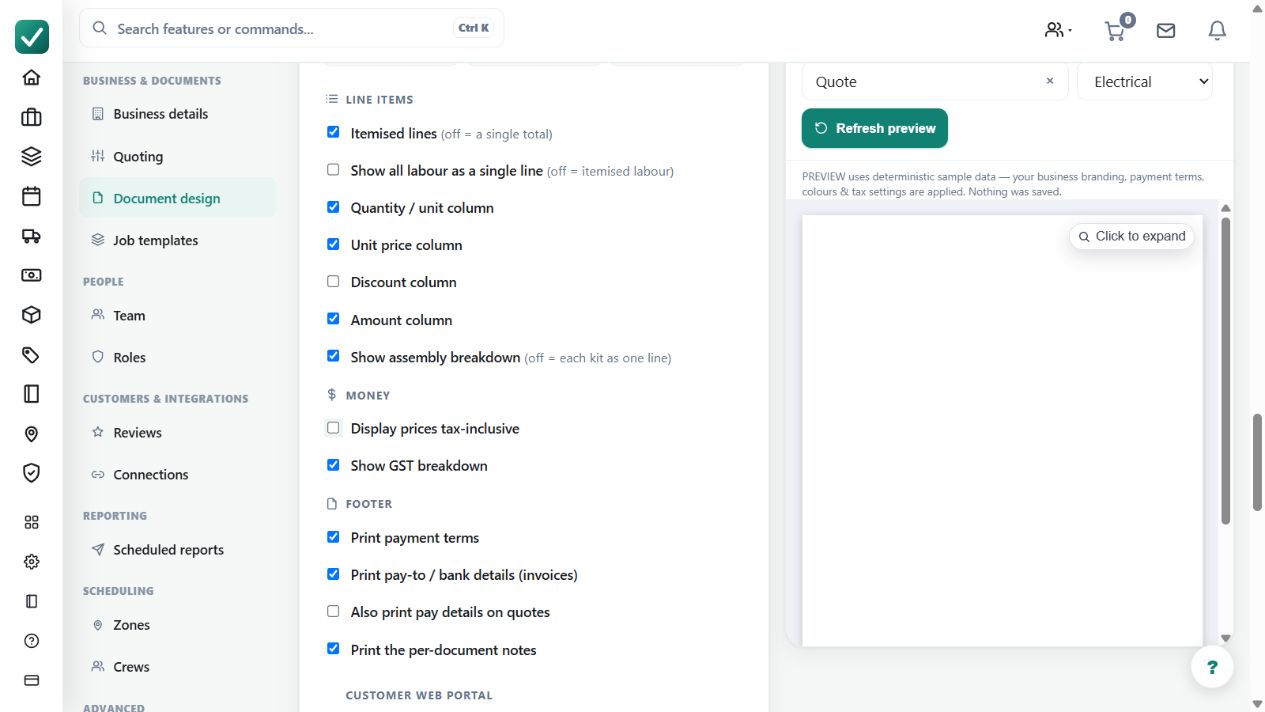
- Find Show assembly breakdown (off = each kit as one line).
- Turn it on when customers should see every kit component; turn it off when each kit should print as one summary line.
- Save the theme, then open a quote that contains a kit and preview the customer PDF.
Worked example
A tiling kit contains tiles, adhesive and labour. Enable the breakdown to show components, or disable it to show a single kit line, then preview the customer PDF.
This is an illustrative scenario. Use your own approved scope, quantities, rates and business rules.
Check the result
Check the kit description, quantity and total in both views. Confirm the business's detailed component build-up remains understandable in the editor.
Limits and troubleshooting
A collapsed kit can hide useful scope detail from the reader. Make the summary description clear; changing presentation does not fix an incorrect component quantity or price.
Check current plans and feature availability · Browse every guide