Stocktake count sessions
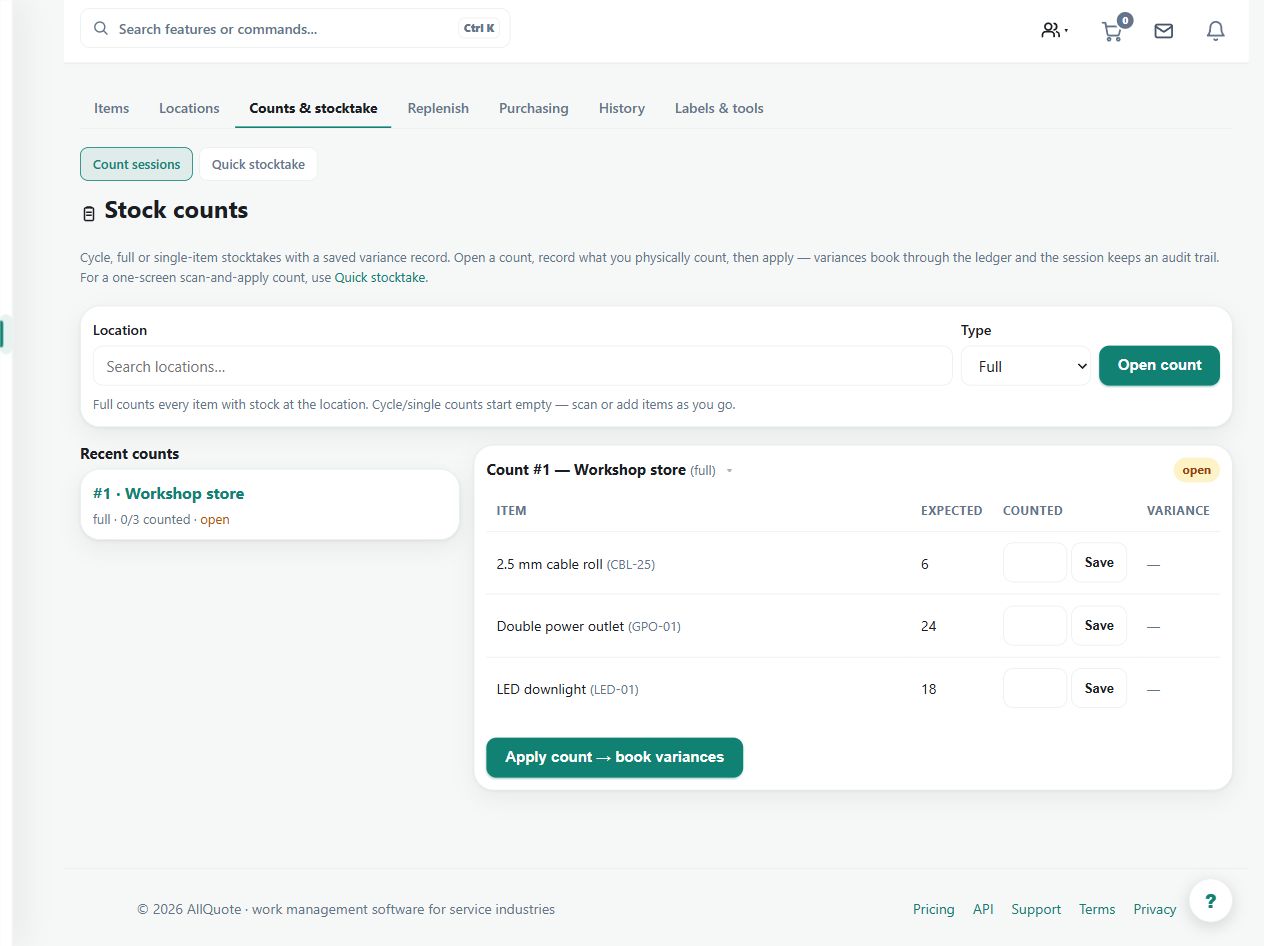
Runs location-based count sessions with scan support, expected quantities, counted quantities, and variance application.
Use a stocktake to compare a physical count with the recorded quantity at a particular location.
Before you start
Availability: Enterprise plan and above. Enabled business features, role permissions, connected providers and supported devices may add requirements.
Documented roles: Owner, Office, Team. A role name alone does not override the permissions set by your business.
Where to find it: Stock > Stocktake > Count sessions.
Choose the location and a practical counting window. Understand that Expected is a snapshot from page load, and coordinate other stock movements during the count.
Step by step
- Open Stock > Stocktake or go to /stock/stocktake.
- Pick the Location being counted; the Expected column is the snapshot from when the page loaded.
- Use Scan to count or type counted quantities into the count rows.
- Review the variance list, then press Apply stocktake when the count is ready.
- If stock moved while counting, refresh before applying so live on-hand is correct.
Worked example
Count the fittings in one warehouse aisle by scan or typed quantity, review the variance list, then apply the stocktake after investigating unexpected differences.
This is an illustrative scenario. Use your own approved scope, quantities, rates and business rules.
Check the result
Check counted quantities, the signed variance and the resulting balance. Refresh before applying when stock has moved during counting.
Limits and troubleshooting
A stale expected quantity can misrepresent a variance. A physical count should not be replaced with the displayed expected figure merely to clear the difference.
Check current plans and feature availability · Browse every guide