One-line kit collapse on documents
Lets the quote editor keep kit components while the customer document can show a single kit line.
Use a collapsed kit line when the customer should see a clear work-package price while the estimator retains the component detail.
Before you start
Availability: Free plan and above. Enabled business features, role permissions, connected providers and supported devices may add requirements.
Documented roles: Owner, Office. A role name alone does not override the permissions set by your business.
Where to find it: Settings > Business Settings > Documents > Kit display.
Build and review the assembly first, then choose the theme's assembly-breakdown setting for the customer document.
Step by step
- Open Assemblies & Kits at /kits.
- Use New assembly, enter Name and Description, then press Create & add components.
- On Edit assembly, use Components, + Add line, and Save assembly to build the reusable kit from pricebook/catalogue components.
- Open a quote and use the line item search Add an assembly / kit... so the tradie's editor keeps the component build-up.
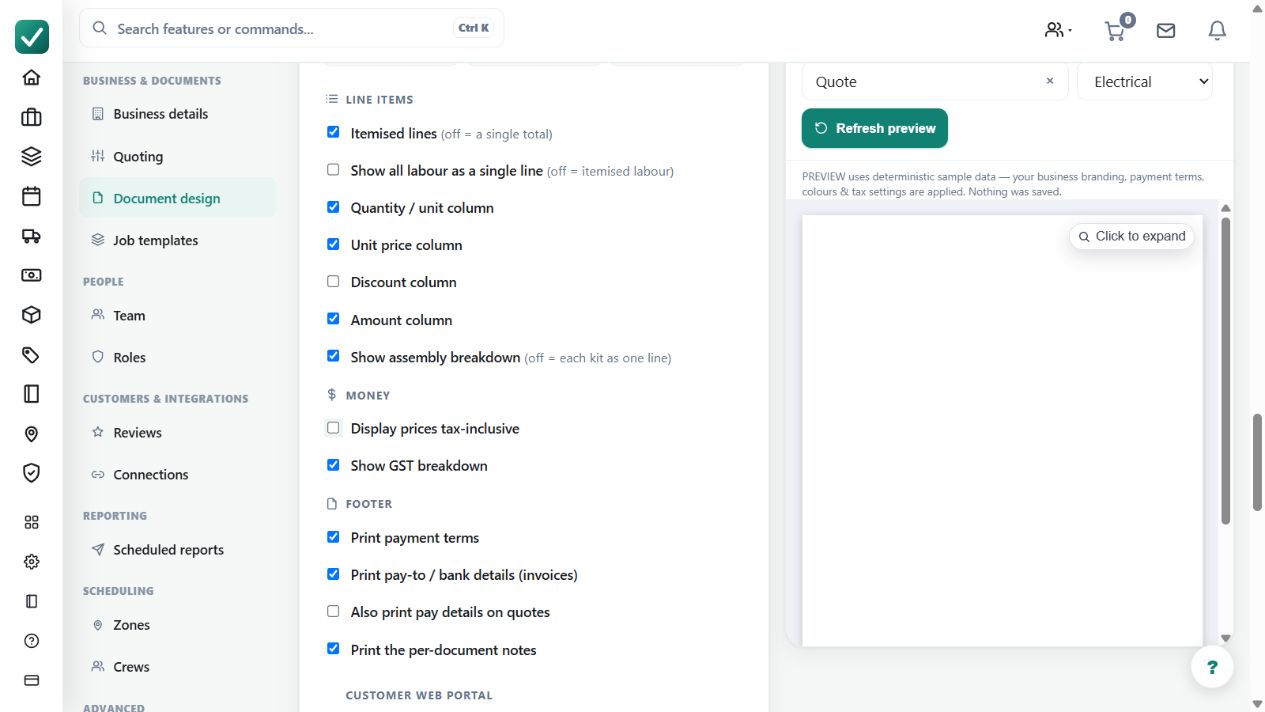
- Open Business settings > Documents and turn Show assembly breakdown (off = each kit as one line) off when the customer should see one collapsed kit line; leave it on when the customer should see components.
Worked example
Insert a labour-and-material installation kit into a quote. Keep its component rows available in the editor and preview the customer PDF with breakdown disabled.
This is an illustrative scenario. Use your own approved scope, quantities, rates and business rules.
Check the result
Confirm the summary description explains the scope and that the displayed total agrees with the underlying components.
Limits and troubleshooting
A single printed line changes presentation, not the need to verify the build-up. Use a component breakdown where the customer requires detailed quantities or scope review.
Check current plans and feature availability · Browse every guide