Deposits
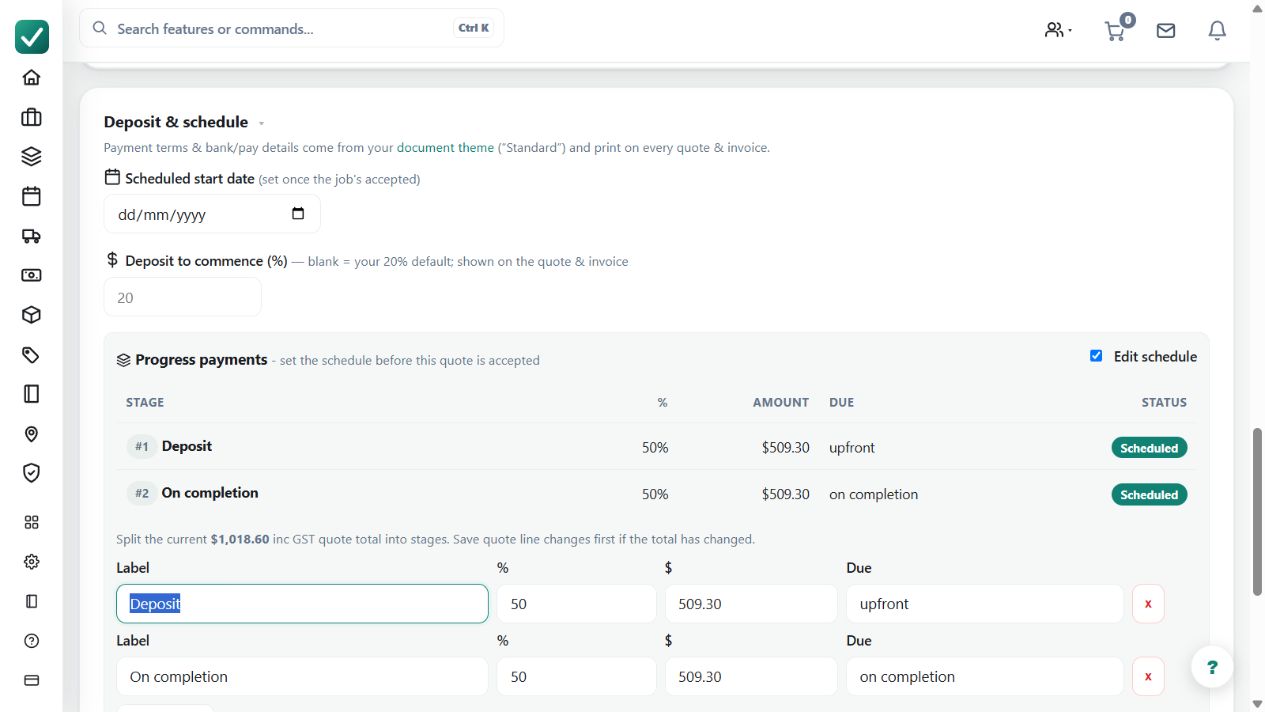
Lets the business request and track deposits before work starts, including defaults and customer payment flow.
Use deposits to agree and track money due before work begins while keeping the amount connected to the quote and job.
Before you start
Availability: Free plan and above. Enabled business features, role permissions, connected providers and supported devices may add requirements.
Documented roles: Owner, Office. A role name alone does not override the permissions set by your business.
Where to find it: Settings > Business Settings > Quoting > Deposits.
Set the intended deposit terms and confirm the customer-facing wording. Check the payment connection if the customer will pay online.
Step by step
- Open Business settings > Quoting at /group-settings?tab=quoting.
- Set the default deposit percentage or wording the business wants on new quotes.
- Send the quote and let the customer pay from the customer copy, or record the deposit from the quote/job/invoice flow.
- Open the linked job or invoice list to confirm the deposit is shown before scheduling or final invoicing.
Worked example
For an illustrative $10,000 quote with a 20% deposit, confirm the $2,000 request and the remaining balance in the customer document, then verify the recorded receipt on the linked job.
This is an illustrative scenario. Use your own approved scope, quantities, rates and business rules.
Check the result
Compare the amount requested, money actually received and remaining balance. Record a manual receipt only when it corresponds to a real payment.
Limits and troubleshooting
A deposit request is not a payment receipt. Changing default wording does not establish that an existing invoice or customer payment has changed; inspect the actual job records.
Follow the screenshot tutorial: Create a quote
Check current plans and feature availability · Browse every guide