Day Board
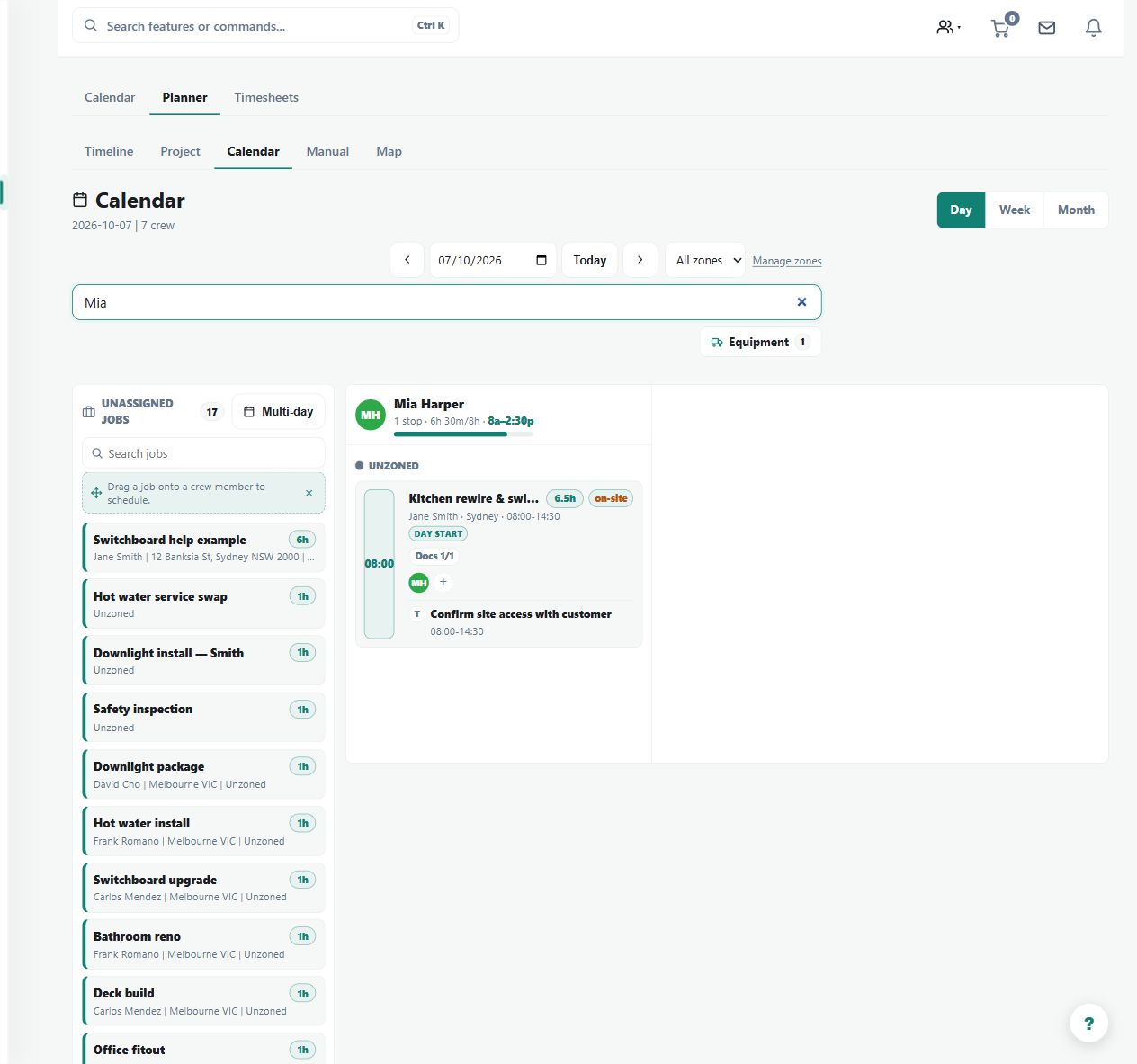
A crew-by-time board inside Business Planner showing fixed and Anytime visits for one day, so the day's load per crew member is visible at a glance.
Use the Day Board to see fixed appointments and Anytime visits across each crew member's day.
Before you start
Availability: Team plan and above. Enabled business features, role permissions, connected providers and supported devices may add requirements.
Documented roles: Owner, Office. A role name alone does not override the permissions set by your business.
Where to find it: Work > Business Planner > Day Board.
Choose the correct planning date and review existing assignments and worker availability.
Step by step
- Open Business Planner at /dispatch and switch to the Day Board.
- Pick the date being planned.
- Review each crew member's fixed appointments and Anytime visits across the day.
- Adjust assignments on the board as the day changes; per-person route optimisation is available where auto-routing is on.
Worked example
Place an urgent visit around fixed appointments, then inspect the worker's resulting day and route where optimisation is enabled.
This is an illustrative scenario. Use your own approved scope, quantities, rates and business rules.
Check the result
Check fixed times, Anytime work and the resulting crew assignment. Compare the board with the job details after a scheduling change.
Limits and troubleshooting
Anytime does not mean unlimited capacity. Route optimisation depends on its enabled feature, and a board assignment is not evidence of arrival or completed work.
Check current plans and feature availability · Browse every guide