Crew scorecards
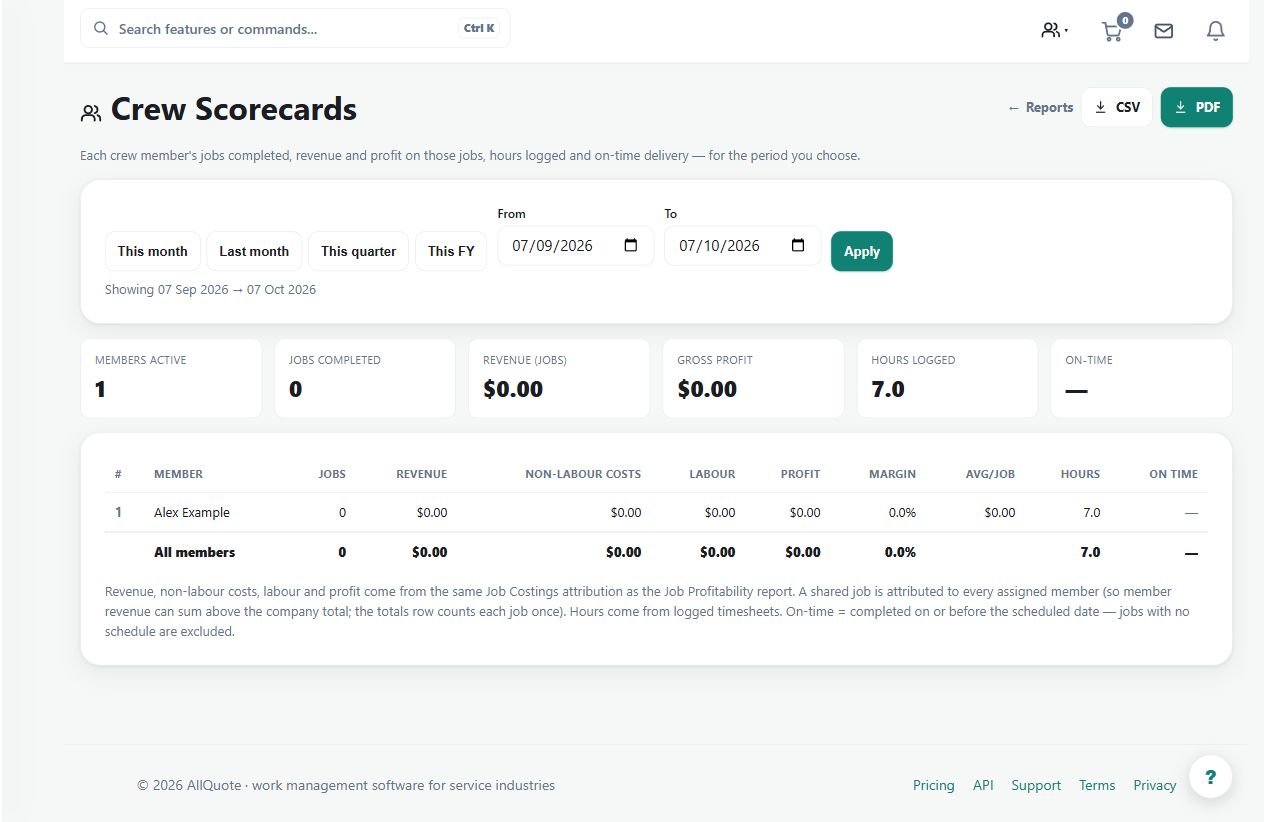
Summarises per-technician jobs, revenue, hours, completion, and on-time performance.
Use scorecards to review the recorded work and outcomes associated with each technician over a consistent period.
Before you start
Availability: Team plan and above. Enabled business features, role permissions, connected providers and supported devices may add requirements.
Documented roles: Owner, Office. A role name alone does not override the permissions set by your business.
Where to find it: Reports > Crew scorecards.
Confirm job assignments, hours and completion records, and select a period suitable for comparison.
Step by step
- Open Crew Scorecards at /reports/scorecards.
- Choose the reporting period.
- Review each technician's jobs, revenue, hours, completion, and on-time performance.
- Export or print the scorecard when it needs to be shared with management or payroll.
Worked example
Review a technician's jobs, revenue, hours and on-time measures, then inspect the underlying jobs before discussing an unusual result.
This is an illustrative scenario. Use your own approved scope, quantities, rates and business rules.
Check the result
Compare like-for-like work and verify the source records behind outliers. Export the selected period when the review needs a shared record.
Limits and troubleshooting
A scorecard is a summary, not a complete measure of worker performance. Job complexity, allocation and incomplete records can affect the apparent comparison.
Check current plans and feature availability · Browse every guide